
Panel reviewer
You want to compare panels and captions on a screen that’s easy to read, and weigh extra screen space against portability. The Consumentenbond explains that larger tablets are less easy to carry around.


If you’ll mainly be looking at lots of storyboard panels, start by weighing up screen space against portability; the Consumentenbond notes that larger tablets are less easy to carry around. For handwritten feedback, the deciding factors are whether the exact model supports a stylus and whether you can save and share the marked-up file. Digital paper may suit a PDF workflow, but it doesn’t automatically offer the same apps as a standard tablet.
You want to compare panels and captions on a screen that’s easy to read, and weigh extra screen space against portability. The Consumentenbond explains that larger tablets are less easy to carry around.
You want to add comments directly to scenes, so you check stylus compatibility, file type and export options. Apple Netherlands explains which Pencil models work with specific iPads; reMarkable describes a PDF import and export workflow.
You mainly want to read and annotate in the library with as few distractions as possible, and check whether a device without the usual tablet apps suits your workflow. reMarkable describes PDF features for the Paper Pro, which runs its own operating system.
First decide how much of a storyboard you want to see at once. Then check that the stylus, file and sharing options suit the way you work.
Choose this if: you want to review several panels or small captions at a table.
The trade-off: more screen space means less convenience when carrying it around. Also check the stylus and file workflow for the specific model.
Choose this if: you often carry your tablet between the library and other workspaces, and don’t mind zooming in more often.
The trade-off: a smaller screen gives you less room to view a full page or several panels at once.
Choose this if: you can provide the storyboard as a PDF and mainly want to read and annotate it.
The trade-off: check in advance that the PDF steps and sharing method suit you. Don’t assume you’ll have the same apps as on iPadOS or Android.
| What to consider | What to look for when buying | Who should prioritise this? |
|---|---|---|
| Panels and captions | View your own storyboard at the intended screen size, and check small text and relevant colours. | If I want to review several panels and small captions, I need to see enough at once; around 36% of consumers prioritise being able to read panels and captions clearly. |
| Stylus feedback and files | Check which stylus works with the exact model, what’s included in the box and whether you can export your comments. | If I want to add comments directly to scenes, the stylus and file format need to suit the way I work; around 29% of consumers say stylus feedback is their main buying concern. |
| Portability and offline use | Check the size, weight and storage, and whether you can open the files you need locally in advance. | If I’m taking the tablet with me and want to prepare my work in the library, I’ll consider its size and file access; around 21% of consumers prioritise working on the move and being prepared. |
| Reading and annotating PDFs | Make sure the storyboard is available as a PDF, then try the import, annotation and sharing steps you want to use. | If I mainly want to give PDF feedback without distractions, the workflow needs to suit me without relying on a particular tablet app; around 14% of consumers prioritise focused PDF reading and annotation. |
Extra screen space can help when you’re looking at a full page, but a larger tablet is less easy to carry around. Compare your own storyboard on the screen and factor in the size when making your choice.
The Consumentenbond explains the trade-off between a larger screen and portability.
Stylus support varies by iPad model, and what’s included in a retailer’s box can vary too. Check the exact model, compatible stylus and box contents before ordering.
You may need to buy a stylus separately, so check the bundle for the version you’re choosing.
The reMarkable Paper Pro runs its own operating system and uses a PDF workflow. Try importing, annotating and exporting a representative storyboard before choosing this option.
reMarkable lists Connect for some sync features; you may also need a different way to manage or share files.
iPad models to consider if you’re looking for a standard tablet with Apple Pencil support.
The Galaxy Tab S10 FE series offers an Android option, with a more compact model and an FE+ for comparing larger screen sizes.
The Idea Tab Plus is an Android option to consider if you’re comparing a screen of around 12 inches and stylus accessories.
Paper Pro is designed for a workflow centred on reading PDFs and giving handwritten feedback.
These Joybuy products are standard tablets to compare for reviewing storyboards. Consider screen space, portability and whether the listed version suits your stylus and file workflow.
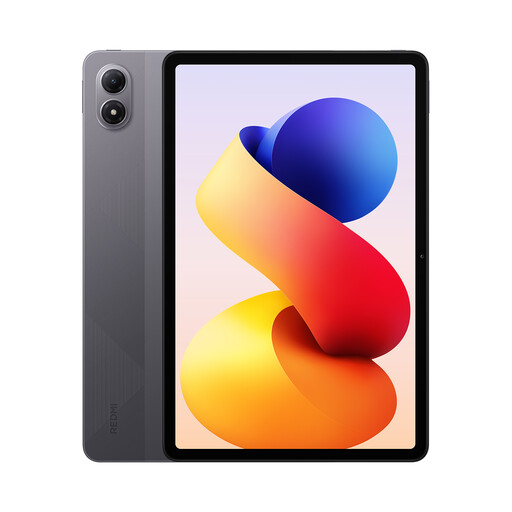 No image available
A tablet to consider if you want to view storyboard files on a standard tablet. Check the screen size and stylus compatibility for this version in advance.
5G; 8 GB RAM; 256 GB ROM.
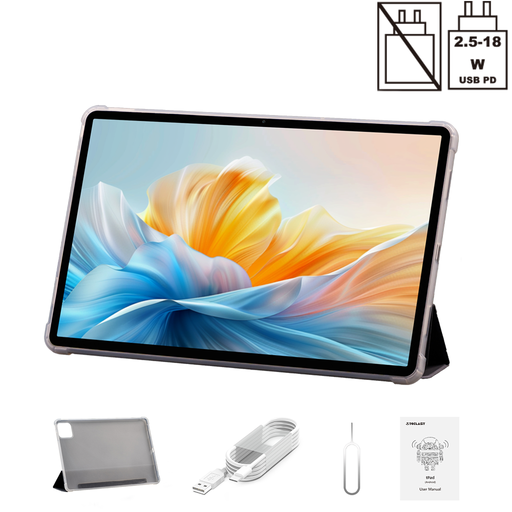 No image available
The listed screen size makes this version worth comparing if you want to view several storyboard panels at a table. Bear in mind that a 14-inch tablet may be less convenient to carry around.
14 inch; 2.2K; Helio G100; 8 GB RAM + 40 GB virtual RAM; 128 GB ROM; folio case.
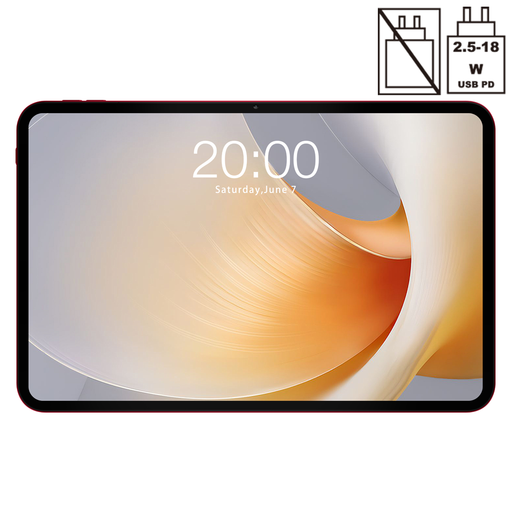 No image available
The listed screen size makes this model worth comparing if you want to view several panels. Check that its size and portability suit your visits to the library.
13.4 inch; 120 Hz; 256 GB ROM.
 No image available
The product name lists compatibility with T pen; check whether the stylus is included with this version and whether your chosen app and file workflow are suitable.
12.7 inch; Helio G99; 8 GB RAM + 12 GB virtual RAM; 256 GB storage; compatible with T pen.
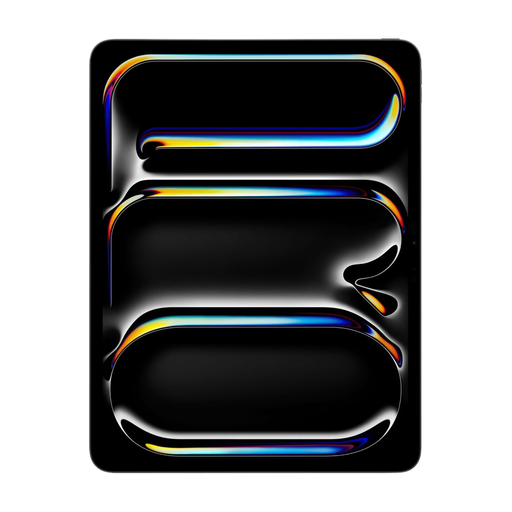 No image available
The listed screen size makes this version worth comparing if you want to review panels on a larger screen. Check which stylus is compatible with this exact model.
13 inch; Wi-Fi + Cellular; 512 GB storage; M5.
Not if you’re only reading. If you want to write on panels, check both stylus compatibility and what’s included in the box; Apple lists different supported Pencil models for the iPad (A16) and iPad Air.
Open the actual storyboard file on your chosen device in advance, and try saving and sharing an annotated version too. reMarkable confirms that Paper Pro supports PDF import and export; this doesn’t mean a specific storyboard app is available.
According to the Dutch Government, you should contact the retailer, not the manufacturer, to resolve an issue under your statutory guarantee. The Netherlands doesn’t have a fixed two-year statutory guarantee period; what you can expect depends partly on the product.
No. According to the European Commission, energy labelling rules have applied since 20 June 2025 to smartphones and slate tablets covered by the scheme; some product categories are also exempt. Check the label for the specific model rather than assuming the rules apply to every tablet.