
Viewing plans on site
You want to find details on a drawing during a site visit and weigh up how much screen space you need against how easy the tablet is to carry. Apple, Lenovo and Fieldwire by Hilti describe using drawings on mobile devices.


A standard iPad or Android tablet is a good fit if the required viewer works on it. Choose a rugged model if dust, moisture or gloves are often a factor, and a Windows tablet if your project software requires one. Apple, Samsung, Lenovo, Microsoft and Panasonic offer different model options, but stated screen brightness doesn’t prove that a display will be easy to read in your working conditions. Try your own drawing, app and offline workflow before you decide.
You want to find details on a drawing during a site visit and weigh up how much screen space you need against how easy the tablet is to carry. Apple, Lenovo and Fieldwire by Hilti describe using drawings on mobile devices.
You take drawings to sites where dust, moisture or gloves are a factor. Samsung and Panasonic describe model-specific protection and features for use in these conditions.
You need to use the same drawing, revision or project app on site. Fieldwire by Hilti describes mobile access to drawings and offline features. For other software, check the requirements of the specific application.
Choose this option if: you mainly view drawings during site visits and the required viewer works on iPadOS or Android.
Consider: a larger screen can give you a better overview, but it’s less portable. Apple lists 500 nits for the iPad (A16) reviewed here, and Lenovo lists 400 nits for the Idea Tab Pro. These figures aren’t outdoor test results.
Choose this option if: you often work with gloves or take your tablet to dusty or wet sites, and your project app runs on Android.
Consider: Samsung lists IP68 protection and glove operation for the Galaxy Tab Active5 Pro. Samsung says responsiveness may vary depending on glove material and thickness. Also check that the screen size suits your drawings.
Choose this option if: your existing workflow requires a Windows programme that can’t be replaced by a mobile viewer.
Consider: Microsoft lists a 13-inch screen for the Surface Pro for Business with Intel reviewed here. Panasonic lists a 10.1-inch screen and IP65 protection for the TOUGHBOOK G2. Check the app requirements and the exact device configuration.
Start with the project app you need and the conditions on site. Then test your own plan: stated brightness and protection ratings don’t automatically tell you how a tablet will perform in your working conditions.
| What to consider | What should you check? | Who should prioritise this? |
|---|---|---|
| Reading plans | Open one of your own drawings at full size and try zooming and navigating in similar lighting. Don’t treat the stated brightness as proof of outdoor readability. | I want to read details without constantly zooming in and out; around 26% of consumers put readability first. |
| Offline access and revisions | Test which sheets the chosen app makes available offline. Fieldwire by Hilti describes offline access and synchronisation; after syncing, check that you have the correct revision. | If the connection drops, I want to be able to open the right drawing and check the revision later. Around 26% of consumers prioritise offline access and revision management. |
| Protection and operation | Compare the protection offered by the exact model and try operating it with your own gloves. Samsung says the Galaxy Tab Active5 Pro’s response to gloves may vary depending on their material and thickness. | On a dusty or wet site, I want to use the tablet without constantly taking my gloves off; around 21% of consumers prioritise protection and ease of use. |
| Making notes on drawings | Check pen compatibility, what’s included in your chosen bundle, and whether your project app saves and shares mark-ups. Apple lists two compatible Pencil models for the iPad (A16); Lenovo lists a pen with the Idea Tab Pro ZAE40020SE. | If I want to mark up a drawing directly, the pen needs to suit both my tablet and my workflow. Around 16% of consumers make annotation their top priority. |
| Existing Windows software | Ask your software administrator to confirm the operating system, processor, file format and offline requirements. The Microsoft Surface Pro for Business with Intel doesn’t, by itself, prove compatibility with a specific app. | If my project depends on a Windows programme, I don’t want to switch to a viewer that lacks essential features. Around 11% of consumers prioritise required Windows software. |
A high-detail screen won’t necessarily make awkward viewing or difficult lighting conditions any easier.
Open your own plan at full size and try it in lighting similar to the site. Balance screen space against how easy the tablet is to carry.
A sheet saved earlier may be a different revision from the one you need on site.
Before you leave, check which sheets are available offline and follow your project’s version-control procedure after syncing.
Preparing in advance and checking the revision takes extra time, especially when you need several drawings.
The features you need depend on the tablet configuration, the bundle and the project app as a whole.
For your chosen model, check which pen and protection are included in the bundle, and whether the app has the features you need.
Your complete workflow may also require a pen, protective accessories, mobile connectivity or a software subscription.
The 11-inch iPad (A16) reviewed here is an option for viewing drawings on the go and using a pen, provided the app you need runs on iPadOS.
The Galaxy Tab Active5 Pro reviewed here is an Android option for field work where ease of use and protection matter.
The Idea Tab Pro ZAE40020SE reviewed here offers a larger screen for anyone who wants more space to view drawings.
The Surface Pro for Business, 11th Edition with Intel, reviewed here is a Windows option if your project workflow is built around Windows.
The TOUGHBOOK G2 reviewed here combines Windows with a rugged design.
These Joybuy products are for anyone who wants to view plans on a tablet; the configurations listed vary in screen size and pen options. Check app compatibility and the level of protection your work site requires.
 No image available
The 12.1-inch screen gives you room to view a plan, and the product name also lists a pen for making notes.
Screen: 12.1 inch, 2.5K. Memory: 8 GB RAM and 256 GB storage.
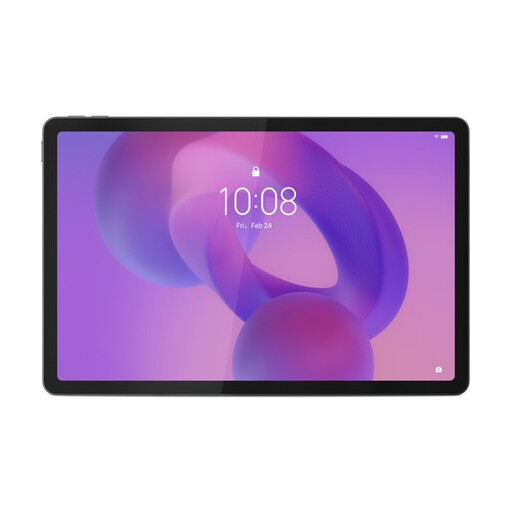 No image available
The 12.7-inch screen suits anyone who wants more room to view a plan; check separately which pen is included with your chosen configuration.
Screen: 12.7 inch, 3K and 144 Hz. Memory: 8 GB RAM and 256 GB storage. The product information warns against water, excessive moisture and drops, so bear this in mind on site.
 No image available
The 13.4-inch screen gives you plenty of space for a drawing; check that your project app works with the Android version listed.
Screen: 13.4 inch and 120 Hz. Storage: 128 GB. The product information warns against dust, moisture and prolonged exposure to sunlight.
 No image available
The 12.7-inch screen and included stylus suit anyone who wants to view drawings and make notes on them.
Screen: 12.7 inch, 2K. Storage: 256 GB. The product information warns against dust, moisture and prolonged exposure to sunlight.
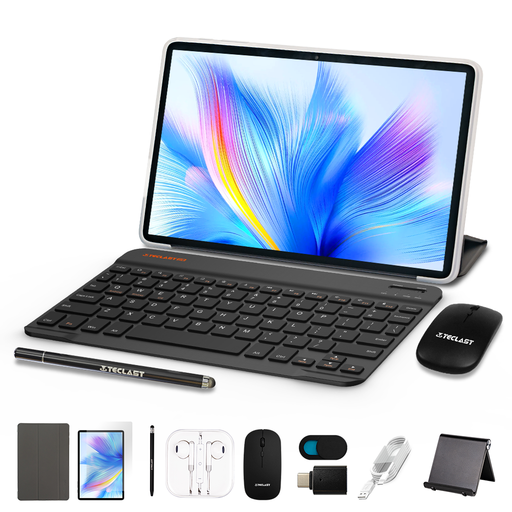 No image available
The included stylus may be useful if you want to make notes on a plan; also check that your project app works with this configuration.
Screen: 11 inch, 90 Hz IPS. Storage: 128 GB. The product information warns against dust, moisture and prolonged exposure to sunlight.
Make the drawings you need available offline in your chosen app beforehand, then open them once without a connection. Fieldwire by Hilti describes offline access to drawings; after syncing, check the revision in line with your project procedure.
That depends on the configuration and the software you choose. Apple lists compatible Pencil models for the iPad (A16), and Lenovo lists a pen with the Idea Tab Pro ZAE40020SE. Check what’s included in the exact bundle and whether the app has the annotation features you need.
Check the system and processor requirements with the software supplier or administrator before choosing a device. Microsoft lists an Intel configuration of the Surface Pro for Business, but that specification doesn’t confirm compatibility with your particular application.
For a private purchase, the product must meet what you could reasonably expect from it. According to the Dutch government, the seller is your point of contact if there’s a problem. This guidance is about consumer rights and doesn’t automatically apply in the same way to business purchases.
The organisation must protect personal data appropriately. The Dutch Data Protection Authority describes security as a matter of tailoring measures to the circumstances; decide what device and management measures are needed based on the data and how it is processed.