
Reviewer working beside a bright window
You review project documents in a fixed spot and want to see how window light affects readability. The Consumentenbond highlights screen reflections as something to consider when choosing a tablet.


There’s no one screen type that suits every workspace when assessing material reuse projects beside a bright window. Compare matte glass, an anti-reflective coating and, where available, nano-texture using your own files in similar lighting. Then choose a screen size and stylus features to suit the way you work, and check your apps and file formats. A quoted brightness figure alone won’t tell you how readable the screen will be beside your window.
You review project documents in a fixed spot and want to see how window light affects readability. The Consumentenbond highlights screen reflections as something to consider when choosing a tablet.
You want to view photos, drawings and notes, and are weighing screen space against portability. The Consumentenbond lists screen size and weight as factors to consider.
You add comments to project documents and want to check in advance that your files, apps and stylus will work with your chosen tablet. The accessories included vary by model and configuration.
A good fit for: anyone who wants to assess reflections first-hand can compare a matte model with their own files. HUAWEI says PaperMatte reduces glare; this is a manufacturer claim, not an independent comparison.
Bear in mind: HUAWEI lists 500 nits and HarmonyOS 4.3 for the MatePad 11.5 S 2026; Lenovo lists 400 nits for the Tab P12 with Matte Display. These specifications aren’t directly comparable as a real-world test.
A good fit for: anyone viewing documents and photos can include the 13 inch iPad Air (M4) in their comparison. Apple lists an anti-reflective coating and 600 nits.
Bear in mind: a coating isn’t the same as matte glass. Apple lists support for Apple Pencil Pro, but a Pencil isn’t included as standard in the box.
A good fit for: anyone who wants to minimise reflections and needs a large screen can compare a 13-inch iPad Pro with nano-texture glass against other screen types.
Bear in mind: Apple offers nano-texture glass only on 1 TB or 2 TB configurations. Check which glass type you’ve selected; the quoted brightness alone won’t predict readability beside your window.
A good fit for: anyone discussing large drawings or viewing documents alongside notes can consider the Galaxy Tab S12 Ultra. Samsung lists a 14,6-inch screen and an S Pen in the box.
Bear in mind: weigh up the larger screen against ease of handling. The screen size alone won’t tell you how much reflection there’ll be in your workspace.
| Consideration | What should you check? | Who is this important for? |
|---|---|---|
| Readability in window light | Compare the screen finish and brightness using the same light and dark files in similar lighting. | I want to assess project photos and fine details without reflections getting in the way. Around 36% of consumers make reflections their top priority. |
| Space for project documents | View your own drawings and photos on screen, then weigh up the size against how you use the tablet. | If I want to view large drawings or several documents at once, workspace matters more to me than a compact size. Around 29% of consumers give workspace their top priority. |
| Annotation and apps | Check that your file formats and project apps work, and that the stylus you want is compatible with the configuration. | I want to add comments to project documents and open my files in the apps I need. Around 21% of consumers prioritise annotation and software. |
| Portability and longer use | Compare the weight and size with the way you’ll use it; for applicable slate tablets, also check the EU energy label and product information sheet. | If I take the tablet between workspaces and want to use it for longer periods, ease of handling and battery life matter. Around 14% of consumers make portability and extended use their top priority. |
Nano-texture glass is an option on certain storage configurations, not a standard feature on every iPad Pro. Apple lists it as an option on the 1 TB and 2 TB configurations.
Before buying, check both the storage capacity and the selected glass type for the exact configuration.
A screen finish alone won’t show how clearly your photos and drawings will remain visible in the light by your window.
View representative light and dark files on the screen in similar lighting conditions.
Stylus support, included accessories and app availability vary by model and configuration.
Before choosing a model, check what’s in the box, stylus compatibility and whether the essential apps you need are available.
For the 13 inch iPad Air (M4), Apple lists an anti-reflective coating and support for Apple Pencil Pro. On the iPad Pro, nano-texture glass is optional on configurations with 1 TB or 2 TB of storage.
HUAWEI positions the MatePad 11.5 S 2026 as a PaperMatte option. According to HUAWEI, the screen surface reduces glare; the specifications list 500 nits and HarmonyOS 4.3.
Lenovo lists a 12,7-inch matte screen and 400 nits of brightness for the Tab P12 with Matte Display.
Samsung lists a 14,6-inch screen and an S Pen in the box for the Galaxy Tab S12 Ultra.
This Joybuy selection includes tablets with a range of screen sizes and input options. For each configuration, check that the screen, stylus and apps suit the way you review project documents.
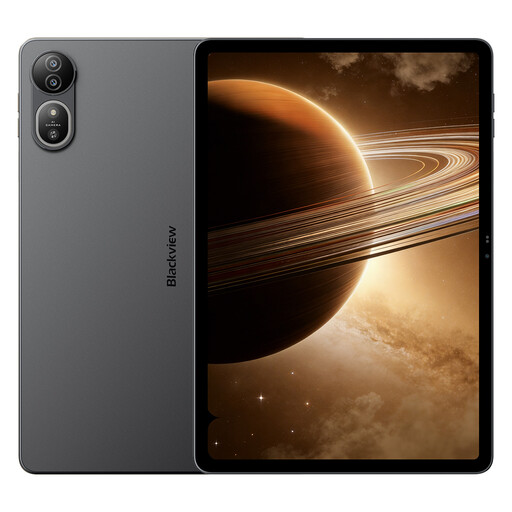 No image available
The 12,2-inch screen is worth considering if you want to view project documents on a larger display.
The product title lists a 2,4K screen, 120 Hz and 36 GB of memory (12 + 24 GB).
 No image available
The product information lists an 11-inch IPS screen and a Tab Pen in the box for writing or drawing.
The title lists a MediaTek Dimensity 6300 processor, 90 Hz and 500 nits. According to the product information, a charger isn’t included as standard; also check whether your project apps are available.
 No image available
The 12,7-inch screen is an option for viewing drawings and project photos at a larger size.
The product title lists compatibility with a T pen; check which stylus is included with the configuration you choose.
 No image available
The product information mentions reading PDFs and making notes with a stylus, which may suit a workflow focused mainly on documents.
The no-glare screen description is a product claim, not an independent comparison. Check that the apps and file types you need work on this model.
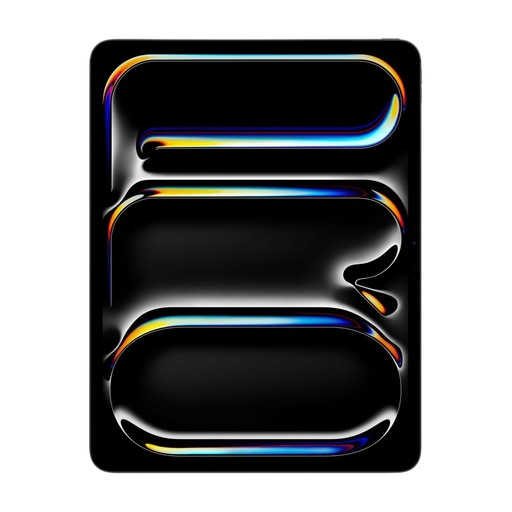 No image available
The 13-inch screen gives you room to view project documents; the product information lists compatibility with Apple Pencil.
The product information lists a Tandem OLED screen and confirms that a stylus isn’t included. Check that your preferred Apple Pencil and project apps suit your workflow.
No, not on its own. Also check reflections on the actual screen and read your own photos and drawings in similar lighting. The Consumentenbond recommends trying a tablet if reflections are important to you.
It varies by model and configuration. Samsung lists an S Pen with the Galaxy Tab S12 Ultra; Apple lists Pencil support for the iPad Air (M4), but no Pencil in the stated standard box contents. For other models, check exactly what’s included in the bundle too.
For slate tablets placed on the EU market from 20 June 2025, the energy label and product information sheet include details such as energy use and repairability. The European Commission distinguishes between slate tablets and tablet computers with a desktop-like operating system.
For online purchases from a business, you’ll often have a 14-day cooling-off period, according to the Rijksoverheid. You’re also entitled to a product that works properly in the Netherlands; if there’s a fault, contact the seller. There’s no fixed statutory guarantee period that applies to every product.