
Teachers typing a handout on the go
You want to be able to edit text and formatting. So first check that your document app and school account work, and that the keyboard is compatible with the configuration you choose.


Start with a tablet that works with your document app and school account. Then choose based on your task: do you mainly need a keyboard, a pen or a larger screen? Microsoft says you can edit mobile Office files offline after downloading and opening them online; your changes will sync once you’re connected again. Check the accessories included with the exact configuration, and test your own handout before relying on it during a school trip.
You want to be able to edit text and formatting. So first check that your document app and school account work, and that the keyboard is compatible with the configuration you choose.
You want to open existing files during the school trip and sync your changes later. Microsoft recommends downloading and opening the file you need in advance.
You want to add comments or field notes with a pen. So check pen compatibility, the app you’ll use and what’s included in the package.
Start by checking your document app, school account and access to files without an internet connection. Then decide whether a keyboard, pen input or extra screen space matters most for your handout.
| What to consider | What should you check? | Who is this important for? |
|---|---|---|
| Typing and formatting documents | Test the required app and school account with a representative handout. Check that the keyboard is compatible and included with the configuration. | If I need to edit text and formatting on the go, I want to know whether my document workflow will work on the tablet. Around 29% of consumers give typing and formatting top priority. |
| Working without an internet connection | Download and open the file while you’re online, then test editing it offline and syncing it later. | If I need to work on an existing file somewhere without internet access, I want to get it ready in advance. Around 29% of consumers prioritise being able to carry on working offline. |
| Notes and sketches | Check that the pen is compatible with the exact configuration and is included. Test a file in the annotation app you plan to use. | If I want to add handwritten comments on location, I want to know whether the pen and app are suitable. Around 21% of consumers prioritise pen annotations. |
| Portability and reading | Compare the weight and screen diagonal of the exact configuration. Try reading one of your own documents on the screen. | If I’m taking the tablet with me and want to read handouts and reference material, I weigh portability against screen space. Around 21% of consumers put portability and readability ahead of the other needs listed. |
If the file isn’t already available on your device, a lack of internet access could interrupt your work on location.
Download and open the document while you’re online, then test offline editing before you leave.
You could lose working time if you can’t access the original file.
A tablet may support pen input even if the pen or the package you want is sold separately.
Check the full model code and the explicitly listed box contents.
A compatible pen may be a separate accessory.
A product description that mentions a keyboard doesn’t prove that it’s included with the configuration you’ve chosen. Apple lists the tablet and USB-C cable as the box contents for the iPad (A16); Microsoft sells Surface keyboards separately.
Check the contents, layout and compatibility of the package you need for typing.
You may need to buy a keyboard or case separately.
Storage, mobile connectivity and accessories can vary between configurations with similar names.
Compare the full model code and relevant specifications before treating an offer as the same configuration.
The iPad (A16) is an option if your school documents and apps work on iPadOS and you’re looking for a tablet with pen or keyboard options.
The Galaxy Tab S10 FE range is worth comparing if you’re looking for an Android tablet with pen input; Wi-Fi and 5G configurations are available separately.
The Idea Tab Pro is an option if you’re looking for a larger Android screen for documents and reference material.
A Surface Pro is a Windows 2-in-1 option if your school workflow or required software needs Windows.
These products are suited to typing, pen annotations or viewing learning materials during a school trip. Before choosing, check that the workflow and accessories mentioned work with your school app and account.
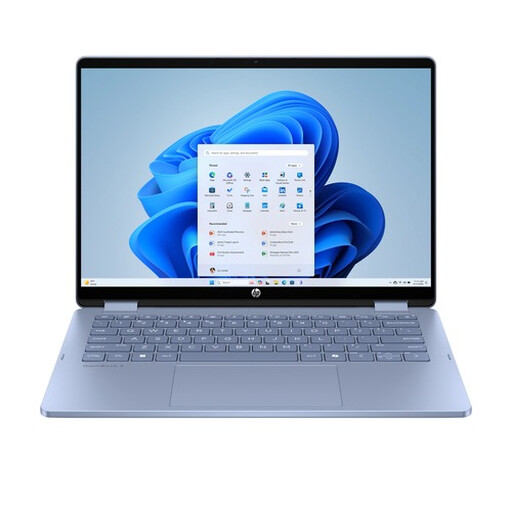 No image available
Suitable for typing on a keyboard and using the touchscreen in tablet mode.
Intel Core 5 120U, 8 GB RAM, 512 GB SSD and 14-inch touchscreen. Windows 11 Home; the description mentions a 360° hinge and keyboard.
Charger and stylus aren’t included; according to the product description, you’ll need a compatible USB-C charger to charge it.
 No image available
Suitable for handwritten additions and viewing documents on a tablet.
12.1-inch 2.5K screen, 8 GB RAM and 256 GB storage. The product name mentions a pen.
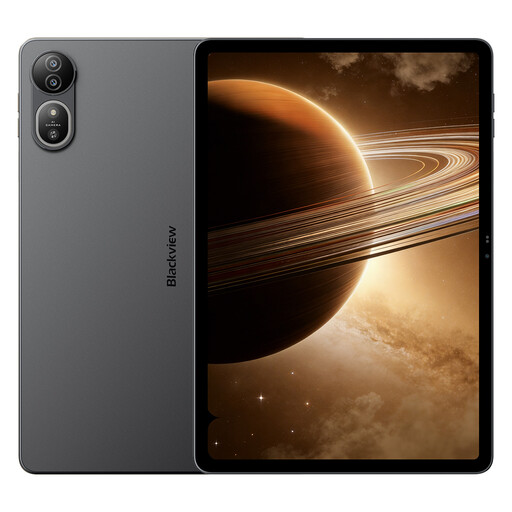 No image available
An option to compare if you’re looking for a larger tablet screen for learning materials and reference sources.
The product description lists a 12.2-inch screen and 256 GB of storage. The product name lists 36 GB (12 + 24 GB), a 2.4K screen and 5G.
 No image available
An option to compare if you want to view handouts and reference material on a larger screen.
The product name lists a 13.4-inch screen, 120 Hz, Android 16 and a folio case.
 No image available
An option to compare if you mainly want to read and write notes alongside documents.
The product description lists an 8.2-inch E Ink screen, 32 GB of storage, a stylus and a weight of 230 g. It also mentions reading and annotating PDF files.
Yes, as long as you download the file you need online in advance and open it in a mobile Office app. Microsoft says you can then edit it offline, and your changes will sync once you’re online again. Test this in advance with your school account and the file you plan to use.
It varies by brand and configuration. Apple lists the tablet and USB-C cable as the box contents for the iPad (A16); Microsoft sells the Surface accessories mentioned separately, and Lenovo says packages vary by configuration. So check what’s included in the exact offer.
It depends on how the photos are used and published. According to the Dutch Data Protection Authority, a school needs consent to take and publish identifiable images of pupils for a school publication. Consent must come from the pupil themselves from the age of 16, or from their parents if the pupil is younger. Make sure the handout and its distribution also comply with your school’s policies.
No. According to ACM ConsuWijzer, the legal guarantee is separate from any manufacturer’s or seller’s guarantee. With normal use, the product must meet the standard you could reasonably expect; if it doesn’t, contact the seller. There isn’t a fixed duration for every tablet.