
Group planner without reliable internet
Wants to access tasks and shared documents while out and about, then sync changes later. Microsoft Support explains that files must be made available on the device in advance for offline use.


First, choose a tablet that runs the school apps you’ve agreed to use and lets you make shared documents available offline in advance. Microsoft Support explains that offline changes only sync once the device is back online, so you’ll need a connection to collaborate live while you’re out and about. Then weigh up stylus input, portability and the accessories you’ll need: a tablet’s stated brightness and battery capacity don’t guarantee how it will perform at your school trip destination.
Wants to access tasks and shared documents while out and about, then sync changes later. Microsoft Support explains that files must be made available on the device in advance for offline use.
Makes sketches, annotations or notes on location, so checks that the right stylus works with the chosen tablet and is included with that version. Apple Netherlands and Samsung Netherlands describe different stylus options for each model and configuration.
Wants a portable screen for planning and recording information, without carrying accessories the group doesn’t need. So check whether a stylus or keyboard has to be bought separately.
First check whether your apps and files work offline. Then decide how much stylus input, portability and mobile connectivity the project calls for.
| What to consider | What should you check? | Who is this important for? |
|---|---|---|
| Access to files | Check the school apps, Wi-Fi or mobile connection, and whether documents can be opened offline after being made available in advance. | If I need to open group files while travelling without reliable internet, I put this at the top of my list; around 36% of consumers give access to group files without reliable internet their highest priority. |
| Note-taking and input | Check stylus compatibility, what’s included in the box and whether you’ll need a keyboard. | If I want to sketch or annotate on location, I focus on the right stylus and easy input; around 29% of consumers prioritise stylus and input. |
| Carrying and reading outdoors | Compare weight and screen size; check the conditions for the stated brightness and plan how to charge the tablet if needed. | If I’ll be carrying the tablet around a lot and want to read documents outdoors, portability and readability are decisive; around 21% of consumers prioritise these needs. |
| Overall setup | Only include the accessories and any mobile connection the group actually needs. | If I want to complete the project without unnecessary extras, I compare the tablet with the accessories we need; around 14% of consumers make the overall setup their top priority. |
A Wi-Fi-only tablet won’t automatically sync with your group if there’s no network available while you’re out. Offline files aren’t a substitute for a live connection.
Decide in advance whether the group needs to collaborate at the same time, or whether downloading documents beforehand and syncing them later will be enough.
Also check whether a version with mobile connectivity requires a separate data plan.
Compatibility doesn’t automatically mean a stylus comes with the tablet. Apple lists support for certain Apple Pencils; Samsung says an S Pen is included with the specified Galaxy Tab S10 FE and S10 Lite.
Check which stylus is compatible and what’s in the box for the exact configuration. Also consider whether your project requires a keyboard.
A stylus or keyboard may need to be bought separately, so only take what the group needs.
Battery capacity and stated screen modes aren’t the same as measured battery life or readability at your destination. Samsung gives the Galaxy Tab S10 FE a rating of up to 800 nits in High Brightness Mode; this doesn’t prove how easy the screen is to read in direct sunlight.
Check the test conditions behind the specifications and, if possible, try the screen’s readability for yourself. Plan a way to charge the tablet if you need to.
The Joybuy listing for a silver Galaxy Tab S10 FE gives the model code SM-X520NZSAXAR, while Samsung Netherlands lists SM-X520NLBREUB for the blue version examined. These model codes don’t refer to the same configuration.
Compare the full model code and colour variant before treating a product listing as the same configuration.
The 11-inch iPad (A16) is an option for groups using iPadOS apps and considering Wi-Fi or a separate Wi‑Fi + Cellular version.
The Galaxy Tab S10 FE and S10 Lite are Android options for groups wanting to take notes or sketch using a stylus.
The Redmi Pad 2 is a Wi-Fi tablet for viewing plans and resources when stylus input isn’t a top priority.
The Lenovo Tab Plus configuration examined, ZADX0011SE, is an Android alternative that Lenovo positions primarily for entertainment.
Below, you’ll find tablets for planning on the go, including models with mobile connectivity, different screen sizes and a range of storage configurations. Check that the school apps and input options you need work with each configuration.
 No image available
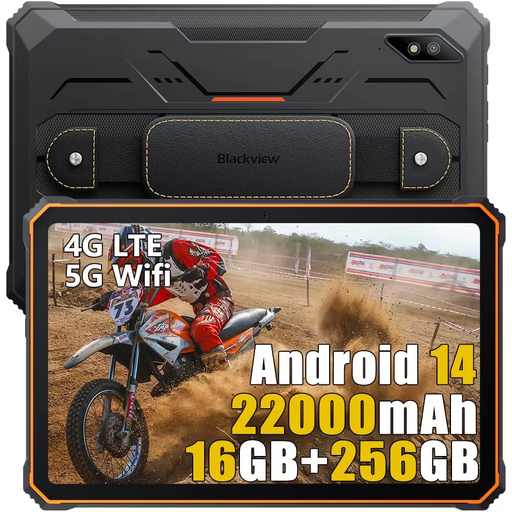
An option to compare if you’re considering mobile connectivity and a camera for capturing materials while you’re out and about.
10.36-inch HD screen, 22,000 mAh battery capacity, 48 MP camera, dual SIM, 4G and Android 13. Battery capacity isn’t the same as measured battery life.
 No image available
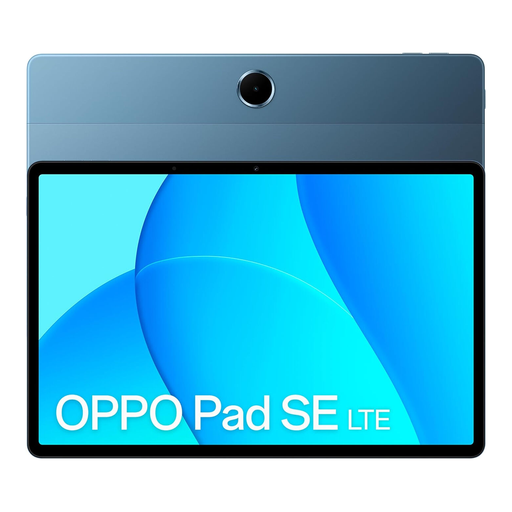
Worth considering if you want mobile connectivity with you on your school trip for planning and checking resources.
The product name lists LTE, 128GB and 6GB.
 No image available
A model to consider if you’re looking for a tablet with a screen suited to documents and planning.
11-inch IPS screen, 90 Hz, 500 nits and Android 15. Check how the charger is supplied with this configuration.
 No image available
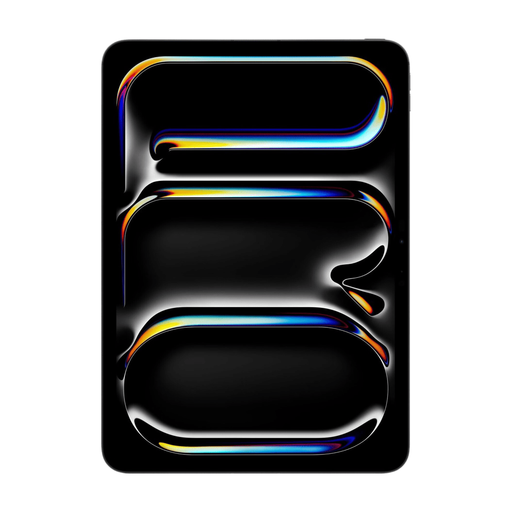
Worth comparing if you’re considering an 11-inch iPad with Wi-Fi and mobile connectivity for planning on the go.
The product name lists Wi-Fi + Cellular and 512GB of storage.
 No image available
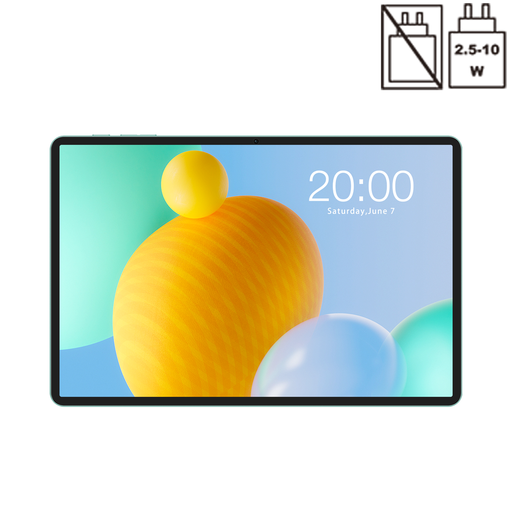
An option to compare if you’re considering mobile data and space for plans or resources while you’re out and about.
11-inch IPS screen, 90 Hz, 8000 mAh, 32GB (6GB + 26GB virtual) RAM and 128GB ROM. The usage information advises against prolonged exposure to sunlight.
Yes, if you use compatible files that you make available on the device and open in advance. Microsoft Support explains that offline changes only sync once the device is back online, so you can’t be sure of seeing other people’s edits as they happen while you’re out and about.
Install and test the agreed apps, open the documents you need while you’re online, and check that everyone in the group has access. Microsoft Support recommends downloading and opening documents in advance for offline use.
With normal use in the Netherlands, you’re entitled to a product that meets what you could reasonably expect. If there’s a fault, contact the seller, as ACM ConsuWijzer explains. For an online consumer purchase, the statutory cooling-off period is generally up to and including 14 days after delivery, subject to legal exceptions.
Not automatically: according to the Dutch Data Protection Authority, permission is needed to publish images, and they must be stored securely. For pupils under 16, permission must come from their parents; from age 16, the pupil must give permission themselves. The school must separately assess the recording and internal use of images.