
PDF reviewer with a stylus
You want to circle passages, add notes in the margins and return an annotated copy. Test importing and returning a sample file of your own. Apple Support and Samsung Netherlands describe workflows for PDF markup and notes.


If you mainly want to add handwritten comments to a PDF, choose a tablet with a compatible stylus and check that you can return the marked-up version in the required format. If you want to edit the report text itself, also check which app and file-handling workflow you need. A paper-like tablet is best suited to reading and annotating, so consider the screen size and any extra features you may need.
You want to circle passages, add notes in the margins and return an annotated copy. Test importing and returning a sample file of your own. Apple Support and Samsung Netherlands describe workflows for PDF markup and notes.
You may also want to edit the text itself. Check that the document app you need and the way you return the file work on the tablet you choose. Apple Support and reMarkable Support describe different options for PDFs and editable notes.
You mainly want to read a longer report in peace and add handwritten comments. Screen size and file transfer can help you decide whether a paper-like tablet suits the way you work. For example, reMarkable describes PDF imports and an adjustable reading light for Paper Pro.
First, decide whether mark-up comments will do or whether you need to edit the report text itself. Then choose a tablet based on the app and file-return process your document requires.
| What to consider | What should you check? | Who is this important for? |
|---|---|---|
| Annotating and returning PDFs | Test importing, marking up, saving and returning a sample file. Apple Support documents PDF markup on iPad; Samsung describes PDF notes in Samsung Notes. | If you want to add handwritten comments in the library and return a usable copy, the complete file-handling process is key. Around 36% of consumers make PDF annotation their top buying priority. |
| Editing report text | Check which file format the recipient expects and test the document app, including saving and reopening the file. | If you want to edit sentences in the body of the text rather than just add mark-ups, check that the app you plan to use supports the file. Around 29% of consumers make text editing their top priority. |
| Reading longer documents | View a page from one of your own reports on the screen and consider the text size, margins and space for comments. | If you read for long periods at a library table, you’ll want to check that the page is comfortable to read and that the tablet suits your portability needs. Around 21% of consumers prioritise focused reading. |
| Everything you need | For each model, check stylus compatibility, what’s in the box and any extra features your workflow requires. | If you want to know in advance what you’ll need besides the tablet, consider the complete workflow and the contents of the version you choose. Around 14% of consumers put overall requirements first. |
Stylus support depends on the exact model, and a compatible stylus may not be included with the tablet. Apple lists compatible Pencil models separately from the iPad Air packaging.
Compare the exact model and bundle with the manufacturer’s compatibility and package details.
You may need to buy a compatible stylus separately.
An annotated PDF is not automatically an editable version of the original report text. reMarkable describes converting PDFs into editable notebooks as a separate Connect feature.
Ask which final file format is required and test importing and exporting. For reMarkable, check separately whether the Connect feature suits the workflow you need.
Screen size alone won’t tell you whether your report page is comfortable to read, how much room there is for comments or how easy the device is to carry.
View the same page at the screen size you’re considering and assess the text, margins and writing space.
iPad Air could suit you if you want to combine PDF markup with apps for the rest of your document workflow.
A Galaxy Tab with S Pen could suit a workflow involving PDF notes in Samsung Notes.
Paper Pro is designed for reading and writing, with PDF annotation as a possible workflow.
The Tab P12 may be worth considering if screen space for report pages is a priority.
These product picks are suited to reading report pages, taking notes or annotating documents on a tablet. For your own report, always check the app you need, stylus compatibility and how to return the file.
 Image unavailable
The product description mentions taking notes and annotating documents with the Lenovo Pen.
Specifications: 12.1-inch 2.5K screen, 8 GB RAM and 256 GB storage. The product name includes a stylus.
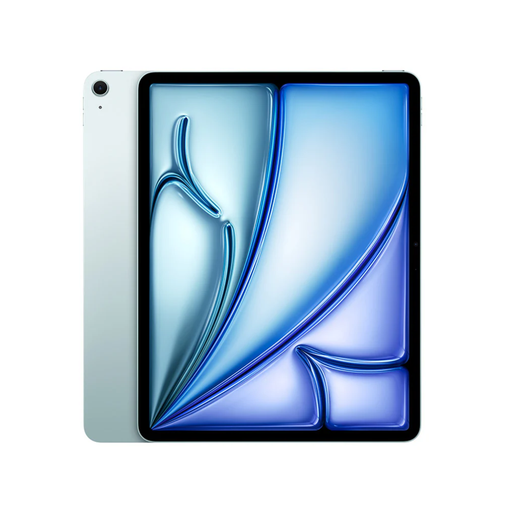 Image unavailable
Could suit PDF markup on iPad if the app and export options you choose fit your workflow.
Specifications: 11-inch screen and 256 GB storage. The product information lists support for Apple Pencil Pro; check what’s in the box, as a Pencil isn’t listed as included.
 Image unavailable
The product description mentions reading PDFs and adding notes directly on the screen.
Specifications: 8.2-inch E-Ink screen, two-colour reading light and a stated weight of 230 g. The product name includes a stylus and protective case.
 Image unavailable
The product description mentions a pressure-sensitive stylus for taking notes; check separately that the report app and export options you need work.
Specifications: 12.7-inch screen, Helio G99, 20 GB RAM (8 GB + 12 GB virtual) and 256 GB storage.
 Image unavailable
The product description mentions reading, handwritten notes and syncing notes. Check that the document workflow suits the file you need to return.
Specifications: 10.65-inch E-Ink screen. The product information lists a thickness of approximately 4.2 mm.
Test the complete round-trip workflow with a representative PDF: import the file, add a mark-up, save it and open the returned version on another device. Samsung and reMarkable describe their own PDF workflows; also check the app you actually use.
Not all PDF annotations change the original report text. reMarkable says converting a PDF into an editable notebook is a Connect feature; check that the final file meets the recipient’s requirements.
Open your own report, add a comment, save the file and open it again. Also check that the stylus is compatible with the exact model and that you can share the final version in the way you need.
According to the Dutch government, you’re entitled to a product that works properly, and the seller must deal with faults in line with the statutory guarantee rules. For distance purchases, you generally have a 14-day cooling-off period, subject to exceptions and conditions.