
Readers of detailed plans
You compare small labels, map colours and legends, and want to know how much of a plan remains visible at once. At a small desk, extra screen space still needs to be practical.


For restoration plans at a small desk, a compact tablet is a practical starting point if your own PDFs are easy to read on it. Choose a larger screen when extra plan space matters more than desk space and the comfort of holding it for long periods. Then choose based on how you use your pen and files, and check separately whether any required study or GIS software is supported, including driver compatibility for Windows devices with an Arm processor.
You compare small labels, map colours and legends, and want to know how much of a plan remains visible at once. At a small desk, extra screen space still needs to be practical.
You want to write directly on PDFs, so you’ll want to check pen compatibility, the annotation app and what’s included in the box.
You need to do more than read plans, so check whether the required study or GIS application works with the operating system and processor.
Choose this if: you mainly read PDF plans and make notes at a small desk.
Bear in mind: you’ll see less of a large plan at once than on a bigger screen; check whether the pen is included with the exact version.
Choose this if: you use iPadOS apps and want to annotate PDFs with Markup.
Bear in mind: Apple lists the Pencil as a supported accessory, not as part of the box contents; the 13-inch version takes up more space than the 11-inch model.
Choose this if: a required course application needs a Windows environment.
Bear in mind: the pen and keyboard may be sold separately; for an Arm version, also check support for the specific app and its drivers.
Choose this if: you often want to view more of a plan at once and mainly use the tablet in a fixed spot.
Bear in mind: larger tablets need more space and are less comfortable to hold for long periods.
When choosing a tablet for restoration plans at a small desk, these five buying concerns are worth considering. If possible, test one of your own plan files and weigh screen space against the room you have available.
| Concern | What should you check? | Who is it more important to? |
|---|---|---|
| Reading details and legends | Open one of your own plans and check the labels, legend and full page at a useful zoom level. | If I want to read small map labels and the legend on a plan, I want to test the file on the tablet itself. Around 28% of consumers prioritise readable plan details. |
| Handwritten annotations | Check which pen is compatible, what’s included in the box, and whether you can save and share an annotated PDF in a useful format. | I want to add notes next to the relevant part of the map and find them again later. Around 22% of consumers prioritise handwritten annotations. |
| Workspace and ease of handling | Compare the tablet’s external dimensions with the space available on your desk, and try it in your usual reading position. | With limited desk space, I want to know whether the tablet will fit alongside my study materials and feel comfortable to hold. Around 22% of consumers rank workspace and ease of handling above other buying concerns. |
| Required study or GIS software | Ask for the app name, version and file formats; check support for the operating system, processor and any necessary drivers. | If my course requires a specific GIS or design app, I want to know first whether it works on the device. Around 17% of consumers name software compatibility as their top priority. |
| Complete purchase | Check which pen, keyboard options and apps you’ll need, and review the warranty and update terms. | I want to know in advance which accessories and apps I’ll need to complete my chosen setup. Around 11% of consumers prioritise getting everything they need in one purchase. |
A larger screen can show more of a plan, but it also takes up more space and is less comfortable to hold for long periods. The diagonal measurement alone won’t tell you whether your file is easy to read.
Test one of your own plans and compare the tablet’s external dimensions with your desk, too.
A device may support a pen without including one in the box for the version you’ve chosen.
For the exact model, check the model code, what’s included in the bundle and whether the pen is compatible.
A compatible pen or keyboard may need to be bought separately; include these accessories when comparing the cost of a complete setup.
Being able to mark up a PDF doesn’t confirm that a required project file, application or driver will work.
Ask your course provider which software you need, then check the operating system and, where relevant, compatibility with Arm processors.
The Galaxy Tab S10 Lite and S10 FE are Android models worth comparing for PDF annotation on a screen of around 11 inches.
The iPad Air is available in 11-inch and 13-inch versions for anyone who wants to use iPadOS and its built-in markup features.
The Idea Tab is an Android range of around 11 inches worth comparing if you’re looking for a compact size and a pen option.
The Pad 8 is an Android alternative with a screen of around 11.2 inches, letting you weigh up screen space and pen support.
The Surface Pro is a Windows 2-in-1 worth considering when required desktop software matters more than a straightforward tablet for PDFs.
This selection includes compact Android tablets with a pen, an 11-inch iPad Air and larger tablets for anyone who wants more room to view plans. Check what’s included with each version and make sure the pen suits the way you work.
 Image unavailable
A compact Android tablet for viewing plans and making notes with the included Tab Pen Pro.
11.1-inch 3.2K screen, Android 15, 256 GB storage and Wi-Fi 7.
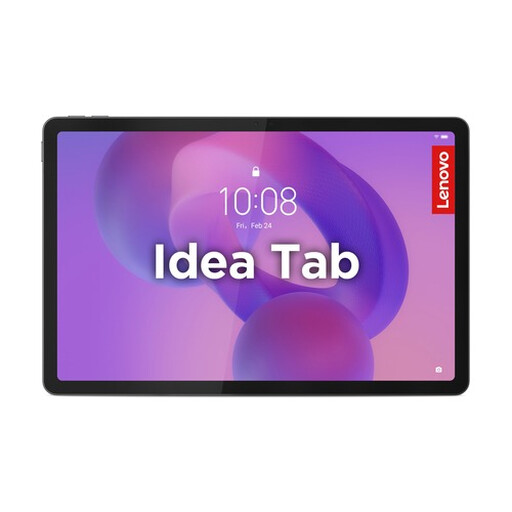 Image unavailable
A compact Android option for anyone who wants to read plans and add handwritten notes.
11-inch 2.5K screen with 2560 × 1600 pixels, Android 15 and 256 GB storage; the product description says a Lenovo Tab Pen is included.
 Image unavailable
The larger-screen version suits anyone who wants more space for plans and notes at a dedicated study spot.
12.1-inch 2.5K screen, 8 GB RAM and 256 GB storage; the product name mentions a pen.
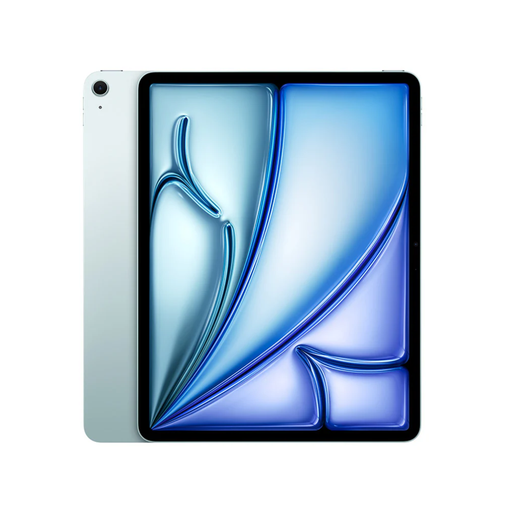 Image unavailable
An 11-inch iPad for anyone who wants to view plans on a compact screen and annotate them with a compatible Apple Pencil.
Wi-Fi and 256 GB storage. The Apple Pencil isn’t included and must be bought separately.
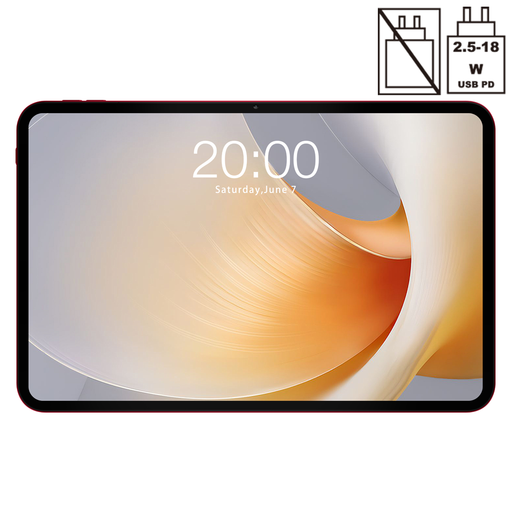 Image unavailable
A larger Android tablet for anyone who values more screen space for plans at a dedicated study spot over a compact size.
13.4-inch screen, 120 Hz, Android 15 and 256 GB storage.
Yes, as long as the file opens in your chosen app and the input you need works. Samsung describes importing, writing on and sharing PDFs in Samsung Notes; Apple explains how to mark up PDFs with Markup. Test one of your own plans and check that you can save the annotations and open the file again.
You can’t tell from the word ‘tablet’ alone. Check with your course provider and the software maker which application, version and files are required. Microsoft also highlights driver compatibility for Windows devices with an Arm processor.
First compare the tablet’s external dimensions with the space available on your desk, and try it with a representative plan drawing. Remember to allow for a stand or keyboard if you’ll be using one. According to the Consumers’ Association, larger tablets are less comfortable to hold for long periods.
According to the Dutch government, you’re entitled to a product that works as it should. For distance purchases, a 14-day cooling-off period applies in many cases. Check the terms and any exceptions that apply to your purchase.
It varies by version and bundle. Apple lists the iPad and USB‑C charging cable as the contents of the iPad Air box; Microsoft says the Surface Slim Pen is sold separately. Check the contents of your chosen version before comparing the cost of a complete setup.