If you want enough space to read and annotate full research PDFs, a screen of around 10 to 11 inches is a practical place to start, although it will take up more room on your desk. Choose a more compact device if desk space is your main concern, but bear in mind that you may need to zoom more often. Before buying, check that the stylus, PDF app and transfer to your reference library all fit your workflow.
Who is this choice for?
Reader with limited desk space
You want to annotate research papers with a stylus while keeping other study materials on your desk. The tablet needs to fit the available space without making PDF pages awkwardly small. Apple, Samsung and reMarkable offer devices in a range of screen sizes.
Reader of articles with lots of figures
You want to view text, tables and figures without constantly changing the view. A larger reading area may matter more than having the smallest possible tablet, but remember to factor in the space the device will take up.
Researcher with an established reference workflow
You want to be able to find handwritten annotations in PDFs later and continue using your existing reference workflow. Zotero documents PDF highlights and ink annotations on iOS and Android. Also check how your chosen app syncs or exports files.
What should you consider when choosing?
Start by viewing one of your own papers at the intended screen size. Then check whether the stylus, annotation app and transfer to your computer fit your workflow.
| What to consider |
What should you check? |
Who is this most relevant to? |
| Desk space |
Compare the external dimensions, including bezels and any case, with the space available. |
If you use books or papers alongside your tablet at a small desk, you’ll want to know how much workspace will be left. Around 33% of consumers prioritise a compact size. |
| PDF reading space |
Open one of your own papers with footnotes, columns and figures, and assess the text size and room for notes. |
If you want to review a full article page with figures without zooming frequently, pay attention to the visible reading area. Around 25% of consumers give reading space top priority. |
| Stylus and workflow |
Check stylus compatibility and what’s included in the box. Test annotating, then syncing or exporting in your own app. |
If you want to use your annotations later in your reference library or on your computer, the whole transfer process matters. Around 25% of consumers start with their existing workflow. |
| Screen type and extra features |
Check how colour figures look on screen and find out which sync or editing features require a subscription. |
If you mainly want to read documents in comfort, a screen designed for reading may suit you, but colour display and extra cloud features could be decisive. Around 17% of consumers prioritise that reading experience. |
Common buying mistakes
-
Comparing only the screen diagonal with your desk space
The body and any case will take up room too. A very compact screen may also mean more zooming or scrolling through wide PDF pages.
Compare the external dimensions and view one of your own research papers at the screen size you’re considering.
-
Assuming stylus support means the stylus is included
Compatibility and box contents are two different things. With some offers, you may need to buy a compatible stylus separately.
Check the full model number, compatible stylus and box contents with the retailer.
Buying a stylus separately can increase the total cost.
-
Assuming an on-screen highlight is a useful research annotation
You also need to be able to find your annotations again or work with them further. reMarkable distinguishes between PDF annotations and certain additional Connect features.
Test the whole process: import a PDF, add annotations, sync or export the file, then open the result on your computer.
Extra cloud or editing features may require a subscription. Check which features are covered by the current terms.
-
Assuming products with similar series names are the same version
For the light blue Galaxy Tab S10 FE reviewed in the Netherlands, Samsung lists the model code SM-X520NLBREUB. A Joybuy listing for the silver version gives SM-X520NZSAXAR; this is a different model code.
Compare the full model code, colour, stylus bundle and terms before treating a product as the same version.
Brands to compare
Apple
A compact iPad option for anyone looking to combine colour with an iPadOS reference workflow at a small desk.
- Apple lists an 8.5-inch OLED screen for the announced iPad mini with A20 Pro, with support for Apple Pencil Pro and Apple Pencil (USB-C). Zotero documents annotations on iOS.
- The smaller screen leaves less room for a full paper page. According to Apple, this version will be available from 6 November 2026.
Samsung
The Galaxy Tab S10 FE is an Android option with more screen space than a mini tablet.
- For the 128GB Wi-Fi version reviewed in the Netherlands, Samsung lists a 10.9-inch screen and S Pen support. Zotero documents PDF and ink annotations on Android.
- Its larger external dimensions will take up more room on a small desk. Check the exact model number and whether the stylus is included with the offer.
reMarkable
Paper Pro Move is designed for reading and writing directly in documents, with a slim device width.
- According to reMarkable, this model has a 7.3-inch colour screen and supports PDF import and export.
- The narrow screen may mean more scrolling through complex papers. According to reMarkable, unlimited cloud storage and certain extra features are included with Connect.
BOOX
According to BOOX, the Go 10.3 (Gen II) Lumi combines a larger monochrome e-paper screen with access to Android apps.
- BOOX lists a 10.3-inch screen, adjustable front light on the Lumi and an InkSense Plus stylus included in the box.
- A monochrome display won’t show colour figures in colour. Access to apps alone doesn’t guarantee that your full annotation and export workflow will work smoothly.
Lenovo
The Tab P12 may suit you if a larger screen and split-screen windows matter more than having a very compact device.
- Lenovo lists a 12.7-inch screen and stylus support for the Tab P12.
- The larger screen needs more desk space. Check whether a stylus is actually included with the specific offer.
Tablets at Joybuy
This selection includes tablets with a pen or stylus for annotating PDFs and documents, from compact reading devices to larger screens. Check the stylus bundle for the specific version and test whether the annotations fit your own workflow.
 No image available
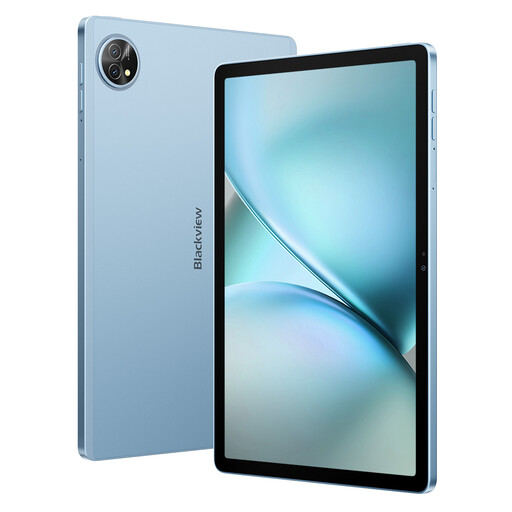
Blackview Zeno 10, 11 inch, with keyboard and stylus
The listed stylus makes this model worth considering if you want to take handwritten notes on a larger screen.
The product name lists an 11-inch screen, a keyboard and a stylus. Check whether its external dimensions will fit on your desk.
View at Joybuy
 No image available
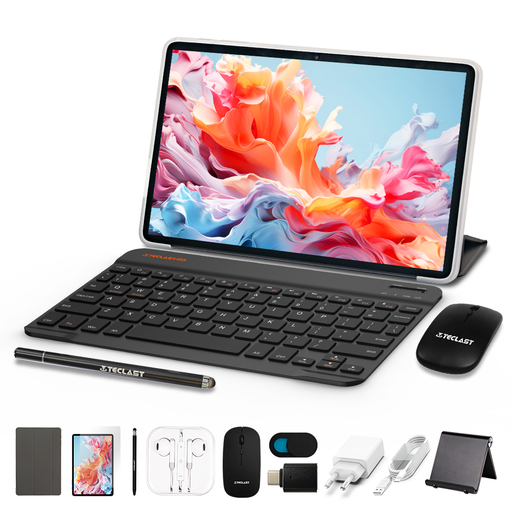
TECLAST P30TCase, 10.1 inch, with keyboard case and stylus
The accessories listed in the product name may be useful if you want to type and annotate in one place.
The product name lists a 10.1-inch Android 16 tablet, a keyboard case, a mouse and a stylus. Check whether the bundle suits the way you annotate PDFs.
View at Joybuy
 No image available
Lenovo Idea Tab Plus WiFi, 12.1 inch, with pen
The larger screen may appeal if you want more room to view text and margin notes; weigh that against the space available on your desk.
The product name lists a 12.1-inch 2.5K screen, 8GB RAM, 256GB storage and a pen. The product description mentions document annotation with the Lenovo Pen included in the box.
View at Joybuy
 No image available
iFLYTEK AINOTE Air 2, 8.2 inch, with stylus
This compact device may suit you if you want to view and annotate PDFs directly on a screen designed for reading, although a full article may require more scrolling.
The product description lists an 8.2-inch E Ink screen, PDF reading and note-taking with the stylus. Try it with one of your own papers to assess the available screen space.
View at Joybuy
 No image available
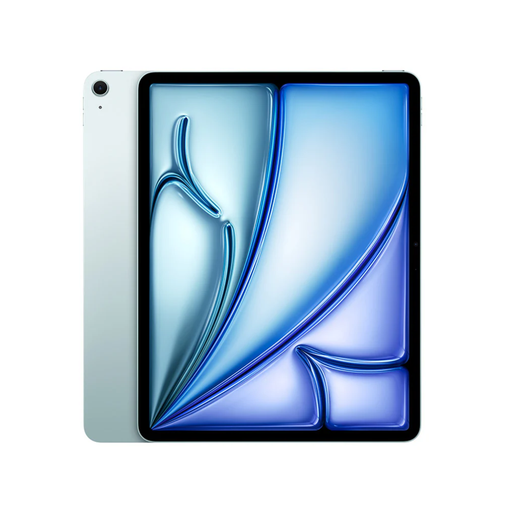
Apple iPad Air M4 Wi-Fi 256GB, blue, 11 inch
An 11-inch iPad may be worth considering if you want more reading space than a mini tablet offers and use your PDFs as part of an iPad workflow.
The product information lists support for Apple Pencil Pro; according to the product information, the stylus is sold separately. Zotero documents PDF and ink annotations on iOS.
View at Joybuy
Frequently asked questions
How can I check whether my annotations will appear in my reference library?
Try a representative PDF in the app you plan to use. Zotero documents PDF highlights, notes and ink annotations on iOS and Android, with further processing on a computer. Also check how your chosen device and app combination syncs.
Can I annotate PDFs on a reMarkable without Connect?
reMarkable describes PDF import and direct annotation of PDFs. Connect is required for features including Convert to Notebook and unlimited cloud storage. Check which features are covered by the terms of the subscription you choose.
What are my rights when buying a tablet online from a company in the Netherlands?
According to the Dutch government, most distance purchases come with a 14-day cooling-off period, although there are exceptions. You’re also entitled to a product of satisfactory quality; the Netherlands has no fixed statutory two-year guarantee period. If a product is faulty, contact the seller.
Can I sync documents containing personal data to a tablet’s cloud service without checking first?
Don’t assume that you can. The Dutch Data Protection Authority states that the GDPR applies to the processing of personal data. Whether a specific research document can be stored in a particular cloud service also depends on its contents, your role and your institution’s rules. Check the requirements before syncing such documents.


