What should you look for in a tablet for renovation planning?
First check that the tablet works with your team’s project app and drawings. Then compare the screen and stylus for meetings, and factor portability, offline use and any accessories you need into your decision.
| What to consider |
What should you check? |
Who should pay particular attention? |
| Files and collaboration |
Check that the app can open, annotate and share existing drawings, and that your team can see the comments. |
If you need to open plans and share them with colleagues, first check that the app and file format are compatible. Around 33% of consumers prioritise file and team compatibility. |
| Annotating together |
Compare the usable space for plans and check which stylus works with the exact configuration and whether it’s included. |
When discussing a floor plan, you’ll want to review details together and make notes as you go. Around 27% of consumers prioritise annotating together. |
| Site walk-throughs and offline use |
Consider how easy the tablet is to handle, and check whether you can download drawings in advance and when changes will sync again. |
During a site walk-through, you’ll want to consult plans without relying on a connection at all times, so portability and working conditions matter. Around 20% of consumers prioritise use during site walk-throughs. |
| Overall workflow |
Check whether you’ll need a stylus, keyboard, app or software licence in addition to the tablet. |
Before choosing, you’ll want to know whether accessories or software are sold separately, so you can assess the complete workflow. Around 20% of consumers focus on the total cost of the workflow. |
Tablet options on Joybuy
These options are suited to viewing plans and making notes during meetings or preparation. Check that each tablet works with the apps and accessories your workflow requires.
 No image available
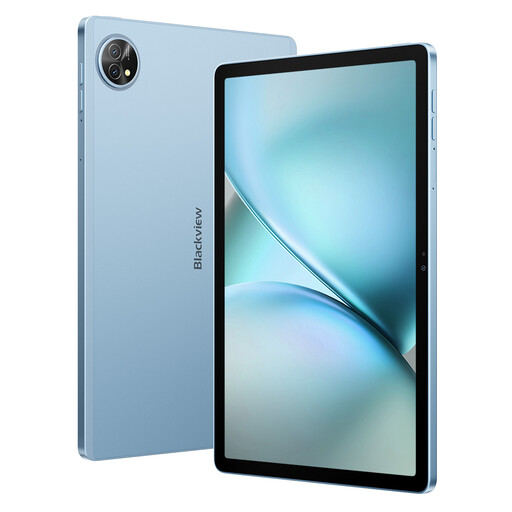
Blackview Zeno 10, 11-inch, 128 GB, blue, with keyboard and stylus
The configuration with keyboard and stylus may suit plan meetings where you also want to take notes.
The product name lists an 11-inch 2K screen and PC Mode.
View on Joybuy
 No image available
Lenovo Idea Tab Plus Wi-Fi, 12.1-inch, 256 GB, Rose, with stylus
This configuration may suit you if you want to use a stylus to take notes during plan meetings.
The product name lists a 12.1-inch 2.5K screen, 8 GB RAM and a stylus.
View on Joybuy
 No image available
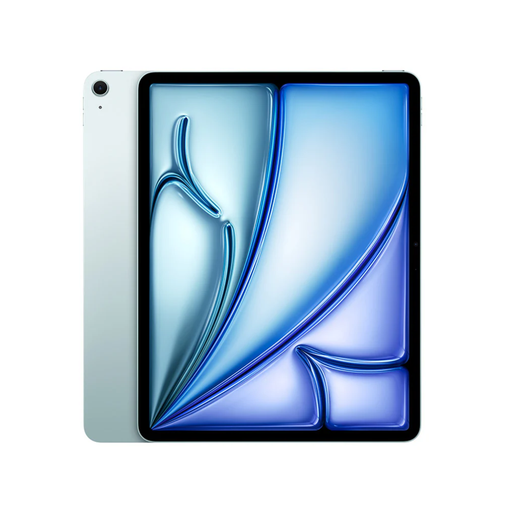
Apple 13-inch iPad Air (M4), Wi-Fi, 128 GB, blue
This iPad Air may suit you if the project app you need works on iPadOS and you want to view plans on a large screen.
The product name lists 13 inches, Wi-Fi and 128 GB. Apple Pencil is sold separately.
View on Joybuy
 No image available
Apple 13-inch iPad Air (M4), Wi-Fi, 256 GB, Space Grey
This iPad Air may suit you if the project app you need works on iPadOS and you want to view plans on a large screen.
The product name lists 13 inches, Wi-Fi and 256 GB. Apple Pencil is sold separately.
View on Joybuy
 No image available
TECLAST ArtPad Pro, 12.7-inch, 256 GB, compatible with T-Pen
This tablet may suit you if you want to view plans on a larger screen and its stylus compatibility meets your needs.
The product name lists a 12.7-inch screen and 256 GB of storage. The product information advises against using it in dusty or damp conditions.
View on Joybuy
Frequently asked questions
Can you work on a drawing during a site walk-through without internet access?
You can do this with Autodesk AutoCAD mobile if you’ve downloaded the drawing in advance. Autodesk says that offline changes sync once the app reconnects. If you use another project app, check its offline features separately.
How can you stop colleagues discussing different versions of a plan?
Agree on one project file and a consistent way of adding annotations. Autodesk says AutoCAD Trace mark-ups can be shared with colleagues using the desktop, web and mobile apps. Test your own workflow to make sure everyone can view and find the comments.
Are a stylus, keyboard and drawing software included with the tablet?
Don’t assume they are. Apple lists a USB-C charging cable in the iPad Air box contents, Microsoft sells the Surface Slim Pen separately, and Autodesk offers AutoCAD Web separately or through certain existing AutoCAD subscriptions. Check the exact bundle and software licence.
What warranty applies when you buy in the Netherlands?
For consumer sales, the Netherlands Authority for Consumers and Markets says the seller is responsible for the statutory guarantee if a product is faulty; a manufacturer’s warranty doesn’t replace this right. If you’re buying on behalf of a business, check separately which terms apply to that business agreement.
Can you take photos of identifiable colleagues and share them?
Not without considering the rules. The Dutch Data Protection Authority says that identifiable images are personal data and that a legal basis is needed to take and use them. Consent can be one example, but it isn’t automatically the right solution in every employment relationship. So check with your organisation whether people need to be identifiable in the images and how the images will be used.


