
Script reader at a table
You read long scripts and want to follow the page without constantly zooming in and out. Screen size and how your file is displayed are important considerations.


A standard tablet is a better fit if, as well as reading, you regularly mark up PDFs or use other apps. An e-paper device makes more sense if reading and handwritten notes are your main priorities. With either option, first check that you can annotate your script file, and that the screen, stylus and weight suit the way you plan to use it.
You read long scripts and want to follow the page without constantly zooming in and out. Screen size and how your file is displayed are important considerations.
You want to add highlights or handwritten notes as you read, then find or share them later. Check the stylus, PDF permissions and options for exporting your file.
You’d rather have a device designed for reading and writing than a versatile tablet. If you’re considering e-paper, compare the lighting on each version too.
| What to consider | What should you look for? | Who is this important for? |
|---|---|---|
| Readability | Open a representative script page and check the text size, margins and how much of the page is visible at once. Consider screen space alongside weight. | If I read long scripts at a table, I want to follow the text without constantly zooming in and out. Around 31% of consumers put readability first. |
| Annotating PDFs | Check that your app and stylus work with the file, and that you can export the annotated version. Protected PDFs may prevent you from writing on them. | If I make notes on stage directions in my script, I want to be able to find or share my highlights later. Around 31% of consumers see annotation as their main priority. |
| Reading and lighting | Check the exact version and try out one of your own scripts in the lighting you usually read in. Not every version has the same built-in reading light. | If I mainly want to read and write without distractions, I want to know how the screen performs in my usual reading environment. Around 23% of consumers prioritise that reading experience. |
| Portability and accessories | Compare the dimensions and weight of the exact model, and check what’s included in the box, especially if you need a stylus. | If I take my device to the library, I want to know in advance how portable it is and whether I’ll need to buy a stylus. Around 15% of consumers prioritise portability and accessories. |
The app, stylus and file protection all affect whether you can make notes. Kobo, for example, says you can’t write notes with the Stylus on DRM-protected PDFs or PDFs where annotation has been disabled.
Before working with the full script, test a file you’ve obtained lawfully. Also check which stylus works with the exact version you’re considering.
More screen space and easy portability are different priorities. The Dutch Consumers’ Association notes that extra-large tablets are less easy to carry around.
View an actual script page on the screen, and assess the dimensions and weight separately.
In the BOOX Go 10.3 (Gen II) series, BOOX distinguishes between the standard version, which has no reading light, and the Lumi, which does.
Check the full model name and the lighting on the version you’re considering.
The iPad (A16) is a standard tablet option for reading scripts and marking up PDFs in iPad apps.
The Galaxy Tab S10 FE is an Android tablet option for annotating scripts with an S Pen.
The Paper Pro is an e-paper device for reading and handwritten annotations.
The Elipsa 2E is an e-reader option for reading and writing with a compatible Kobo Stylus 2.
According to BOOX, the Go 10.3 (Gen II) series offers e-paper with PDF reading and annotation.
The Idea Tab is a standard Android tablet option if a version with a stylus is important to you.
This selection includes standard tablets and an e-paper device for reading scripts and, depending on the model and file, making notes.
 Image unavailable
A standard tablet option for reading a script on screen. If you want to annotate, check which stylus comes with this version.
8 GB RAM and 128 GB storage. IPS screen, 90 Hz, 500 nits and Android 15.
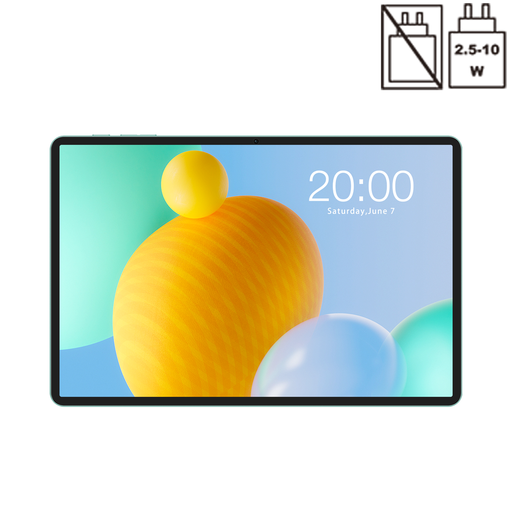 Image unavailable
A standard tablet for reading a script. If you want to make notes, check stylus compatibility and what’s included in the box.
Android 16, 11-inch IPS screen, 90 Hz and 128 GB storage. The listed 32 GB RAM comprises 6 GB plus 26 GB of virtual memory.
 Image unavailable
An e-paper device described in the product name as being designed for reading and writing. Check that it works with your PDF and preferred note-taking workflow.
10.65-inch E-Ink screen.
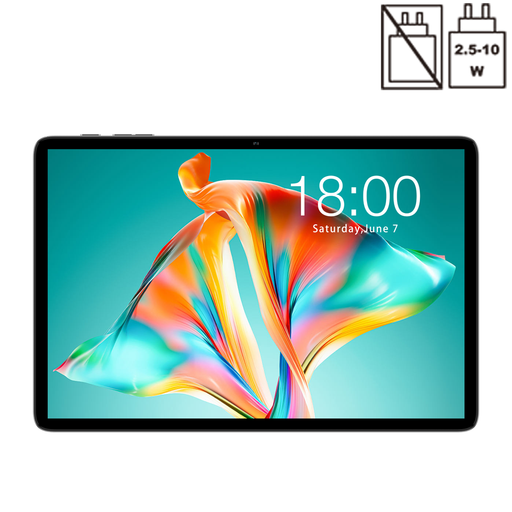 Image unavailable
A standard tablet for viewing a script. Compare the screen space with the text size you find comfortable.
Android 16, 10.1-inch HD screen, 128 GB storage and 120 Hz.
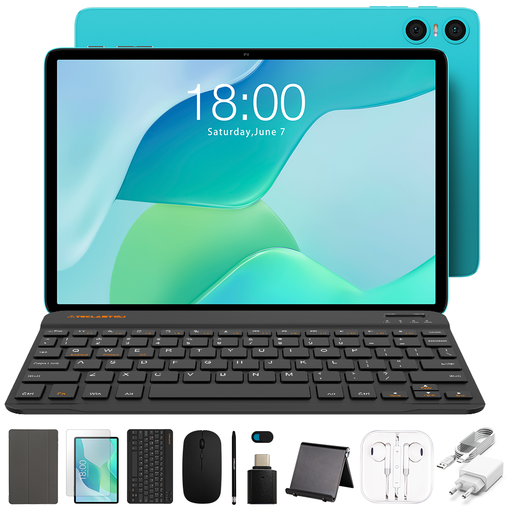 Image unavailable
A tablet bundle for anyone who wants to write with a stylus as well as read. Check that the included stylus works with your preferred annotation app.
10.1-inch screen. The product name lists a stylus, case, Bluetooth keyboard, mouse and tablet stand.
No. It depends on the app, stylus and file protection. Kobo says you can’t annotate DRM-protected PDFs or PDFs that block annotation with the stylus; Samsung Notes can add text and drawings to imported PDFs.
Start by testing a copy of one page: import the file, make a note and check the exported version. Kobo warns that notes may be lost after a reset or sign-out, and that handwritten notes won’t transfer to the Books app or other Kobo e-readers.
No. According to ACM ConsuWijzer, you’re also covered by the statutory guarantee in the Netherlands. If a product breaks sooner than you could reasonably expect under normal use, the seller must offer an appropriate solution free of charge. An additional warranty doesn’t replace this right.
No. Having a copy for your own use doesn’t automatically give you permission to share or publish the script. The Dutch Government distinguishes between making a copy for personal use and distributing it; you may need permission for other uses of copyright-protected work.