
PDF annotator
You work with your own articles or reading lists as PDFs and want to highlight passages with a stylus, then find your comments again later. Samsung Netherlands and reMarkable describe features for annotating your own PDFs.


Choose according to what you want to annotate. A tablet with a compatible stylus is a good option for your own PDFs and a range of reading apps, while e-ink devices are designed for reading and note-taking. Check beforehand that your files, stylus and preferred apps all work together. Being able to read a borrowed e-book doesn’t necessarily mean you can write on it.
You work with your own articles or reading lists as PDFs and want to highlight passages with a stylus, then find your comments again later. Samsung Netherlands and reMarkable describe features for annotating your own PDFs.
You mainly want to read borrowed titles and keep reading notes alongside them. The online Library service states that the devices available can vary from one e-book to another.
You’re looking for a device designed for reading and note-taking, and want to check in advance that your files and preferred apps will work with it. Lenovo, reMarkable and Kobo each describe their own document or note-taking workflows.
A good fit if: you want to mark up documents and use a range of tablet apps as well as reading lists. Apple states that the iPad (A16) supports Apple Pencil (USB‑C).
Keep in mind: the Pencil isn’t listed as included with that iPad, so check that the stylus and your preferred workflow are compatible.
A good fit if: you mainly want to import your own PDFs and write or highlight on them. Samsung describes these features in Samsung Notes.
Keep in mind: check whether the exact model comes with a stylus, and whether you can save or share your notes in the format you want.
A good fit if: you want to read and annotate your own files using a workflow designed around documents and notes. reMarkable describes PDF import and annotation, while Lenovo lists support for files including PDF and EPUB.
Keep in mind: check how to import files and export notes. These features don’t confirm that the online Library app will work.
A good fit if: reading on an e-reader and making handwritten notes are your main priorities. Kobo lists the Elipsa 2E as compatible with the Kobo Stylus 2.
Keep in mind: the online Library service states that not every borrowed e-book can be read on an e-reader. Also check separately where you can make notes.
| Concern | What should you check? | Who does this matter most to? |
|---|---|---|
| Annotating your own PDFs | Test a representative file and check stylus compatibility, saving and exporting. | I want to mark up my own PDFs by hand and find my comments again. Around 33% of consumers put PDF annotation first. |
| Access to library titles | Check which devices a few titles on your reading list are available on; also check separately where you can make notes. | I want to make sure borrowed titles will open on my device first. Around 27% of consumers put access to library titles first. |
| Reading and taking notes | Check whether you can import your files and how you’ll find your notes again later. | I prioritise reading and note-taking on a device designed for that workflow. Around 20% of consumers put a calm reading experience first. |
| Portability and the cost of accessories | Compare the weight of the exact model and check whether any stylus or feature you need is sold separately. | I want a device that’s easy to carry and to know in advance what extras my workflow requires. Around 20% of consumers prioritise portability and the cost of accessories. |
The online Library service lists which devices you can use to read each title. This doesn’t confirm that you can annotate the borrowed book itself.
Check a title on your reading list and decide whether keeping separate reading notes will work for you.
Manufacturers specify particular stylus combinations: Apple lists support for certain Apple Pencil models, while Kobo pairs the Kobo Stylus 2 with specified e-readers.
Compare the exact tablet and stylus models with the manufacturer’s details, and check what’s included in the box.
A compatible stylus may need to be bought separately; Apple doesn’t list the Apple Pencil as included with the iPad (A16).
reMarkable distinguishes between importing and annotating PDFs and Convert to Notebook, which reMarkable says requires Connect.
Check whether annotating the PDF itself is enough before relying on extra features.
If you specifically need Convert to Notebook, reMarkable says you’ll need Connect.
iPad for reading lists, documents and additional apps.
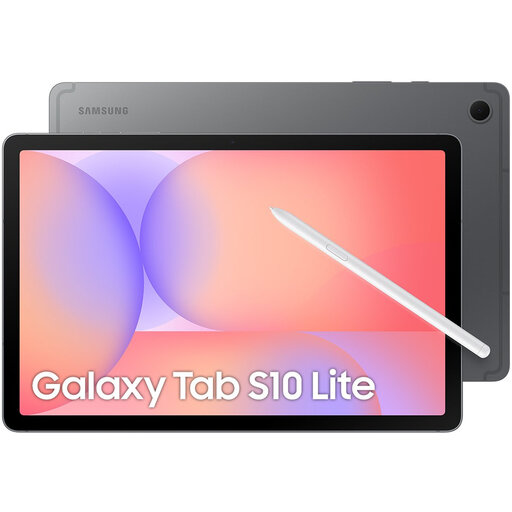
Galaxy Tab for editing your own PDFs in Samsung Notes with an S Pen.
Paper Pro for reading and taking notes on your own documents.
Elipsa 2E combines e-reader reading with note-taking using the Kobo Stylus 2.
Smart Paper for your own reading documents and handwritten notes on e-ink.
This selection includes tablets and an e-reader for reading, taking notes with a stylus and annotating your own documents. Check each model to see whether it supports your files and preferred stylus or note-taking workflow.
 No image available
The product description mentions taking notes and annotating documents with the included Lenovo Pen.
12.1-inch 2.5K screen; 8GB RAM; 256GB storage.
 No image available
Samsung describes importing and annotating PDFs with the S Pen in Samsung Notes; this model is listed as including an S Pen.
10.9-inch screen; 128GB storage; model SM-X400.
 No image available
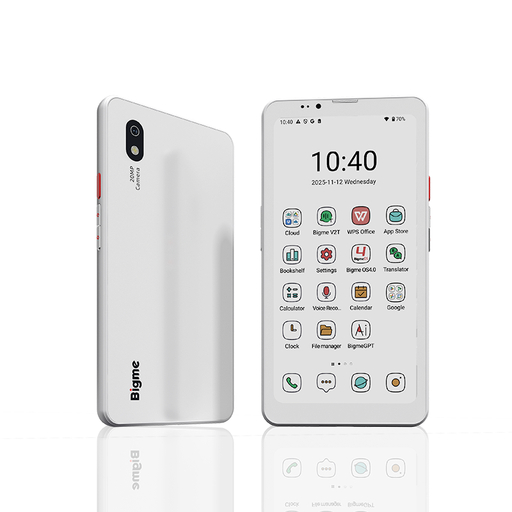
The product description mentions e-book reading and note-taking shortcuts; check whether this model supports the stylus annotation you need.
6.13-inch colour e-paper screen; Android 14; 8GB RAM and 256GB storage.
 No image available
The product description mentions taking notes with the included stylus; check whether it supports the document annotation you need.
12.7-inch 2K screen; 20GB RAM (8GB + 12GB Virtual); 256GB storage.
 No image available
The product description mentions taking notes with Apple Pencil Pro; check stylus compatibility and bear in mind that the Pencil is sold separately.
11-inch model; Wi-Fi; 256GB storage.
Not necessarily. The online Library service lists which devices you can use to read each title; check separately whether you can annotate the borrowed book itself. Keeping your own notes alongside the book is a different way of working.
reMarkable describes exporting via the desktop app as a PDF, PNG or SVG. For other tablet apps, check which export formats are available and whether your annotations will be preserved.
First, test saving and exporting with one of your own files. Kobo recommends syncing notebooks and warns that signing out or resetting the e-reader may delete notes.
It depends on the combination. Apple doesn’t list the Pencil as included with the iPad (A16), while Lenovo lists a pen as included with Smart Paper. According to reMarkable, Convert to Notebook requires Connect. Check which features you need and what comes with the model you choose.
The Dutch government distinguishes between making a private copy for personal use and distributing or making it available to the public. You may make a private copy for personal use, but you must have permission to distribute it or make it publicly available. This does not give you permission to bypass technical protection measures or separate lending terms.