Start with the files and apps you actually use. Check that the project files you need open locally, and whether you only need to read them or annotate them too. A larger screen gives you more room for drawings and tables, but is less convenient to carry. For annotating, pen compatibility, what’s included in the bundle and how your storage app handles files all matter.
Who is this choice relevant to?
Detail-focused reviewer
You review large drawings, tables or several project pages and want plenty of screen space, even if that makes the tablet less portable. The Dutch Consumers’ Association notes that tablets measuring 12 to 14 inches are less convenient to carry.
Offline project reader
You take project files somewhere without internet access, so you need to make them available locally in advance. Microsoft outlines different considerations for offline use on iOS and Android.
Annotating reviewer
You want to add comments to documents and share them with others. The app you choose, a suitable pen and what happens to changes made offline are all important.
Which buying needs should you consider?
| What to consider |
What should you check? |
Who is this for? |
| Opening files offline |
Download a representative project folder and test the file types you need with your connection switched off. Also check how the app handles changes. |
I want to open project files on site without internet access and test them in advance; around 29% of consumers say offline access is their main buying need. |
| Reading details on project pages |
Open a sample page of your own and check small text, legends and how much you need to zoom in. Compare screen size and resolution. |
I want to review drawings and tables clearly without constantly zooming in and out; around 29% of consumers prioritise being able to read details clearly. |
| Annotating and sharing |
Check pen compatibility and what’s included in the bundle. Test annotating, saving, reopening and sharing in the app you plan to use. |
I want to add comments to project files and share them later; around 24% of consumers say annotating is their top priority. |
| Carrying it between locations |
Compare size and weight, including with a case if you plan to use one. Check that a busy project page remains easy to read on the screen you choose. |
I carry my tablet regularly and don’t want to take more screen space than I need; around 18% of consumers prioritise portability. |
What to look out for when choosing
-
Assuming every cloud file is available offline
Seeing a file in a list doesn’t automatically mean you can open it without an internet connection. Microsoft says that offline folders in OneDrive require a Premium OneDrive subscription with Microsoft 365.
Mark the files you need in advance, then switch off your connection and check that they open in the app you’ve chosen.
-
Confusing pen support with a pen included in the box
A tablet may support a pen without one being included in the standard box. For example, Apple lists Pencil support for the iPad Air reviewed, but no Pencil in the standard box contents. Lenovo says that accessories vary by bundle and region.
Check what’s included with the exact model you’re buying, and whether the pen works with the app you plan to use.
-
Choosing based on screen size alone
A large screen doesn’t automatically give you access to desktop software. The Dutch Consumers’ Association recommends a laptop if you need demanding software.
Test a representative file in the tablet app. If reviewing it requires a desktop programme, compare laptops too.
Brands to compare
Apple
The iPad Air is an option if you work with files on iPadOS and want to mark up documents on an iPad.
- Apple lists 11- and 13-inch models, with support for Apple Pencil Pro and Apple Pencil (USB-C).
- The listed standard box contents don’t include a Pencil. Pen support alone doesn’t confirm compatibility with a specific design file.
Samsung
The Galaxy Tab S10 FE+ is an Android option with a large screen for viewing project pages.
- Samsung lists a 13.1-inch screen and S Pen support for the Galaxy Tab S10 FE+. Samsung also says that the FE series supports microSD expansion up to 2 TB.
- Screen size and pen support don’t confirm that a particular project app or file format will work offline. Check what’s included in the bundle and test your files.
Lenovo
The Idea Tab Pro Gen 2 is worth considering if you’re looking for a 13-inch screen and a bundle that explicitly includes a pen.
- For model ZAHD0631SE, Lenovo lists a 13-inch 3.5K screen and a pen in the bundle name.
- Lenovo says that accessories may vary by bundle and region, so check what’s included with the exact model you’re buying.
Joybuy tablets for project files
These Joybuy tablets have screen sizes suited to viewing large project pages. For offline use and annotating, always check the app you need, file support and whether a pen is included in the bundle.
 No image available
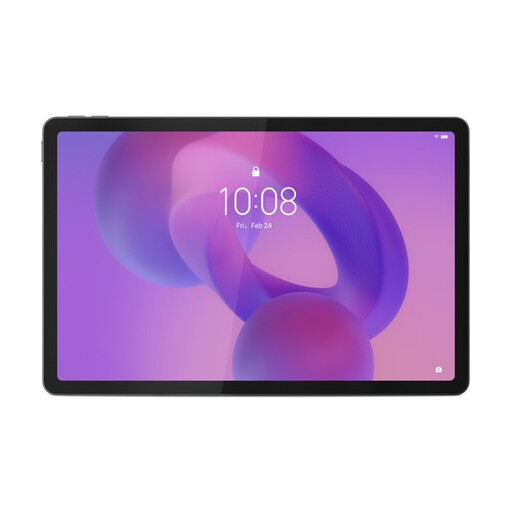
Lenovo Idea Tab Pro TB373FU, 12.7-inch, 3K, 256 GB
The 12.7-inch screen is well suited to viewing large project pages, though bear in mind that a larger screen can be less convenient to handle.
According to the product name: 3K, 144 Hz, MDT 8300, 8 GB RAM, 256 GB, Wi-Fi 6E and Luna Grey.
View at Joybuy
 No image available
TECLAST T65, 13.4-inch, 128 GB
The 13.4-inch screen gives you plenty of space to view project pages; consider how often you’ll want to take the tablet with you.
According to the product name: 120 Hz, Android 16, 20 GB RAM (6 GB + 14 GB virtual), 128 GB storage and a folio case.
View at Joybuy
 No image available
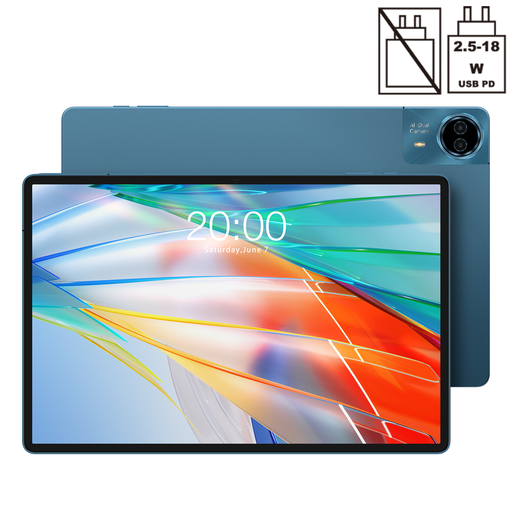
Teclast T70, 14-inch, 2.2K, 128 GB
The 14-inch screen gives you plenty of space to view project pages, though the Dutch Consumers’ Association notes that tablets measuring 12 to 14 inches are less convenient to carry.
According to the product name: 2.2K (2240 × 1400), 128 GB ROM and Android 15.
View at Joybuy
 No image available
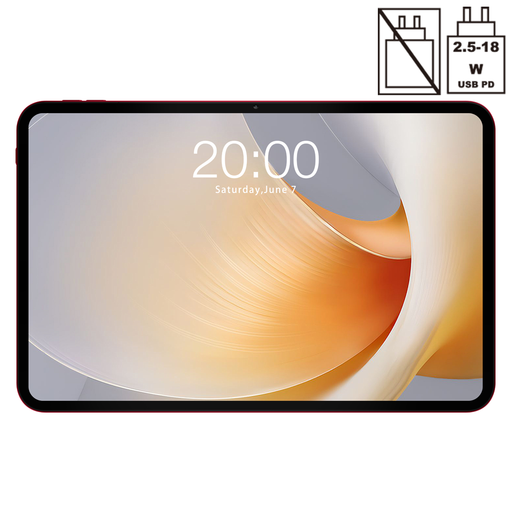
TECLAST T65 Plus, 13.4-inch, 256 GB
The 13.4-inch screen may suit you if you view large documents. When choosing, also consider how easy it is to carry a tablet of this size.
According to the product name: 120 Hz, Android 15, 20 GB RAM and 256 GB ROM.
View at Joybuy
 No image available
TECLAST ArtPad Pro, 12.7-inch, 2K, 256 GB, with stylus
The product name mentions a stylus, which may be useful if you want to add notes to project files. Be sure to test it with the app you plan to use.
According to the product name: 2K, 20 GB RAM (8 GB + 12 GB virtual) and 256 GB storage.
View at Joybuy
Frequently asked questions
How can you make project files available offline in advance?
In OneDrive, you can mark files to read them offline. Microsoft explains that offline editing works differently on iOS and Android. According to Microsoft, offline folders require Premium OneDrive with Microsoft 365. Before you leave, switch off your connection and check that the files open in the app you need.
Will offline changes always sync in the same way later?
Not every app or platform works in the same way. Microsoft says that files marked for offline use in OneDrive on Android are read-only, and that a file edited offline is saved as a new file. Test your own workflow before sharing updated project versions.
Do you always need a pen to add comments to PDFs?
Not for every type of markup: Apple describes built-in markup tools on the iPad. For handwritten feedback, check whether a suitable pen is included or needs to be bought separately. Apple lists Pencil support for the iPad Air reviewed, but no Pencil in the standard box contents.
Do privacy rules apply to downloaded project documents?
If an organisation processes personal data in those documents, it must protect it appropriately, according to the Dutch Data Protection Authority. The measures needed depend on the risks. Ask the responsible organisation what storage and access are permitted on your tablet.


