What should you look for in a tablet for project drawings?
Start with the file and app you actually use, then choose the screen size and pen based on how you discuss the drawing at the table.
| What to consider |
What to look for when buying |
Who this matters to |
| Seeing the details |
Compare around 11 inches with 12–13 inches using the same example drawing. Check readability, reflections and how much of the plan remains visible when the app displays its controls. |
If I want to point out details to others at the table without constantly zooming in, having a clear overview comes first; around 31% of consumers give screen overview their highest priority. |
| Adding comments |
Check whether a pen is included with the model, which pens are compatible, and whether you can save and share comments in your chosen PDF or project app. |
I want to write corrections on the drawing and share them with others; around 25% of consumers prioritise annotation. |
| Files and apps |
Make a note of whether you use PDF, DWG or a specific project platform. Test a representative file and check comments, revisions and any access requirements. |
If my work depends on DWG or a specific project environment, I want to know whether the app can handle my files and revisions. Around 25% of consumers give file and app compatibility their highest priority. |
| Cost and ease of use |
Check which accessories are included with each model and what requirements apply to project software. Also weigh up the size against how often you’ll take the tablet with you. |
If I use the tablet away from the kitchen table too, I weigh up accessories, software and size together; around 19% of consumers prioritise overall cost and ease of use. |
Explore Joybuy tablets for drawings
These Joybuy products include 13-inch iPad models and a 12.7-inch TECLAST tablet for viewing project drawings on a larger screen. Check whether the app and pen you need suit your workflow for each model.
 Image unavailable
Apple 13-inch iPad Air Wi-Fi 128 GB – Space Grey (2026)
The 13-inch screen gives you more room to view a project drawing at the table.
Joybuy
Image unavailable
Apple 13-inch iPad Air (M4) Wi-Fi 256 GB – Space Grey (2026)
The 13-inch screen gives you space to look at drawings with others; check that the project app you need offers the required features on iPadOS.
Joybuy
 Image unavailable
TECLAST ArtPad Pro, 12.7 inches, 20 GB + 256 GB, 4G LTE + 5G Wi-Fi
The product name lists a 12.7-inch screen and compatibility with a T-pen; check whether the pen is available and whether the app you plan to use supports your workflow.
The listed 20 GB RAM comprises 8 GB + 12 GB of virtual RAM. The product name also mentions Android 15.
Joybuy
 Image unavailable
Apple iPad Pro (2025), 13 inches, 256 GB, Wi-Fi + 5G – Silver
The 13-inch size is worth comparing if you want more screen space; check which app and compatible pen you need before buying.
Joybuy
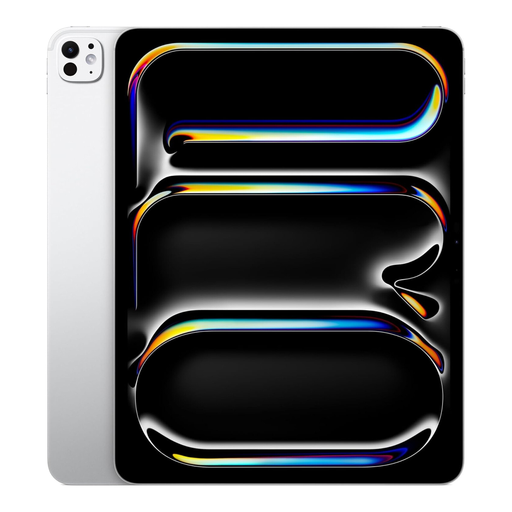 Image unavailable
Apple 13-inch iPad Pro (M5) Wi-Fi 2 TB – Silver (2025)
The 13-inch screen gives you room to view project drawings; check that the project app and pen you need suit the way you work.
Joybuy
Frequently asked questions
Do I need a tablet that can open DWG files for project drawings?
Only if you actually receive DWG files or need to work with them. Autodesk Support describes a way to view DWG files on a mobile device; check separately which features your file and app require. If you only use PDF files, DWG support isn’t a general buying requirement.
How do I prepare a tablet for discussing drawings without an internet connection?
Download your files in advance and open a sample file. Bluebeam explains that in Studio Projects you can mark files for offline use and that changes will sync once your connection is restored; check whether this suits your project and app.
Can I still rely on Revu for iPad?
Not as a new option: Bluebeam says Revu for iPad will no longer be available to buy or download after 31 December 2025. Check which Bluebeam mobile app is available now and which features your team uses.
Am I entitled to a fixed two-year statutory warranty period in the Netherlands?
No. According to the Dutch government, there is no fixed statutory warranty period in the Netherlands. You are entitled to a product that works as it should; what you can expect depends, among other things, on the product, its price and the information provided at the time of sale. If a product is faulty, contact the seller.
Can I return a tablet bought online within 14 days?
For a distance purchase from a business, the Dutch government says you will often have a 14-day cooling-off period. Check the terms of your specific purchase; according to this government guidance, an online purchase from a private seller does not count as a distance purchase.


