
Project document reviewer
You want to add references directly to PDFs and save or share an annotated copy. Apple Support explains how to mark up and annotate PDFs on iPad.


Choose a tablet that lets you open your own project files, annotate them with a compatible pen and export them in the format you need. A larger screen can make it easier to view drawings and comments side by side, while a more compact model is easier to carry around. A dedicated paper tablet is best suited to you if reading and annotating PDFs matters more than having a general-purpose app environment.
You want to add references directly to PDFs and save or share an annotated copy. Apple Support explains how to mark up and annotate PDFs on iPad.
You compare material information with drawings or tables and need enough room to add comments in the right places. The models discussed range from 10.9 to 13.1 inches, according to Samsung Netherlands, Lenovo Netherlands and Apple Netherlands.
You take project documents between workplaces and weigh up reading space against the tablet’s weight. Apple Netherlands lists the Wi-Fi versions of the iPad Air M4 as weighing 464 grams at 11 inches and 616 grams at 13 inches.
Start with your file workflow: try one of your own project PDFs and check whether you can import it, write on it, export it and open the finished file again. Then choose the screen size and features that suit your documents and the way you work.
| What to consider | What should you check? | Who is this important for? |
|---|---|---|
| Saving and sharing notes | Try annotating, exporting and reopening a representative file. Apple Support explains PDF mark-up on iPad; reMarkable Support explains PDF export. | If I need to share comments with project documents, I want to be sure they stay with the right PDF. Around 36% of consumers list this workflow as their main need. |
| Viewing large documents at a glance | Open one of your own drawings and see whether you can view details and have enough room to write at the same time. Check the screen size of the exact version. | If I compare material information with a drawing, I want to see the link between the text and my comments clearly. Around 29% of consumers prioritise being able to view project documents at a glance. |
| Taking it between locations | Compare the weight of the exact version and remember that a case or pen may add to it. | If I take my tablet with me regularly, I want a size and weight that suit the way I travel. Around 21% of consumers put portability first. |
| Focused PDF reading | Check that your files, transfer options and any subscription features suit the way you work. reMarkable explains PDF import and export, as well as Connect features. | If I mainly read and annotate PDFs, I may not need a wide range of apps. Around 14% of consumers prioritise focused reading. |
Pen support, compatibility with a specific model and what comes in the bundle you buy are three different things. The iPad Air contents reviewed do not include a Pencil.
Compare the full model code with the compatibility information and check which accessories are included in the specific offer.
A compatible pen may need to be bought separately, so check before you make your final choice.
For a project review, the recipient also needs to be able to see your comments in the version you send back.
Use one of your own files to test importing, annotating, exporting and reopening it in the recipient’s app or on their device.
The reMarkable Paper Pro uses its own operating system. This may not suit you if you need specific project apps.
Check in advance which apps, transfer steps and cloud features you need. reMarkable lists Connect features including cloud storage and handwriting search.
Connect features may require a subscription, so only factor them in if they suit the way you work.
Worth considering if PDF mark-up is part of a wider iPad workflow.
The Galaxy Tab S10 FE and FE+ offer Android options with S Pen support and a choice of screen sizes.
A specific Idea Tab Pro bundle offers a 12.7-inch screen and a pen.
A dedicated option for reading and annotating PDFs by hand.
These tablets are options for adding handwritten comments to project documents, with different screen sizes and pen or note-taking workflows.
 No image available
An option if you want to use a pen to add comments to documents. The product description says a Lenovo Pen is included for annotating documents.
The product name lists a 12.1-inch 2.5K screen, 8 GB RAM and 256 GB of storage.
 No image available
A compact iPad option if you want to combine PDF mark-up with other iPad apps. Apple Support explains how to mark up PDFs on iPad.
Apple Netherlands lists Apple Pencil Pro and Apple Pencil (USB‑C) as compatible with the iPad Air M4. Check whether a pen is included in the offer you choose.
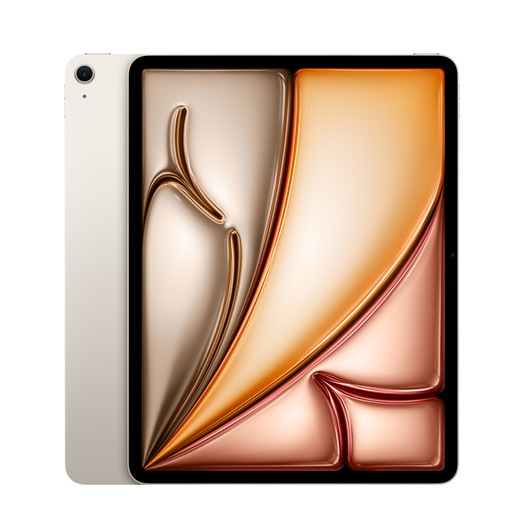 No image available
A larger iPad option if you want more screen space for project documents and comments. Apple Support explains how to mark up PDFs on iPad.
Apple Netherlands lists Apple Pencil Pro and Apple Pencil (USB‑C) as compatible with the iPad Air M4. Check whether a pen is included in the offer you choose.
 No image available
A note-taking-focused option if you’re looking for a compact E Ink screen for handwritten comments.
The product description lists an 8.2-inch E Ink screen, a stylus and synchronisation via mobile and PC apps.
 No image available
An option if you’re looking for a larger screen and an included stylus for notes and drawing.
The product name lists a 12.7-inch 2K screen, 20 GB RAM (8 GB + 12 GB virtual) and 256 GB of storage.
Export a sample PDF with comments and open it again on the recipient’s device or in their app. Apple Support explains PDF mark-up on iPad and reMarkable Support explains PDF export; the exact workflow depends on the app and project file you use.
Don’t assume they’re interchangeable. Apple Netherlands lists Apple Pencil Pro and Apple Pencil (USB‑C) for the iPad Air M4; Samsung Netherlands advises checking pen compatibility for each Galaxy device. So check the exact tablet model and pen.
Not for every type of PDF export described: reMarkable Support explains how to export a PDF through the desktop app. Connect also offers features such as cloud storage and handwriting search. Check whether you need these extra features before choosing a subscription.
According to the Dutch government, when you buy as a consumer you’re entitled to a product that works as it should, and the seller must provide a solution if something goes wrong. There is no fixed statutory two-year warranty period: the product’s expected lifespan and the circumstances are relevant. This does not necessarily apply to a business purchase.
According to the Dutch government, when a consumer buys at a distance, there is often a 14-day cooling-off period. Check the terms of the specific agreement; a business purchase or a purchase from a private individual is not necessarily covered by the same rule.