A larger screen gives you more room for long, formatted project documents, while a smaller model is easier to handle if you often read on the go or hold your tablet. Next, check whether the exact model supports the stylus you want, whether it’s included and whether your files and apps are compatible. Screen sizes and stylus options are manufacturer specifications, not practical tests of reading or annotation comfort.
Who is this choice relevant to?
Readers of project documents
If you read long, formatted documents, it’s worth checking in advance how much of a page will fit on screen. The tablets considered here come in a range of sizes, with Apple, Samsung and Lenovo publishing the screen dimensions of their models.
Design reviewers who annotate
If you want to add comments or sketches to project documents, check stylus compatibility and what’s included with the exact model. Apple, Lenovo and Samsung describe stylus options for the models mentioned.
Project presenters who read on the go
If you read on the go and discuss or share files, you’ll need to weigh up how important portability is compared with having room to view a full page. Apple and Samsung list screen sizes and, for certain models, weights.
What should you look for when choosing?
Start by thinking about how you read and annotate project documents, then compare portability, file sharing and the accessories you’ll need.
| Consideration |
What should you check? |
Who should give this more weight? |
| Screen space for long documents |
If possible, open a representative project PDF at the size you’re considering and compare the dimensions and weight of the exact model. |
If I’m reading formatted project pages, I want to see enough of the page without constantly zooming in. Around 31% of consumers prioritise screen space for long documents. |
| Annotations and sketches |
Check which stylus works with the exact model, whether it’s included in the bundle and whether your document app can save and share annotations. |
If you want to add comments or sketches to project documents, it helps to know exactly what’s included and which stylus is compatible. Around 25% of consumers prioritise stylus annotations. |
| Carrying and holding |
Compare the weight and dimensions with the case you plan to use, and view your own documents on the screen. |
If I often read or attend meetings on the go, how easy the tablet is to carry and hold matters. Around 19% of consumers prioritise portability. |
| File and app workflow |
Test your file formats, accounts and export process; check whether the features you need are available without an additional subscription. |
If you need to import, annotate and share project files, you’ll want the whole workflow to fit with the way you already work. Around 13% of consumers prioritise file sharing. |
| Total cost and length of use |
Compare the exact bundle and any accessories or services you’ll need; check the warranty and support separately. |
If I need a stylus or a particular service, I want to consider the cost of the complete setup, not just the tablet. Around 12% of consumers prioritise total cost. |
Common buying mistakes
-
Comparing tablets on their own when you need a stylus
Compatible styluses vary by model and aren’t always included in the bundle you choose. So a model name alone doesn’t tell you which accessories you’ll receive.
Compare the exact model and check whether the stylus you need is included. Apple lists compatible Pencil options for the iPad Air models mentioned; Lenovo lists a stylus and folio for the specific Tab P12 model ZACH0219SE.
For the iPad Air models mentioned, the Apple Pencil is sold separately.
-
Assuming every document feature works without a subscription
According to reMarkable’s support information, Convert to Notebook is linked to Connect. This doesn’t mean that every type of PDF import requires a subscription.
First decide whether you need that specific editable import feature, then check the relevant terms.
A Connect subscription may be required for Convert to Notebook.
-
Choosing a larger screen without considering the weight
More screen space can make it easier to see a whole page, but a larger device may be less comfortable to hold for long periods. Apple lists the 13-inch iPad Air Wi-Fi model at 616 grams and the 11-inch Wi-Fi model at 464 grams.
View one of your own documents on the screen you’re considering, and compare the weight of the exact tablet, with or without a case.
Brands to consider
Apple
The iPad Air, available in 11- and 13-inch sizes, is a general-purpose tablet option if you want to compare compatible Apple Pencil models.
- Apple says both sizes support Pencil Pro and Pencil (USB-C).
- Apple lists the 13-inch Wi-Fi model at 616 grams, compared with 464 grams for the 11-inch Wi-Fi model. Remember to factor in the cost of buying a stylus separately.
Samsung
The Galaxy Tab S10 FE series includes a 10.9-inch FE and a 13.1-inch FE+, giving you two screen sizes to compare.
- Samsung lists S Pen support for the models considered.
- A larger screen gives you more physical space, but screen size alone doesn’t prove that it will be comfortable to read on. Check what’s included with the exact model.
Lenovo
The Dutch Tab P12 model ZACH0219SE is worth considering if you want a large screen with a clearly specified stylus and folio bundle.
- Lenovo lists a 12.7-inch screen, a stylus and a folio for this model.
- These bundle details apply to model ZACH0219SE; don’t assume they apply to other Tab P12 product numbers.
Xiaomi
The Pad 7 is an Android option to compare if screen proportions and reading modes are important to you.
- Xiaomi specifies an 11.2-inch 3:2 screen with a resolution of 3200 × 2136 pixels, as well as a reading mode.
- These manufacturer specifications don’t measure reading comfort or confirm that a stylus is included in a particular bundle.
reMarkable
Paper Pro is a document-focused option to compare if reading and handwritten annotations are your priorities.
- The manufacturer describes a colour screen, writing tools and document import.
- According to reMarkable Support, Convert to Notebook requires Connect. Check that it suits the workflow you need; don’t automatically treat the device as a replacement for a general-purpose tablet with apps.
Tablets on Joybuy
These Joybuy products are suited to anyone who wants to read project documents on a larger screen, or is looking for a tablet to use on the go with stylus annotation.
 No image available
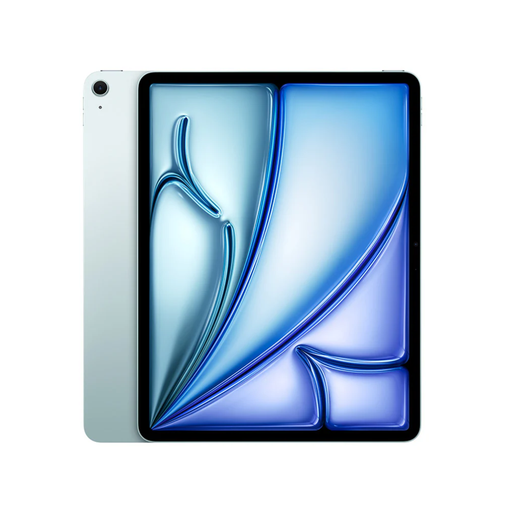
Apple 13-inch iPad Air (M4), Wi-Fi, 128 GB, blue (2026)
The 13-inch model is a good fit if you want to view project documents on a larger screen.
13-inch screen; Wi-Fi; 128 GB storage. Apple Pencil Pro is not included and is sold separately.
View at Joybuy
 No image available
TECLAST T65, 13.4-inch, 120 Hz, 128 GB, with folio case
The 13.4-inch screen is a good fit if you want to view project documents at a larger size.
The product name specifies a folio case.
View at Joybuy
 No image available
TECLAST ArtPad Pro, 12.7-inch, 2K, 256 GB, with stylus
The product name specifies both a 12.7-inch screen and a stylus, making this one to consider if you want a larger tablet with a pen.
2K screen; 256 GB storage; stylus included according to the product name.
View at Joybuy
 No image available
Apple 11-inch iPad Air (M4), Wi-Fi, 256 GB, Space Grey (2026)
This 11-inch model is a good fit if you’re looking for a more manageable size for project documents.
11-inch screen; Wi-Fi; 256 GB storage. Apple Pencil Pro is not included and is sold separately.
View at Joybuy
 No image available
iFLYTEK AINOTE Air 2, 8.2-inch E-Ink tablet with stylus
The compact 8.2-inch size is worth considering if portability matters more to you than having plenty of space to view a full page.
The product name specifies an E-Ink screen and stylus.
View at Joybuy
Frequently asked questions
Should you automatically choose the largest screen for project PDFs?
No. Compare your own documents with how often you’ll carry or hold the tablet. The models considered range from 10.9 to 13.1 inches; those screen sizes don’t show how your project files will look in practice.
How can you check that annotation and sharing work well?
Try a representative project file: import it, add an annotation and check the exported version on the recipient’s device. reMarkable describes importing and annotating PDFs and other documents; for Convert to Notebook, reMarkable Support specifies a Connect subscription.
Which extra costs and rights should you distinguish between?
Check whether the stylus and case are included in the exact bundle, and whether any feature you need requires a subscription. According to ACM ConsuWijzer, statutory guarantees for consumer purchases in the Netherlands are separate from any manufacturer’s warranty offered. If a product doesn’t do what you could reasonably expect during normal use, contact the retailer.
Can you return a tablet bought online, and where can you dispose of your old device?
According to ACM ConsuWijzer, online consumer purchases are generally covered by a statutory 14-day cooling-off period, which ends 14 days after delivery; check the applicable terms. The Dutch Government says that when you buy a new device, you can hand in an old, similar electrical device at the shop or through its online service, or take it to a collection point.


