For straightforward text and visual edits, an iPad or Android tablet could be suitable, provided it has the PowerPoint features you need and a comfortable keyboard. If you need specific desktop features, consider a Windows 2-in-1 and check the configuration, licence and workspace requirements beforehand; the keyboard may be sold separately. To avoid relying on café Wi-Fi, save your files locally in advance.
Who is a tablet for working on slides suitable for?
Precise slide editor
You edit existing PowerPoint presentations with specific formatting or features, and want to check in advance whether the mobile app can handle them. Microsoft Support explains the differences between PowerPoint platforms and their licensing requirements.
On-the-go café worker
You type and rearrange slides at a small table. Screen size, weight and a suitable keyboard all factor into your choice. Consumentenbond and manufacturers’ information offer useful guidance on screen size and weight.
Offline planner
You want to keep working without relying on the café’s Wi-Fi, so you save your files on the device in advance. Microsoft Support recommends downloading and opening the files you need before using them offline.
What should you look for when choosing?
For working on presentation slides in a café, the key considerations are the PowerPoint features you need, your typing setup, offline access and the complete work setup.
| What to consider |
What should you check? |
Who is this important for? |
| PowerPoint features |
Check which edits your presentation requires and the terms of your Microsoft 365 licence. |
If I need specific formatting or features, I want to check my own file and licence; around 33% of consumers prioritise precise slide editing. |
| Keyboard and size |
Check keyboard compatibility and layout, the overall dimensions, and whether the tablet will fit on your café table. |
At a small table, I want to type comfortably without bringing an awkwardly large setup; around 27% of consumers prioritise portable typing. |
| Offline access |
Download and open your file in advance, then test opening, editing and saving it without an internet connection. |
If the Wi-Fi drops out, I want to carry on working with a file stored locally; around 20% of consumers prioritise offline access. |
| Complete work setup |
Check what comes with the tablet and whether you already have a keyboard and software licence. |
If I’m weighing up the tablet, input device and software I need together, I want to know in advance what else I’ll need; around 20% of consumers look at the complete work setup first. |
Buying pitfalls to avoid
-
Assuming a touchscreen means full PowerPoint compatibility
PowerPoint features vary by platform and may depend on your licence. A touchscreen or fast processor alone doesn’t tell you whether the edits you need are available.
Before choosing a platform, check that it supports the features you need using your own presentation.
-
Assuming the keyboard comes with the tablet
Keyboard bundles vary by product and configuration. Microsoft lists an optional keyboard for the Surface Pro range; a Lenovo bundle that includes a keyboard doesn’t automatically apply to every configuration.
Check what’s included in the specific bundle and whether the keyboard is compatible.
A keyboard and, if needed, a software licence may still need to be included in your work setup.
-
Expecting a cloud file to open offline automatically
A file that’s only available online isn’t automatically ready to use without a connection. Microsoft Support recommends downloading and opening the file in advance.
Before you leave, test that you can open, edit and save your presentation offline.
-
Assuming a two-year manufacturer’s warranty is the full extent of your legal protection
According to ACM ConsuWijzer, there is no general fixed two-year period for statutory guarantees in the Netherlands. A manufacturer’s warranty does not replace your statutory rights.
If a product is faulty, ask the retailer to put it right and compare any additional cover with the rights you already have.
Brands to compare
Apple
The iPad Air M4 is an iPadOS option that supports Magic Keyboard and Apple Pencil Pro.
- According to Apple, the 11-inch Wi-Fi model weighs 464 grams and the 13-inch Wi-Fi model weighs 616 grams: a trade-off between portability and screen space.
- Check that PowerPoint for iPad and your licence support the slide features you need; the keyboard and stylus are separate purchase considerations.
Samsung
The Galaxy Tab S10 FE is an Android option with a 10.9-inch screen and an S Pen included.
- Samsung lists the Wi-Fi model at 497 grams, with an S Pen included in the box.
- Check the exact model, the PowerPoint features you need and whether you’ll need a suitable keyboard as well.
Lenovo
The Idea Tab Plus is an Android option with a 12.1-inch screen and keyboard support.
- Lenovo lists a bundle with a stylus and folio keyboard featuring a US International QWERTY layout.
- That bundle isn’t automatically included with every standalone Idea Tab Plus; check the configuration and whether the screen size suits your workspace.
Microsoft
The Surface Pro is a Windows 2-in-1 for anyone who needs a laptop-style way of working with PowerPoint.
- Microsoft describes the current Surface Pro range as offering laptop mode with an optional keyboard.
- Check the model, licence and keyboard separately; older PowerPoint Mobile apps for Windows have been unsupported since 14 October 2025.
Joybuy products for working on slides
This selection focuses on tablets and bundles with input accessories for editing, annotating or viewing presentation slides at a café table.
 Image unavailable
Lenovo IdeaTab, MediaTek Dimensity 6300
A compact Android tablet to consider if you want to view or annotate slides; check which PowerPoint features you need.
11 inches; 8 GB RAM; 128 GB storage; Android 15; Tab Pen included.
Buy at Joybuy
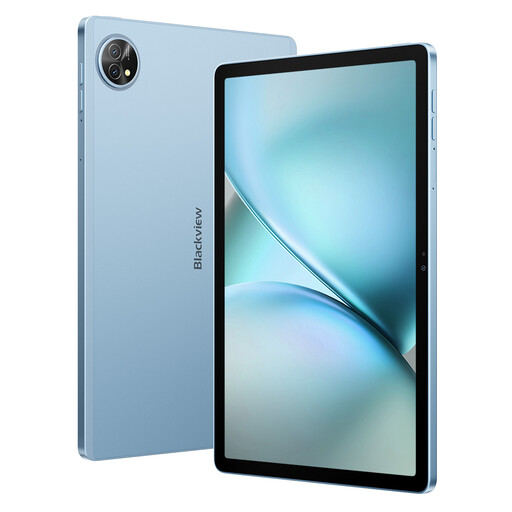 Image unavailable
Blackview Zeno 10, 11 inches, with keyboard and stylus
A bundle to consider if you’d like to use a keyboard and stylus for working on slides; check the app features you need beforehand.
11 inches; 2K; 24 GB RAM (8 GB + 16 GB); 128 GB storage.
The tablet is not waterproof; avoid exposure to water.
Buy at Joybuy
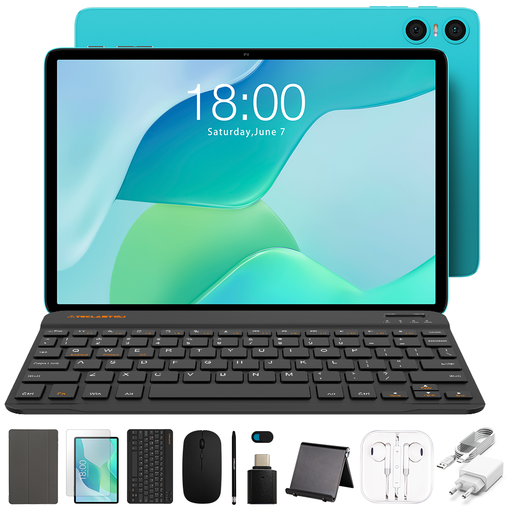 Image unavailable
Teclast P33, 10.1 inches, bundle with keyboard and accessories
A bundle to compare if you want input accessories and a stand to go with a compact tablet; check the keyboard layout suits your needs.
10.1 inches; 9 GB RAM (3 GB + 6 GB virtual expansion); 64 GB storage.
The title lists an English-language Bluetooth keyboard, Bluetooth mouse, tablet stand, case and stylus pen.
Buy at Joybuy
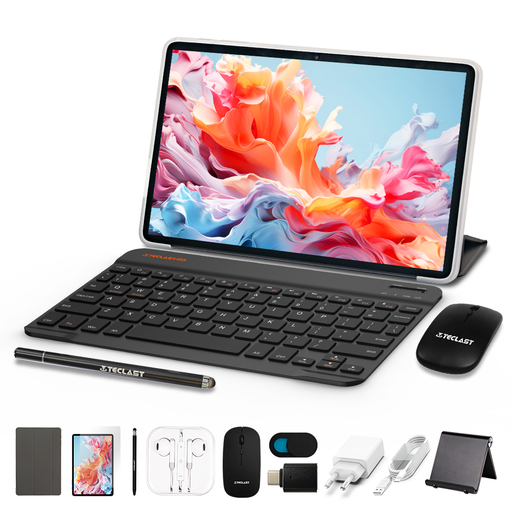 Image unavailable
Teclast P30TCase, 10.1 inches, with keyboard and accessories
A compact tablet bundle to consider if you want to view slides and type using a keyboard; check the PowerPoint features you need beforehand.
10.1 inches; Android 16; 16 GB RAM (3 GB + 13 GB virtual expansion); 128 GB storage.
The title lists a keyboard, mouse, stylus pen and case. The tablet is not waterproof; avoid exposure to water.
Buy at Joybuy
 Image unavailable
Teclast ArtPad Pro, 12.7 inches, with stylus pen
A larger screen could suit you if you want more space for slides; bear in mind that larger tablets are less convenient to carry around.
12.7 inches; 2K; 20 GB RAM (8 GB + 12 GB virtual expansion); 256 GB storage; stylus pen included.
Buy at Joybuy
Frequently asked questions
Do all tablets offer the same PowerPoint features?
No. Available features vary by platform and may depend on your licence. Microsoft Support compares PowerPoint on Windows and mobile platforms, among others; check which edits your presentation requires.
Can I edit a PowerPoint presentation without café Wi-Fi?
Yes, provided the file is saved locally in advance and the app features you need work offline. Microsoft Support recommends downloading and opening an existing file beforehand; changes to shared files will sync once you’re back online.
How can I test a tablet with my own presentation?
Open your own file in the app you plan to use and check the formatting and the edits you need to make. Connect a suitable keyboard and test opening, editing and saving the file without internet access. This lets you check the setup you’ll need at a café table.
Does a tablet usually come with a keyboard?
It depends on the model and bundle. Check what’s included with the specific configuration, and make sure the keyboard is compatible and has the layout you need.
When might a Windows 2-in-1 be a better choice than a mobile tablet?
A Windows 2-in-1 is worth considering if your work depends on specific desktop features in PowerPoint or you regularly use the device as a laptop. Check the features you need, the licence and the keyboard separately.


