
Students who need to run simulations
If you also need to edit or run port logistics models, first check which software and operating systems your course requires. AnyLogic lists Windows, macOS and Linux for its desktop modelling software.


Start by checking which software your course requires. A tablet may be all you need for documents, diagrams and notes, but a computer may be necessary for desktop modelling software. AnyLogic lists Windows, macOS and Linux for its desktop modelling software, so check the exact application and system requirements for your course before choosing a tablet as your only device. Then weigh up screen space, portability and the pen or other accessories you’ll need.
If you also need to edit or run port logistics models, first check which software and operating systems your course requires. AnyLogic lists Windows, macOS and Linux for its desktop modelling software.
If you read diagrams and add handwritten explanations or calculations, a compatible pen and enough screen space to work comfortably are useful. Samsung and Lenovo describe pen features for the models mentioned here.
If you spend long study sessions reading documents and tables, weigh screen space against weight and the available brightness and colour settings. The Consumers’ Association notes that larger tablets can be less comfortable to hold for long periods.
Choose this option if: you mainly read documents and annotate diagrams, for example if you already use iPad apps.
Bear in mind: check which Apple Pencil is compatible with the model you’re considering, and don’t assume an iPadOS tablet can install desktop modelling software.
Choose this option if: handwritten notes and viewing models are important to you. Screen sizes range from 10.9 inches on the Galaxy Tab S10 Lite mentioned here to larger models.
Bear in mind: more screen space can make a tablet less portable. Check whether the pen is included with the specific model and whether the required software will run on it.
Choose this option if: you need the desktop software specified by your course to build or run models. AnyLogic lists Windows, macOS and Linux for its desktop modelling software.
Bear in mind: a Windows tablet isn’t automatically suitable. Check the system requirements, including processor architecture and memory.
| What to consider | What should you check? | Who is this important for? |
|---|---|---|
| Software compatibility | Ask which application, version and tasks your course requires, then compare these with the system requirements. | If I need to build or run models, I want to know whether a tablet will be enough as my only device. Around 36% of consumers prioritise compatibility with the required software. |
| Pen and annotation | Check which pen is supported by the exact model and what’s actually included in the box. | If I want to add arrows, explanations or calculations to diagrams, a suitable pen is an important part of my choice. Around 29% of consumers prioritise handwritten annotation. |
| Screen for evening study | View a representative diagram on the screen and check the brightness and colour settings. | If I read tables and diagrams in the evening, I want enough space to work and adjustable display settings. Around 21% of consumers prioritise reading space and screen settings. |
| Portability and accessories | Compare the weight and screen size of the model, and check whether any essential accessories are included. | If I want to take my tablet with me, I weigh portability against the convenience of a larger screen and the accessories I’ll need. Around 14% of consumers prioritise portability and purchase costs. |
Viewing a model is not the same as editing or running it in desktop software. AnyLogic’s desktop modelling software lists desktop operating systems.
Before choosing a tablet, ask your course provider to confirm which application, version and tasks are required. You may need access to a suitable computer if your course requires one.
You may also need access to a suitable computer or one provided by your course.
A model may work with certain pens without the pen being included with the version you choose.
For the exact model, check both pen compatibility and the listed box contents.
You may need to buy a compatible stylus separately.
A larger screen gives you more room for diagrams, but can be less comfortable to hold for long periods. The Consumers’ Association highlights this trade-off when choosing a tablet.
View a diagram from your course, or a similar one, at the intended screen size and weigh the extra workspace against portability and comfort when holding it.
These examples show differences between the model ranges mentioned; they are not an assessment of a brand’s entire range.
The iPad (A16) is an example of a device for studying documents on iPadOS.
The Galaxy Tab models mentioned offer a range of screen sizes for note-taking and viewing documents.
The Tab P12 is an Android model for anyone who needs plenty of screen space for diagrams.
The Pad 3 is a larger Android model for viewing documents side by side.
This Joybuy selection includes tablets for reading study documents and diagrams, with note-taking features that vary by model. Also check whether the chosen device can run the software you need to build or run models.
 No image available
The listed screen size and pen could be a good fit for viewing and annotating study documents.
12.1-inch 2.5K screen; 8 GB RAM; 256 GB storage; the product information lists a Lenovo Pen.
Colour: Rose.
 No image available
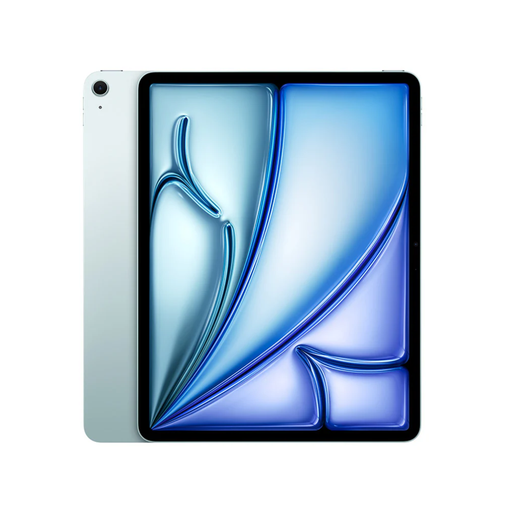
The 13-inch screen could be useful for reading larger diagrams and documents.
M4 chip; 12 GB memory; 128 GB storage; support for Apple Pencil Pro is listed.
According to the product information, Apple Pencil Pro and Magic Keyboard are sold separately.
 No image available
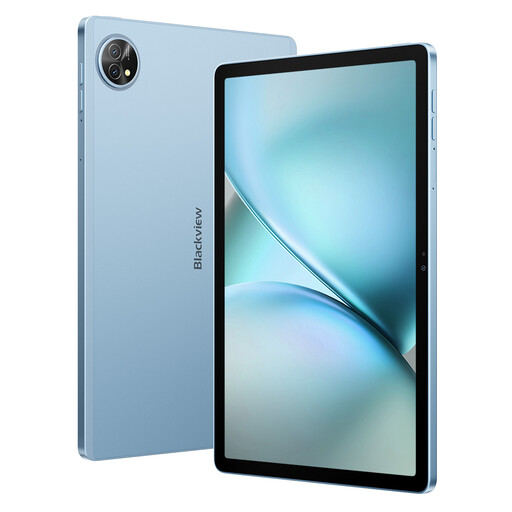
The listed accessories could be useful for typing and taking notes on study documents.
11-inch 2K screen; 24 GB (8+16) RAM; 128 GB storage; the product title lists PC Mode, a keyboard and a stylus.
PC Mode doesn’t prove that the tablet is suitable for the desktop software required by your course; check the software and system requirements separately.
 No image available
The product information describes PDF reading and handwritten notes, making this a possible choice for study focused on reading and note-taking.
10.65-inch E-Ink screen; the product information lists speech-to-text in 16 languages and handwriting-to-text.
Check that the features and any pen included are suitable for the documents and apps your course uses.
 No image available
The screen size and listed stylus could be a good fit for viewing and annotating larger study diagrams.
12.7-inch 2K screen; 20 GB (8 GB + 12 GB Virtual) RAM; 256 GB storage; the product title lists a stylus.
No. The fact that a tablet can display files doesn’t mean it can edit or run models. AnyLogic lists Windows, macOS and Linux for its desktop modelling software. Check the software, version and system requirements specified by your course; check any online environment separately.
On an iPad, you can schedule Night Shift and adjust the colour temperature under Display & Brightness. Adjust the brightness to suit your needs; these settings don’t guarantee better sleep or fewer complaints.
That depends on the exact model and what’s included in the box. Apple doesn’t list a Pencil in the box for the iPad (A16) mentioned here; the listed box contents for the OnePlus Pad 3 don’t include a pen or keyboard either. Check what’s included with the model you’re considering.
According to the Dutch government, statutory warranty applies: the seller must supply a product that works as it should, and any additional warranty is on top of that. For distance purchases from a business, a 14-day cooling-off period applies in many cases, subject to legal exceptions.
That depends on the product category. The European Commission distinguishes between smartphones and slate tablets, and other types of tablet computer, under its energy labelling rules. Check whether a specific device falls within the relevant category and rules; don’t assume the same applies to every tablet.