
Illustrated invitation creator
You might draw decorative details or hand lettering, for example, and want to know which pen features your tablet and design app support. Check the pen’s compatibility, as Apple and Adonit explain for their models.


Start with your exact tablet model: Apple Pencil, Samsung S Pen and Logitech Crayon are not interchangeable, as Apple, Samsung and Logitech make clear in their compatibility information. Look for extra drawing features if you want to create hand-drawn lines; for text and layout, compatibility with your tablet and design app matters more. A pen is no substitute for positioning your screen well or alternating between sitting, standing and moving around.
You might draw decorative details or hand lettering, for example, and want to know which pen features your tablet and design app support. Check the pen’s compatibility, as Apple and Adonit explain for their models.
You mainly work on text, positioning and small details. Accurate input and a pen that works with your tablet may matter more than extra drawing features.
You work at a raised desk and want to position your tablet comfortably and vary your posture. Arboportaal highlights the importance of a suitable workstation and avoiding prolonged static working when using a screen.
Your choice comes down to four priorities: a pen that works with your tablet, control over drawn lines, a print-ready file and a workspace where you can vary your posture.
| What to consider | What should you check? | Who is this important for? |
|---|---|---|
| Compatibility | Check the exact tablet model, pen version and any system and app requirements. | I want to know first whether the pen works with my existing tablet; without that match, I can’t use it to design. Around 36% of consumers prioritise compatibility. |
| Line control | Check whether the pen is pressure- or tilt-sensitive and whether your design app supports the feature. | I want to create hand lettering or decorative details, so I pay attention to how the pen stroke changes in my app. Around 29% of consumers are mainly looking for control over drawn lines. |
| Print-ready file | Ask your printer about the finished size, required bleed and your app’s export options. | I want to submit my design as a print-ready invitation and would rather avoid having to adjust the file afterwards. Around 21% of consumers prioritise preparing their design for print. |
| Working posture | Consider screen positioning, support for your arms and the opportunity to change posture. | I want to design at my sit-stand desk without staying in the same position for too long. Around 14% of consumers put their working posture first. |
For a background that extends to the edge of the paper, Adobe explains that the image needs to extend beyond the trim edge. Ask your printer which bleed and export settings are required for your job.
Compatibility can vary between tablet and pen versions. A pen from the same brand as your tablet won’t necessarily work with it.
Make a note of your tablet’s full model name and compare it with the pen manufacturer’s compatibility list before choosing.
Pressure sensitivity and tilt sensitivity are different features. How they affect a line also depends on the pen, tablet and design app.
Check the features of the exact pen version and see whether your design app supports them. Apple describes precision and tilt sensitivity for the USB-C version; check pressure sensitivity separately if it matters for your drawing style.
An accurate pen won’t automatically ensure that a design extending to the edge can be trimmed correctly. The required bleed varies depending on the print job.
Before you start, ask your printer about the finished size, bleed and required export settings. Adobe describes bleed as the area beyond the trim edge; your printer will tell you what’s needed for your job.
Making changes afterwards or ordering a new proof can mean extra work.
A standing desk won’t automatically stop you from working in the same position for too long. Arboportaal outlines considerations around static screen work and standing still for prolonged periods.
Position your tablet so you don’t have to lean forwards for long periods, support your arms where possible, and alternate between standing, sitting and moving around.
Apple Pencil models are designed for compatible iPads. The right version depends on your tablet model and the features you need.
Samsung S Pen replacement pens are designed for specific Galaxy Tab models.
Logitech Crayon is designed for iPad and is an option for writing, layout work and sketching.
Note+ is an alternative for iPads on Adonit’s compatibility list.
The Wacom One Pen reviewed is designed for compatible Wacom drawing tablets and pen displays, not as a universal tablet pen.
These options include pens for selected iPads and Surface devices. Always check that the pen works with your exact tablet model.
 No image available
May be suitable for sketching and small edits on a compatible iPad model; check compatibility with your tablet.
The product name lists a USB-C charging port, tilt detection and palm rejection. According to the product information, the magnetic attachment is for storage, not wireless charging.
 No image available
May suit design work and hand lettering on a compatible Surface device; check support for your exact model.
 No image available
May be an option for writing, layout work and sketching on a supported iPad. Logitech says Crayon doesn’t work with non-iPad tablets.
The product name lists USB-C. Check compatibility with your iPad model and whether your design app supports the features you need.
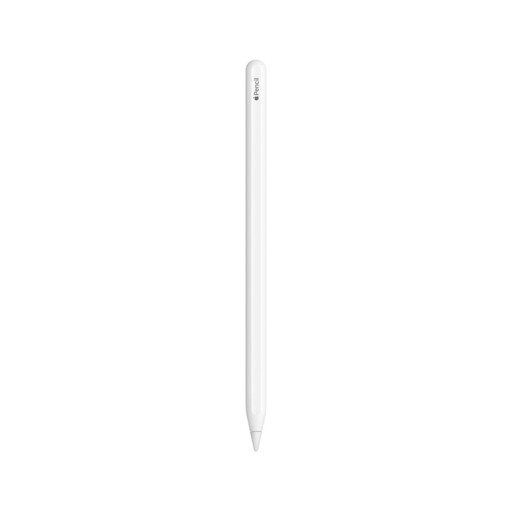 No image available
May be suitable for drawing and sketching if your iPad supports this version. Check the compatibility list for your exact iPad model.
 No image available
May suit illustration and hand lettering on a supported iPad. Apple lists features including pressure and tilt sensitivity, squeeze and rotation; check whether your exact model is supported.
Apple lists compatible iPad models and iPadOS 17.5 or later as requirements for Pencil Pro.
Don’t assume so. Compare the full pen name with the compatibility list for your exact tablet; Logitech, for example, says Crayon doesn’t work with non-iPad tablets.
Ask your printer about the finished size and required bleed. For a design that extends to the edge of the paper, Adobe explains that the image needs to extend beyond the trim edge. Adobe’s 3 mm example isn’t a universal requirement for every printer.
First, check the exact tablet model and the relevant system requirements. For Note+, Adonit also recommends disconnecting any digital pen previously paired with your device; you’ll also need a supported app to use Note+’s extra features.
According to ACM ConsuWijzer, most standard online purchases come with a cooling-off period of up to 14 days after delivery, although exceptions apply. You’re also entitled to a legal guarantee if a product doesn’t perform as you could reasonably expect under normal use. A manufacturer’s warranty doesn’t replace these legal rights.