
Wedding stationery hand-lettering artist
You create your own lettering or decorative details, and first check that your pen, tablet and design app work well together. Apple and Logitech describe different controls for compatible devices.


Start by checking your exact tablet model and design app before choosing a tablet pen. For hand lettering or illustrations where pressure needs to control the line, choose a compatible pen with the right app support. A simpler pen may be enough for sketching and making corrections. If you work on a computer, a graphics tablet is another option, but it needs to be connected to a compatible device.
You create your own lettering or decorative details, and first check that your pen, tablet and design app work well together. Apple and Logitech describe different controls for compatible devices.
You arrange text and illustrations, make corrections and mainly need a pen that works with your exact tablet model. Apple and Samsung publish compatibility information for their pen models.
You want to be able to clear your workspace easily, and are choosing between drawing on a tablet screen and using a separate input surface with a computer. Wacom describes graphics tablets that connect to a compatible device.
Start with your existing tablet and design app. Then decide whether you need pressure-sensitive lines or mainly want to sketch and make corrections. Finally, choose between drawing on a tablet screen or using a computer with a separate input surface.
| What to consider | What should you check? | Who is this important for? |
|---|---|---|
| Compatibility | Compare your full tablet model with the compatibility list for the exact pen version, and check whether any software requirements apply. | I want to keep using my existing tablet and make sure the pen and design app work with it first; around 36% of consumers put compatibility first. |
| Line control | Check that your app supports the control you want, and distinguish pressure sensitivity from line variation created by tilting. | When drawing hand lettering or decorative details, I want to know how I can control the line; around 29% of consumers prioritise this control. |
| Workspace and storage | Decide where the screen will sit, whether you need a cable and how you will store your pen and device after use. | I want to get started quickly at a small desk and tidy my workspace afterwards; around 21% of consumers prioritise this practical setup. |
| Print results | Check that your design app supports margins and bleed, and review a proof at actual size. | Before having invitations printed, I want to check the text and edges on paper; around 14% of consumers start by considering the final result. |
Apple publishes different compatibility lists for Apple Pencil Pro and Apple Pencil (USB-C). The right choice depends on your exact model and, where applicable, the software version.
Make a note of your full tablet model and check it against the pen version before choosing.
Apple and Logitech describe tilt control for the USB-C pens mentioned. That does not automatically mean that pressure from your hand controls the line.
Decide what kind of line control you need, then check separately whether your design app supports it.
If the line control you need is not available, you may need a different pen.
A Wacom One graphics tablet is an input surface that connects to a compatible device; it is not a standalone stylus for an iPad or Galaxy screen.
Choose whether you want to draw on the tablet screen or on a separate input surface. Also check what is included with your chosen configuration.
The Wacom One S configuration that Wacom describes as tablet-only requires a pen and cable.
Margins, bleed, legibility and colour on paper need to be checked separately; a precise pen alone cannot guarantee a good print result.
Canva recommends checking margins and bleed, and reviewing a proof at actual size before ordering the full print run.
If you only spot a mistake on the proof, you may need to update the design before going ahead.
Apple Pencil models are designed for specific compatible iPads. Check the list for the pen and tablet you want to use together.
S Pen is an option if you use a Galaxy Tab and the pen version is compatible with that specific tablet.
Crayon (USB-C) is a pen for sketching and making corrections on iPad, provided the version you choose works with your iPad.
Wacom One graphics tablets are designed to be used with a compatible device, not as replacement pens for a mobile tablet screen.
Artist 12 (2nd Generation) is a pen display for anyone looking for a separate drawing screen to use alongside a compatible computer.
This selection includes pens for compatible Wacom and Surface devices, as well as iPads. Before choosing, check that your exact tablet model is compatible with the pen.
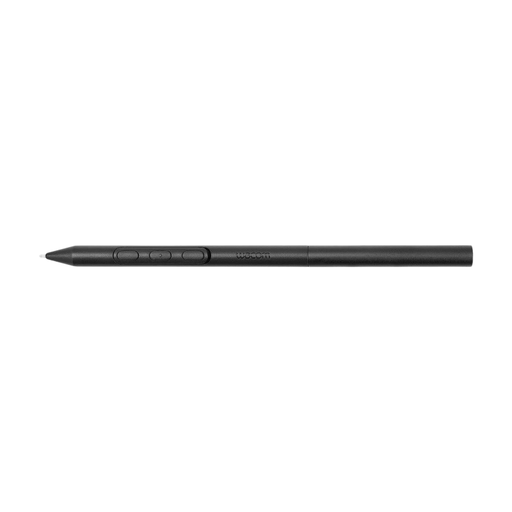 Image unavailable
An option for drawing, sketching and navigation on compatible Wacom devices. The product name describes it as a battery-free EMR stylus; compatibility is limited to the Wacom devices listed.
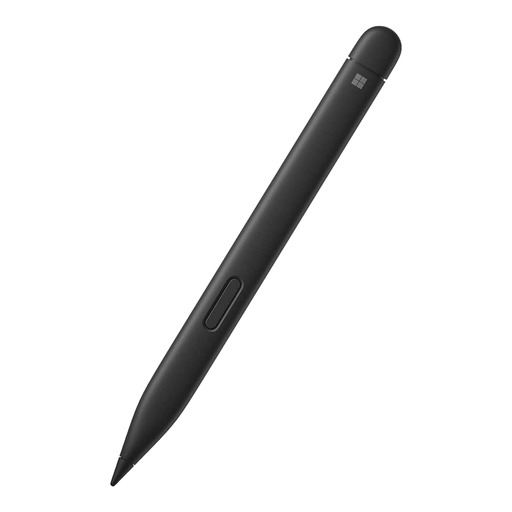 Image unavailable
An option for drawing and writing on a compatible Surface device. Compatibility applies to specific Surface devices; check whether your model is listed.
 Image unavailable
For sketching and making corrections on compatible iPads. Logitech describes line variation controlled by tilting; this is not the same as pressure sensitivity. The stated compatibility covers iPad models from 2018 onwards running iOS 12.2 or later.
 Image unavailable
For hand lettering or illustrations where you want to use the pen controls, provided your tablet and app are compatible. Apple describes pinch and rotation controls, as well as magnetic pairing and charging; the pen works only with specific iPad models.
 Image unavailable
For sketching and making corrections on a compatible iPad. Apple describes charging and pairing via a USB-C cable, as well as magnetic attachment; check your iPad model and remember that tilt control is different from pressure sensitivity.
Not if you mainly place text, select elements or sketch. If you want to vary a line using hand pressure, check that both the pen and your design app support this control; tilt is a separate control.
No. A Wacom One graphics tablet is a separate input surface that, according to Wacom, needs to be connected to a compatible device. For your model, also check the connections and any driver requirements.
Check the margins, bleed and text, and review a proof at actual size. Canva recommends checking the proof carefully and allowing for colour differences between the screen and the printed result.
According to the Dutch government, you are entitled to a product that works as it should, and the seller must provide a solution if something is wrong. There is no fixed statutory guarantee period; normal wear and tear or damage caused by your own actions is not automatically covered by free repairs.
For distance purchases in the Netherlands, the Dutch government says you usually have 14 days to change your mind, but there are exceptions. Before buying, check the returns information that applies to your order.