
Illustrating details for a card
You draw your own borders, flowers or lettering and want control over your brush strokes. Pen features are only useful if both your tablet and your design app support them.


Start by checking your exact tablet model: a pen with drawing features is only useful if your device supports it. If you want to create your own decorations, both the pen’s features and your design app’s support for them matter; simpler features may be enough for making corrections. Also check how the pen charges, whether your tablet already came with one and what file specifications your printer requires.
You draw your own borders, flowers or lettering and want control over your brush strokes. Pen features are only useful if both your tablet and your design app support them.
You mainly use the pen to sketch out an invitation, mark changes or check the text and layout. Advanced drawing tools may be less important in that case.
You already have a tablet or have lost your pen, and want to choose one that works with your device without buying an extra accessory you don’t need.
Choose this option: if you draw lots of decorative lines or lettering yourself and have a compatible iPad.
Bear in mind: Apple lists squeeze and barrel-roll controls, as well as magnetic pairing and charging. The Pro doesn’t work with every iPad. Check the required iPadOS version too.
Choose this option: if you mainly annotate designs, correct text or do simple sketches on a compatible iPad.
Bear in mind: Apple says pairing and charging are done via a USB-C cable. Don’t assume it offers the same brush or pressure features as the Pro without checking.
Choose this option: if you use a Galaxy Tab that supports the relevant S Pen, or want to replace the pen that came with your tablet.
Bear in mind: compatibility varies by model. Samsung says the S Pen for the Tab S10 FE and FE+, among others, doesn’t have Bluetooth functionality.
Choose this option: if you’re looking for an alternative for writing and tilt-controlled drawing, or a pen that Adonit says is pressure-sensitive.
Bear in mind: check that the exact pen is compatible with your iPad and drawing app. Adonit excludes Android and Microsoft devices, among others, and notes that magnetic attachment is limited on certain 2024 iPads.
Choose this option: if you already have a Lenovo tablet that Lenovo lists as compatible with this specific pen.
Bear in mind: Lenovo lists 4096 pressure levels, tilt detection and palm rejection for the pen. Check compatibility with your exact tablet model.
When designing wedding invitations at home, it’s best to check compatibility first, then decide whether you’ll be illustrating, mainly making corrections or preparing a file for print.
| What to consider | What should you check? | Who is this important for? |
|---|---|---|
| Compatibility | Compare your exact tablet model and pen version with the manufacturer’s compatibility information, and check any software requirements too. | If I’m looking for a pen for my existing tablet, I want to avoid buying one that won’t work with it. Around 29% of consumers put compatibility at the top of their list when buying. |
| Control over details | Check what features the pen offers and whether your design app supports them for the brushes you want to use. | If I draw flowers, borders or lettering myself, I want to control my brush strokes. Around 29% of consumers prioritise control over hand-drawn details. |
| Simple editing | Decide whether you’ll mainly add annotations or create illustrations; check how the pen charges and whether your tablet already came with one. | If I’m mainly adjusting text or layout, I don’t want to pay for features I won’t use. Around 24% of consumers prioritise easy editing without unnecessary extra spending. |
| Print-ready file | Ask your printer about the required format, bleed and PDF and colour settings; check whether your design app can export the file. | If I want my invitation printed, I need the final file to meet my printer’s requirements. Around 18% of consumers prioritise preparing a file that’s ready for print. |
Apple and Samsung distinguish between tablet models and pen versions. The wrong combination could mean the pen won’t work with your tablet.
Before choosing a pen, compare your tablet’s full model name with the manufacturer’s compatibility information.
If you choose a pen that doesn’t work, you may still need to buy a suitable replacement.
Tilt, pressure sensitivity and additional controls are different features. Your design app also needs to support them.
Decide whether you’ll mainly make corrections or draw your own brush strokes, then check those specific features for the pen and app you plan to use.
Samsung says the S Pen for the Galaxy Tab S10 FE and FE+, among others, doesn’t support Bluetooth functionality.
If this feature matters to you, base your decision on Samsung’s information for the exact tablet and pen model.
A pen won’t automatically make a file suitable for print. Bleed, PDF export and colour settings are separate parts of the preparation process.
Ask your printer for the file specifications and check in advance which export options your design app offers.
If the file doesn’t meet the requirements, you may need to amend the design or arrange a new proof.
Apple offers several Pencil versions for specific iPads.
S Pen versions are designed for compatible Galaxy Tabs and may be supplied with the tablet or bought as a replacement.
The Crayon (USB-C) is an alternative for writing, sketching and tilt-controlled lines on compatible iPads.
The Note⁺ 2 is an active pen for the iPads that Adonit lists as compatible.
The Tab Pen Plus is worth considering for Lenovo tablets that Lenovo confirms are compatible.
This selection includes pens for existing tablets, with several options for compatible iPads and an active stylus that the product description says is designed for capacitive screens.
 No image available
May suit you if you sketch or take notes on a supported iPad model.
The product name lists tilt detection, palm rejection and an LED battery-level indicator. According to the product name, it’s compatible with selected iPad models; the product information says magnetic attachment is for storage only and doesn’t charge the pen wirelessly.
 No image available
May suit you if you write, draw or create tilt-controlled lines on a compatible iPad.
The product description lists variable line thickness when tilted, palm rejection and USB-C charging. The stated compatibility is limited to iPad models from 2018 onwards running iOS 12.2 or later.
 No image available
May suit you if you want to draw decorative lines and switch between tools on a compatible iPad.
The product description lists pressure and tilt sensitivity, squeeze and barrel-roll controls, and magnetic pairing and charging. The stated compatibility includes iPad Pro 11-inch and 13-inch (M4), iPad Air 11-inch and 13-inch (M2) and iPad mini (A17 Pro).
 No image available
May suit you if you want to review an existing design, edit text or do some simple sketching on a compatible iPad.
The product description lists writing, drawing and tilt sensitivity. Pairing and charging are done via the USB-C port; magnetic attachment isn’t the same as wireless charging.
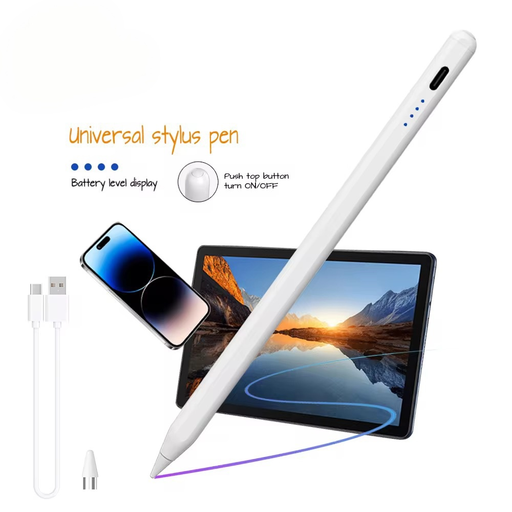 No image available
May suit you if you’re looking for a stylus for a capacitive touchscreen; check that it works with your device and how you plan to use it.
The product name lists iOS, iPad, Android and Microsoft devices. According to the product description, you download an app using a QR code and pair the pen in the app.
No. Apple Pencil versions work with specific iPad models. Apple publishes separate compatibility lists and, where relevant, lists software requirements too, so check your exact iPad model first.
According to Apple, pairing and charging are done using a USB-C charging cable. The magnetic attachment to the iPad is for storing the pen and doesn’t replace the charging step.
Not before checking whether an S Pen is already included with your tablet. Samsung presents the Tab S10 FE series with an S Pen; a separate pen may only be needed as a replacement. Also check that the version is compatible with your tablet.
No. The pen doesn’t determine the requirements for your print file. Adobe describes options including PDF export with bleed and colour profiles; ask your printer for the specifications for your invitation and check that your design app supports the necessary export settings.
For eligible consumer purchases made at a distance, the Dutch government says you’ll often have a 14-day cooling-off period. Products must also be of satisfactory quality, and the seller is your point of contact if there’s a fault. Check the terms for your specific purchase, especially if you’re buying as a business rather than as a consumer.