What should you look for?
First, decide whether you want to use computer apps on your tablet’s screen or simply need a separate note-taking app. Then check pen compatibility, the features you’ll use and what’s already included with the tablet.
iPad with Mac via Sidecar
A good fit if: you want to use a supported Mac and iPad as an extended or mirrored Mac display.
Keep in mind: Sidecar has system requirements and requires the same Apple Account on both devices. Also check which Apple Pencil is compatible with your iPad.
Galaxy Tab with Windows via Second Screen
A good fit if: you want to use a supported Galaxy Tab as a second Windows screen.
Keep in mind: Samsung’s instructions list the Tab S7 and S8 series with One UI 3.1 or later. Don’t assume that every Galaxy Tab supports the feature.
Taking notes directly on a tablet
A good fit if: you read information on one screen and write in a note-taking app on your tablet.
Keep in mind: using two devices side by side doesn’t mean the tablet can receive your computer’s display. Also consider how you want to save or share your notes.
Surface with a pen and an external display
A good fit if: you want to write on a supported Surface and connect an external display as well.
Keep in mind: pen support, features and charging options vary by Surface model. An external display isn’t automatically a screen you can write on.
| What to consider |
What should you check? |
Who is this important for? |
| Pen compatibility |
Look up your exact tablet model in the compatibility information and check the required software version too. |
I want to avoid buying a pen that won’t work with my existing tablet. Around 36% of consumers say compatibility with their own tablet model is their main concern when buying. |
| Screen connection |
Decide whether you want to use computer apps on the tablet or simply need a separate note-taking app. If you want to extend your display, check which device combinations are supported. |
If I want to use my tablet as a proper second computer screen, I want to know first whether my devices support the feature. Around 29% of consumers put extending their display at the top of their list. |
| Writing controls and charging |
Only compare features supported by your device, and check how the pen charges. |
I want to know whether the controls and charging method suit the way I use my pen every day. Around 21% of consumers prioritise writing controls and pen upkeep. |
| What’s included? |
Check what’s in the box for the exact tablet version and whether the pen needs a separate charging accessory. |
If my tablet already comes with a pen, I don’t want to buy another one or find I’m missing a required charging accessory. Around 14% of consumers say extra purchases are their main concern when buying. |
Products for taking notes across two screens
This selection includes pens for compatible tablets and pen displays used with a computer. A pen display connected to a computer isn’t the same as a tablet that works as an extended computer screen.
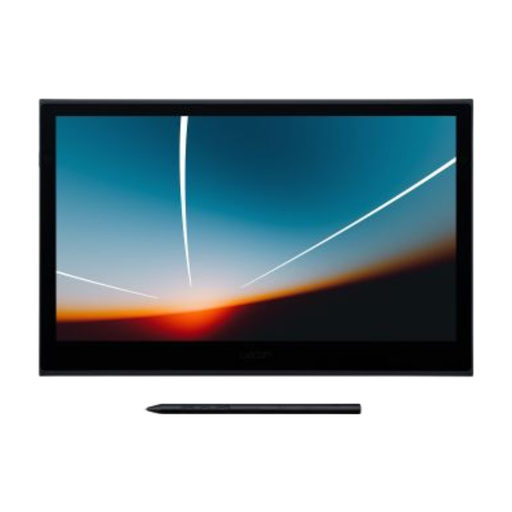 Image unavailable
Wacom Movink 13 Pen Touch
Worth considering if you want to write by hand on a pen display used alongside a computer. Check that the connection suits your computer and the way you work.
View at Joybuy
 Image unavailable
Wacom One Pen Display 14.0"
A possible fit if you want to write with a pen on a display connected to a computer. Check that the connection and setup are right for your computer first.
View at Joybuy
 Image unavailable
Microsoft Surface Slim Pen 2 8WV-00002
For writing by hand on a supported Surface device. Microsoft lists compatibility and features for each model.
Microsoft says the pen needs to be charged using a compatible device or accessory. Check which charging option is right for your Surface.
View at Joybuy
 Image unavailable
Apple Pencil Pro 2024
For taking notes on a compatible iPad. Apple says Pencil Pro includes features such as squeeze and double-tap controls, plus magnetic attachment and charging.
Check compatibility with your exact iPad model and the required software before choosing this pen.
View at Joybuy
 Image unavailable
Apple Pencil USB-C
An option for taking notes on a compatible iPad. Apple describes pairing and charging with a USB-C cable; check that your iPad works with this pen.
View at Joybuy
Frequently asked questions
Can any tablet with pen support be used as a second computer screen?
No. Pen support and screen extension are separate features. Apple Support describes Sidecar for supported Mac and iPad combinations; Samsung’s instructions list specific Galaxy Tab series and Windows requirements. Check both features for your exact devices.
How do I start writing with Sidecar or Samsung Second Screen?
For Sidecar, first check the system requirements and use the same Apple Account on your Mac and iPad. For Samsung Second Screen, Samsung describes connecting a supported tablet to a Windows PC; the listed model and system requirements still apply.
Does the Surface Slim Pen 2 need to be charged?
Yes. Microsoft says you need to charge the pen before use with a compatible device or accessory. Check which charging option is right for your Surface; Microsoft says a standalone charger is sold separately.
Do I need to buy an S Pen straight away for a Galaxy Tab S10 FE or FE+?
Not according to the standard box contents Samsung lists for these models: an S Pen is included. When buying, check the exact version and what’s in the box, especially if the set is second-hand or incomplete.
What are my rights in the Netherlands if a pen I bought online doesn’t work properly?
For eligible online consumer purchases, there is generally a 14-day cooling-off period, with some exceptions. This is separate from your rights if a product is faulty. According to the Dutch government, you’re entitled to a product that works as it should. There is no fixed statutory warranty period in the Netherlands, and the retailer is your point of contact if something goes wrong.


