
Sketch artist with an existing tablet
You want to draw game characters on your current iPad or Galaxy Tab. First, check that the pen works with your exact device model; compatibility can vary by model and operating system version.


First, choose a pen that’s compatible with your exact tablet or pen display model. Then consider whether you need pressure sensitivity, tilt recognition or shortcut buttons for your sketches. Features and charging methods vary between pens, and a stylus won’t correct an awkward working posture. Arboportaal highlights the strain associated with prolonged static postures when standing and working at a screen. Position your screen and arms properly, and alternate between standing, moving around and sitting.
You want to draw game characters on your current iPad or Galaxy Tab. First, check that the pen works with your exact device model; compatibility can vary by model and operating system version.
You already use a Wacom, Huion or XPPen device and are looking for a replacement pen that works with your existing drawing equipment. Check the compatibility list for your specific model.
You draw for extended periods and also want to consider screen positioning, support for your arms, and alternating between standing, moving around and sitting.
Start with your exact device model and the features you want to use in your drawing app. Then consider how the pen works, how it charges and how your desk is set up.
| What to consider | What to check | Who is this important for? |
|---|---|---|
| Compatibility | Compare your device’s full name, model code and generation with the pen’s compatibility list. If you’re buying an Apple Pencil, check the required iPadOS version too. | If I want to draw on my existing tablet or pen display, the pen needs to work with that exact model. Around 31% of consumers say device compatibility is their top priority. |
| Stroke and tool control | Check for pressure and tilt sensitivity, buttons or an eraser, and whether your drawing app supports the features you want. | If I want to switch between outlines, shading and tools, I look for features my drawing app actually uses. Around 25% of consumers put drawing controls ahead of other buying priorities. |
| Working posture | Check whether the screen can be positioned securely, either upright or flat, and whether your arms are supported. Leave room to alternate between sitting and moving around. | If I draw at a standing desk, I want to position my screen and arms so I don’t stay in the same posture for too long. Around 19% of consumers say setting up a standing drawing space is their top priority. Arboportaal describes the strain that can be associated with standing still for long periods and working at a screen in a static posture. |
| Charging and storage | Check whether the pen is battery-free, charges via a cable, or attaches magnetically and charges that way. A magnetic attachment may only be for storage. | If I want to start sketching straight away, I need to know whether the pen needs charging and how to store it. Around 13% of consumers make charging and storage their top buying priority. |
| What comes with the pen | Check what’s included with the pen or tablet, and whether you need an adapter or replacement nibs for your setup. | If I don’t want to buy accessories I already own or don’t need, I check what’s in the box and what equipment I have. Around 12% of consumers say avoiding unnecessary extra purchases is their top priority. |
Even pens in the same product range may support different devices. An incompatible pen won’t work as a replacement for your current tablet or pen display.
Before ordering, compare your device’s full model code with the compatibility information for the exact pen.
Choosing the wrong pen could mean having to buy a compatible replacement after all.
Apple describes the Apple Pencil Pro as charging magnetically. The Apple Pencil (USB-C) pairs and charges via a USB-C cable; its magnetic attachment is for storage.
Check how the specific version charges and whether you’ll need a cable.
Remember to allow for a USB-C cable if your chosen pen needs one and it isn’t included with your accessories.
Some tablet versions already come with a pen. What’s in the box varies by offer and model.
Check the contents of the exact tablet package before ordering a replacement pen.
This helps you avoid buying a separate stylus you may not need.
Pressure levels are model specifications and aren’t, by themselves, a like-for-like measure of drawing quality. XPPen notes that its own test results may vary depending on the working environment.
First check compatibility and the input features you need, then make sure your drawing app supports them.
Apple Pencil models are designed for specific iPads. They’re most relevant if you already use a compatible iPad.
An S Pen may be a suitable replacement for a compatible Galaxy Tab model.
The Wacom One Standard Pen is a potential replacement for compatible Wacom One tablets and displays.
The PW600L is designed for the Kamvas displays Huion lists as compatible.
The X3 Pro Smart Chip Stylus is designed for the Artist Pro and Deco Pro drawing devices listed by XPPen.
This selection includes replacement pens for Wacom One and Apple Pencil models, as well as styluses for compatible iPads. Before buying, check compatibility with your exact device model.
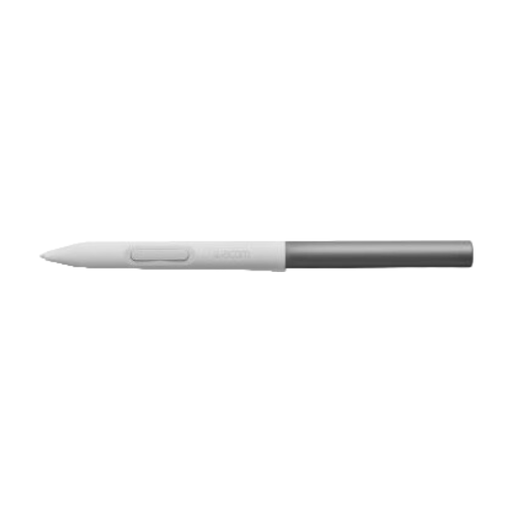 Image unavailable
A replacement pen to consider if you use a compatible Wacom One device. Check the exact model code before ordering.
 Image unavailable
For anyone who wants extra pen controls on a compatible iPad. Check that your iPad model and drawing app are supported.
The product name mentions iPad Air and iPad Pro. According to Apple, compatibility and system requirements vary by model.
The description lists squeeze, barrel roll and double-tap, pressure and tilt sensitivity, and magnetic charging.
 Image unavailable
Worth considering if you use an iPad from one of the compatible generations listed. Check your exact model before buying.
The product name lists iPad Pro 12.9-inch (3rd, 4th, 5th and 6th generation), iPad Pro 11-inch, iPad Air (4th and 5th generation), and iPad mini (6th generation).
The description lists magnetic attachment and charging, and double-tap to switch tools.
 Image unavailable
For sketching on one of the selected iPad models this stylus is described as compatible with. Check the compatibility list for your iPad.
The description lists tilt detection and palm rejection.
Magnetic attachment is for storage; charging is via USB-C, and wireless charging isn’t supported.
 Image unavailable
For sketching on a compatible iPad if tilt sensitivity matters to you. Check that your iPad model is supported.
Apple lists tilt sensitivity for this version. Pairing and charging are via a USB-C cable.
Compare your tablet or pen display’s full model name and generation with the compatibility list for the exact pen. If you’re buying an Apple Pencil, check the iPadOS version listed too. A matching brand name or similar connector alone doesn’t guarantee compatibility.
Position your screen and drawing surface so you’re not working for long periods with your neck bent or your arms unsupported, and alternate between standing still, moving around and sitting. Arboportaal describes the risks of standing still for long periods and the static strain associated with screen work; a particular pen won’t address these issues.
Check how each model pairs and charges: according to Apple, Apple Pencil Pro charges magnetically, while Pencil (USB-C) uses a cable. Wacom describes the One Standard Pen as battery-free, as does Huion for the PW600L. Also check which replacement nibs fit your exact pen.
For a standard online purchase from a business in the Netherlands, you generally have a 14-day cooling-off period. The Dutch government (Rijksoverheid) lists exceptions and distinguishes between purchases from businesses and private individuals. If a product is faulty, contact the seller to find a solution, such as a repair or replacement. The cooling-off period and your rights if a product is faulty are separate matters.