Who is this choice relevant to?

Teacher working by a bright window

If you often mark work in the same bright spot, first check whether text and annotations are easy to read on screen. Apple lists an anti-reflective coating for the iPad Air we looked at; Samsung describes a separate anti-reflective screen protector for the Galaxy Tab S11.

Teacher with an existing tablet

If you want to keep using your current tablet, check the full model name and whether the specific pen is compatible. Apple and Samsung list compatibility by device or model range.

Teacher working with digital submissions

If you receive pupils’ work digitally, you’ll need a suitable way to open, annotate and return files. reMarkable describes file import and export; make sure your use of pupil data complies with your school’s policies.

What should you look for when choosing?

Existing compatible iPad

Best if: you already have a supported iPad and mainly add short comments or annotations.

Bear in mind: the pen won’t change screen reflections; check that the Pencil is compatible with your iPad generation.

Galaxy Tab S11 with S Pen

Best if: you use a Galaxy Tab S11 or S11 Ultra and want a pen designed for those models.

Bear in mind: Samsung’s anti-reflective claim applies to a separate screen protector for the Tab S11, not every Galaxy Tab or every lighting condition.

reMarkable Paper Pro with Marker

Best if: you mainly read imported PDFs and annotate them by hand on a screen that, according to reMarkable, reflects ambient light.

Bear in mind: the Marker is model-specific; also check the file workflow and your school’s policies on pupil data.

What to consider What to look for Who should consider this?
Readability in light from a window Assess the screen where you work and check which device any anti-reflective screen protector is designed for. If I need to read corrections beside a bright window, I look at the screen and the light first. Around 33% of consumers give readability top priority.
Compatibility Compare the full tablet name with the compatibility details for the specific pen. If I want to keep my existing tablet, I look for a pen confirmed to work with that exact model. Around 27% of consumers put compatibility first.
File workflow Test importing, annotating, exporting and returning a sample file; check which features come with specific requirements. If my pupils’ work arrives digitally, I want to return my feedback using the agreed process. Around 20% of consumers give file sharing top priority.
Pupil work privacy Before using real files, check which apps, accounts, syncing options and storage methods your school allows. If I’m handling pupil data, my chosen way of working must comply with my school’s policies. Around 20% of consumers put data management first.

Common buying mistakes

  • Buying a pen to fix screen reflections

    A pen won’t change the screen coating. Apple lists an anti-reflective coating for the iPad Air we looked at, Samsung describes a separate screen protector for the Tab S11, and reMarkable describes a screen that reflects ambient light.

    Assess the screen where you do your marking and check that any screen protector is compatible with your exact tablet model.

  • Assuming a Pencil, S Pen or Marker works with every tablet

    Compatibility varies by pen and device. According to Samsung, the S Pen we looked at is designed for the Galaxy Tab S11 and S11 Ultra; the reMarkable Marker is for certain reMarkable models.

    Make a note of your tablet’s full model name and compare it with the compatibility details for the specific pen.

  • Assuming all document features have the same requirements

    Annotating PDFs and converting a PDF into an editable notebook are different features. According to reMarkable, Convert to Notebook requires a Connect subscription.

    Test the import and export process you need with a sample file, and check separately which features require a subscription.

    You’ll need a reMarkable Connect subscription to use Convert to Notebook.

  • Syncing pupils’ work without checking your school’s policies

    reMarkable describes syncing when the device is connected to Wi-Fi. The Dutch Data Protection Authority warns that unauthorised people could gain access to sensitive pupil data.

    Before using real files, check with your school that the app, account and transfer process you’ve chosen are approved.

Relevant brands

Apple

Apple describes the Pencil USB-C and Pencil Pro as compatible with supported iPads. For the iPad Air we looked at, Apple lists an anti-reflective coating.

  • Apple describes annotation with Pencil USB-C and additional controls for Pencil Pro.
  • Check compatibility for each iPad generation. Apple’s screen and pen details aren’t an independent test in the light by your window.

Samsung

Samsung describes a model-specific S Pen for the Galaxy Tab S11 and S11 Ultra, as well as a separate anti-reflective screen protector for the Tab S11.

  • For the S11 pen we looked at, Samsung lists pressure sensitivity and a replaceable nib.
  • The compatibility details apply to that pen; the visibility claim relates to the specific screen protector and isn’t based on an independent comparative test.

reMarkable

The reMarkable Paper Pro with a compatible Marker is an option for reading and annotating files by hand.

  • reMarkable describes PDF annotation and several ways to transfer files.
  • Markers aren’t interchangeable with older reMarkable pens. Check the file workflow, your school’s policies and whether the features you need require Connect.

Tablets and pens at Joybuy

This selection includes tablets supplied with a pen and separate pens for compatible iPads. When comparing, consider which tablet is right for you, the pen features listed and how you handle pupils’ files.
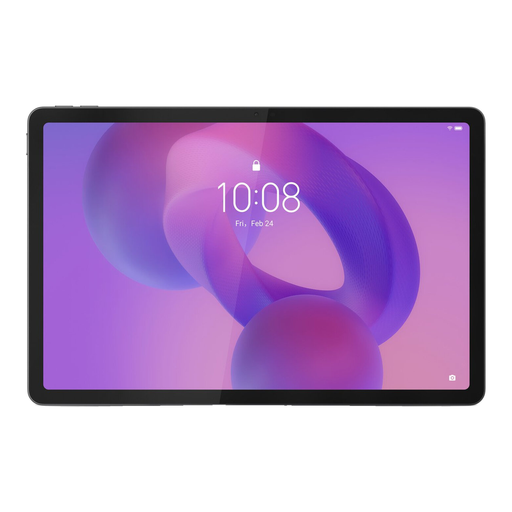
Lenovo Idea Tab, 11 inch, 256 GB, with Tab Pen

Lenovo Idea Tab, 11 inch, 256 GB, with Tab Pen

A tablet supplied with a Tab Pen for writing and taking notes, ideal if you’re looking for a tablet and pen together.

11 inch; 256 GB; Wi-Fi; Android 15; grey.

View at Joybuy

TECLAST ArtPad Pro, 12.7 inch 2K, with stylus

TECLAST ArtPad Pro, 12.7 inch 2K, with stylus

A tablet supplied with a stylus for taking notes and writing, for anyone looking for a larger screen for work or study.

12.7 inch 2K screen; 20 GB RAM (8 GB + 12 GB virtual); 256 GB storage.

View at Joybuy

iFLYTEK AINOTE 2, 10.65 inch E-Ink tablet with stylus

iFLYTEK AINOTE 2, 10.65 inch E-Ink tablet

The product description mentions handwriting input on a paper-like E-Ink screen for reading and taking notes.

10.65 inch; pen input. The product description mentions online syncing; make sure your use of pupil data complies with your school’s policies.

View at Joybuy

Apple Pencil Pro

Apple Pencil Pro

A separate pen for compatible iPads; check whether your iPad model is supported. The pen itself won’t reduce screen reflections.

The product description mentions pressure and tilt sensitivity, plus magnetic attachment.

View at Joybuy

Apple Pencil USB-C, white

Apple Pencil USB-C, white

A separate pen for writing and taking notes on compatible iPads. Check that your exact iPad model is supported; the pen won’t reduce screen reflections.

Tilt-sensitive; charges via USB-C.

View at Joybuy

Frequently asked questions

Will a different tablet pen reduce glare by a window?

Not by itself: assess the screen and its position in relation to the window. Apple lists an anti-reflective coating for the iPad Air we looked at, Samsung describes a separate screen protector for the Tab S11, and reMarkable describes a screen that reflects ambient light. These are manufacturer specifications, not comparative measurements taken at your workplace.

How can I check whether a pen works with my tablet?

Compare your exact tablet model with the compatibility details for the specific pen. Don’t rely on a general name such as Pencil, S Pen or Marker, as the stated compatibility varies by device and pen.

Do I need to pay a subscription to annotate PDFs on reMarkable?

reMarkable describes standard PDF import and annotation. According to reMarkable, the separate Convert to Notebook feature requires Connect; check whether you specifically need that feature.

What are my rights when shopping online in the Netherlands?

According to the Government of the Netherlands, when you buy remotely from a business, in many cases you have 14 days to change your mind. Products are also covered by a statutory guarantee; the Netherlands has no fixed general guarantee period. If a product is faulty, contact the seller.

Can I mark pupils’ work using my own tablet or cloud service?

That depends on your school’s policies and the data-handling process you choose. The Dutch Data Protection Authority notes that digital education tools can process sensitive pupil data. Before using real files, check which devices, apps and ways of transferring files are allowed.
