
Marker with an iPad
You already have an iPad and want to choose a compatible pen without buying a new screen. The exact iPad model determines which Apple Pencil is compatible; Apple lists compatibility for each model.


Start by checking the full model name of your tablet or Surface, then make sure the pen and marking app suit the way you need to return assignments. If you already have a suitable device, a compatible pen on its own may be enough. Otherwise, compare the complete setup too, and check in advance which apps and storage options your institution allows for students’ work.
You already have an iPad and want to choose a compatible pen without buying a new screen. The exact iPad model determines which Apple Pencil is compatible; Apple lists compatibility for each model.
You want to add handwritten comments to work submitted digitally and check whether your tablet already comes with a suitable S Pen. Samsung explains how to annotate PDFs in Samsung Notes and lists an S Pen as included with the Galaxy Tab S10 Lite.
You want to keep using your current device, but need to check pen compatibility and whether you need a particular charging solution or bundle. Lenovo and Microsoft provide information for each device or pen model.
First, check that the pen is compatible with your exact device. Then test the whole process for returning assignments, and finally consider privacy, charging and your complete setup.
| What to consider | What should you look for? | Who is this important for? |
|---|---|---|
| Compatibility | Compare the full device model and software version with the compatibility information for that exact pen model. | If I want to keep using my existing tablet or Surface, the combination must be officially supported; around 36% of consumers put compatibility first. |
| Returning assignments | Test whether the app can open, annotate and save a file, then return it through the required channel. | If I need to send back annotated work, I want to be sure the entire file-handling process works; around 29% of consumers put workflow first. |
| Privacy and storage | Ask which devices, apps, accounts, storage locations and sharing methods your institution allows for this work. | When assignments contain personal data, I want to know what my institution allows before importing or syncing files; around 21% of consumers want to sort this out first. |
| Complete setup | Check how the pen charges and is stored, what’s included in the box and whether you need any extra components. | If I work in a small room, I want to know in advance what I’ll need and when I’ll need to charge it; around 14% of consumers put their workspace and the total cost first. |
A pen may differ depending on the tablet generation or model. Apple, Lenovo and Microsoft list compatibility for individual devices or models.
Before buying, check the full model names and, where applicable, the required software version.
A complete setup may also include a tablet or a separate charging solution. Samsung lists an S Pen as included with the Galaxy Tab S10 Lite; Microsoft notes that a separate charger may be an option for certain Surface setups.
Check exactly what’s included in the bundle and which charging solution suits your device.
You may need extra components, such as a compatible tablet, charger or spare pen.
Institutions have obligations under the GDPR when processing personal data as part of digital education. A pen or annotation feature doesn’t determine whether an app or syncing method is approved.
For identifiable students’ work, only use methods approved by your institution.
Apple Pencil models are designed for specific iPads. The USB-C model is an option for annotating on a compatible device.
S Pen models are designed for specific Galaxy Tabs; an S Pen is listed as included with the Galaxy Tab S10 Lite.
Crayon (USB-C) is an alternative pen for compatible iPads.
Tab Pen Plus is designed for compatible Lenovo tablets and may be worth considering if you already use one.
Surface Slim Pen is an option for compatible Surface models if you already use a Windows setup.
These Joybuy product picks are suited to Surface, iPad and Galaxy Tab models. Check compatibility with your exact device before choosing.
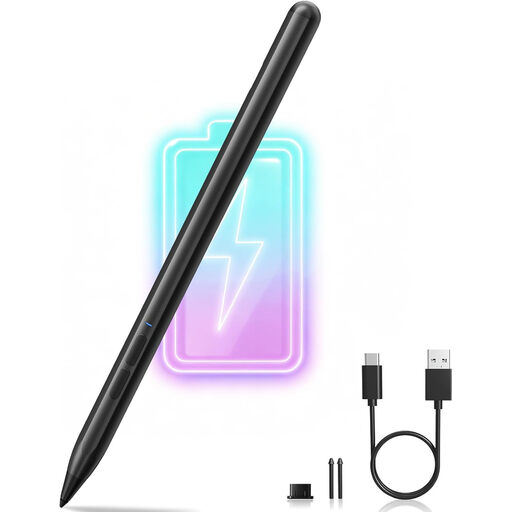 No image available
An option if you want to write on one of the listed Surface models. Check that your full model name appears in the compatibility list.
The product name lists 4096 pressure levels and palm rejection, as well as support for the Surface Pro, Go, Laptop, Studio and Book models named in the title.
 No image available
An alternative if you want to annotate on a compatible iPad without Bluetooth pairing. Check compatibility with your exact iPad and app first.
Logitech describes tilt control for variable line thickness and charging via USB-C. The manufacturer doesn’t cite tilt as evidence of pressure sensitivity.
 No image available
A pen option for a compatible iPad Air or iPad Pro. Check your exact iPad model, as Apple lists compatibility for each Pencil model.
The product name mentions iPad Air and iPad Pro models, but doesn’t specify a full list of compatible generations.
 No image available
An option for annotating if your iPad appears on Apple’s compatibility list and meets the required software version.
Apple says it pairs and charges via a USB-C cable. On this model, magnetic attachment doesn’t mean magnetic charging.
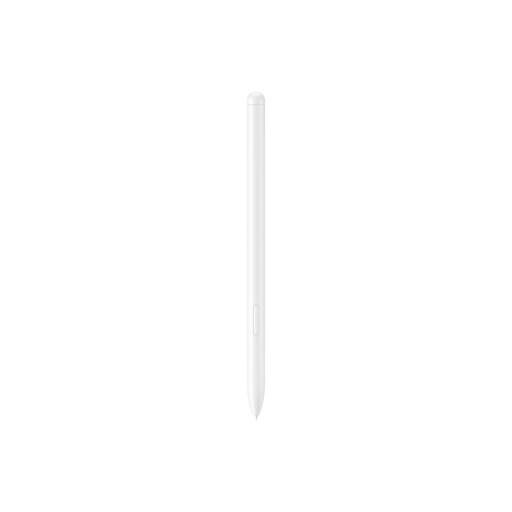 No image available
An option to check for the Galaxy Tab S9 FE or S9 FE+. Confirm compatibility with your tablet’s full model name.
The product name lists a weight of 8,7 g. Check how it charges, and bear in mind the warning that magnets may affect credit cards or medical devices.
No. First check that the pen works with your device and that the app you use can open, edit and save the PDF, then return it through the required channel. Apple explains how to annotate on iPad, and Samsung describes PDF annotation in Samsung Notes; that doesn’t automatically confirm that it will work with your submission platform.
Check how your specific pen charges and make sure you have the required charging solution to hand. Apple says the Apple Pencil (USB-C) pairs and charges via a USB-C cable. According to Microsoft, compatible charging docks for the Surface Slim Pen vary by model or accessory.
Samsung lists an S Pen as included with the Galaxy Tab S10 Lite. Check what’s included with the exact model before buying a replacement or extra pen.
No. According to ACM ConsuWijzer, there is no fixed two-year period for the legal guarantee. You can expect a product to work properly under normal use; if it breaks too soon, contact the seller to arrange a solution.
That depends on your institution’s policies and the files you’re handling. The Dutch Data Protection Authority notes that institutions must comply with GDPR rules when digital education tools process personal data. So check which devices, apps, accounts and storage options are allowed before importing or syncing work.