Start by considering how easy the screen is to read where you sit, then check that the tablet, compatible pen and lecture files support the annotation and export workflow you need. A matte screen or e-paper focuses on reducing distracting reflections; a standard iPad or Android tablet offers colour and tablet apps, but check for yourself how well the screen performs in the light from your window. Also check whether the pen is included and whether any features you want require a subscription.
Who are these tablet-and-pen combinations suitable for?
Student bothered by window reflections
You read and annotate slides in a bright spot where you tend to sit, and consider readability and screen space more important than extra tablet features. Lenovo, Apple, reMarkable and BOOX describe different screen types for you to compare.
Student with an existing app workflow
You want to open lecture files in familiar apps, mark them up with a compatible pen, then continue using or export them. Apple Support explains how to annotate PDFs on an iPad; also check how your own files and apps work.
Student who mainly writes on PDFs
You’re looking for a device to read and write on slides, and want to know in advance what the pen and the file features you need require. Samsung lists an S Pen as included with the Galaxy Tab S10 FE series; reMarkable distinguishes between annotating PDFs and converting them into an editable notebook.
What should you look for when choosing?
First, decide how important readability by your window is. Then check that the screen type, pen and file workflow suit the slides and apps you use.
| What to consider |
What should you check? |
Who is this most important for? |
| Readability by the window |
Compare the screen finish and the conditions attached to brightness specifications; if possible, view one of your own slides in similar lighting. |
If I read next to a bright window, I want to see text and notes clearly without assuming that one screen specification will eliminate every reflection. Around 36% of consumers say readability by the window is their top priority. |
| Pen and PDF workflow |
Check which pens are compatible, what’s included in the box, and how to import and export files. |
If I want to mark up lecture files and use them again afterwards, I want to know that my pen and the file steps I need work together. Around 36% of consumers prioritise pen and PDF functionality. |
| Colour and study apps |
Open a representative slide and check the apps and file sharing you need; also compare the size with what you carry every day. |
If my slides include colour or my studies rely on specific apps, I want to check the display and workflow in advance. Around 28% of consumers prioritise colour and the apps they need. |
Common mistakes when choosing
-
Looking only at the stated number of nits
Brightness and reflections are different factors to consider. Samsung’s claim of up to 800 nits for the Galaxy Tab S10 FE series applies to High Brightness Mode; Lenovo lists a matte finish for the Tab P12 with Matte Display.
Compare the conditions attached to brightness specifications as well as the screen finish. If possible, view one of your own slides in similar lighting.
-
Assuming every compatible pen is included in the box
Pen compatibility doesn’t automatically mean the pen is included. The Apple iPad Air supports Apple Pencil models, but the official box contents don’t list a Pencil; Samsung lists an S Pen as included with the FE series covered here.
Check the exact version, what’s included in the box and which pens are compatible.
-
Treating e-paper like a standard colour tablet
The standard BOOX Go 10.3 (Gen II) is monochrome, while the reMarkable Paper Pro has a colour display. A document-focused e-paper workflow isn’t the same as a standard tablet workflow.
View representative slides with colour charts and check which apps and export steps you need.
-
Confusing PDF annotation with conversion to an editable notebook
reMarkable describes standard PDF import and the ‘Convert to Notebook’ feature as separate actions. According to reMarkable, converting a PDF into an editable notebook requires Connect.
Decide which action you need for your lectures and check the features that support it.
Brands to compare
Lenovo
The Tab P12 with Matte Display combines a matte colour screen with a bundle that lists the Tab Pen Plus.
- Lenovo specifies a matte 12.7-inch screen with 400 nits for this version.
- A matte finish doesn’t guarantee that every slide will be easy to read from every angle to the window. Its larger size makes it less convenient to carry than a smaller tablet; the Consumers’ Association highlights this portability consideration for tablets measuring 12 to 14 inches.
Apple
The 11-inch iPad Air with M4 is an iPadOS option for PDF annotation and other tablet apps, with support for Apple Pencil Pro and Apple Pencil (USB-C).
- Apple specifies an anti-reflective coating and 500 nits of brightness for this model.
- The Pencil isn’t listed in the stated box contents. Check which compatible pen suits your workflow.
Samsung
The Galaxy Tab S10 FE series is a conventional Android tablet option; Samsung lists an S Pen as included.
- Samsung states up to 800 nits in High Brightness Mode.
- That brightness applies to a specific mode and isn’t an independent measure of readability next to a window. Check the exact version.
reMarkable
The Paper Pro is designed for reading and handwritten annotation of documents on an 11.8-inch e-paper colour display.
- reMarkable lists PDF import and export, as well as an adjustable reading light.
- For the specific task of converting a PDF into an editable notebook, reMarkable requires a Connect subscription. It doesn’t replace all the features of a standard tablet.
BOOX
The Go 10.3 (Gen II) series offers e-paper for reading and writing on PDFs; the standard version is monochrome and has no front light.
- BOOX describes the standard version as having a monochrome e-paper display without a front light, with PDF annotation support.
- Don’t confuse the standard version with the Lumi version, which has a front light. Colour slides won’t appear in colour on the monochrome versions mentioned.
Tablets with a pen at Joybuy
These product picks focus on reading, writing and annotating documents using a tablet and pen; check the screen display and file workflow you need for each version.
 Image unavailable
Lenovo Idea Tab Plus 12.1-inch 2.5K Wi-Fi, 8GB/256GB, with Pen, Rose
An option to compare if you’re looking for a tablet with a pen for notes and document annotation.
12.1-inch 2.5K screen; 8GB RAM and 256GB storage; the product title lists a pen.
View at Joybuy
 Image unavailable
TECLAST ArtPad Pro 12.7-inch, 20GB (8GB + 12GB Virtual) RAM, 256GB, T-Pen compatible
An option to compare if you’re looking for a larger tablet for taking notes with a compatible pen.
12.7-inch; Helio G99; 20GB (8GB + 12GB Virtual) RAM; 256GB storage; Android 15; the product title lists compatibility with a T-Pen.
View at Joybuy
 Image unavailable
TECLAST ArtPad Pro 12.7-inch 2K, 20GB (8GB + 12GB Virtual) RAM, 256GB, with stylus
An option to compare if you want to write on a larger screen and annotate documents.
12.7-inch 2K screen; 20GB (8GB + 12GB Virtual) RAM; 256GB storage; the product title lists an included stylus.
View at Joybuy
 Image unavailable
iFLYTEK AINOTE 2 10.65-inch E-Ink tablet
An e-ink option to compare if reading and handwritten notes on one device are important to you.
10.65-inch E-Ink screen.
View at Joybuy
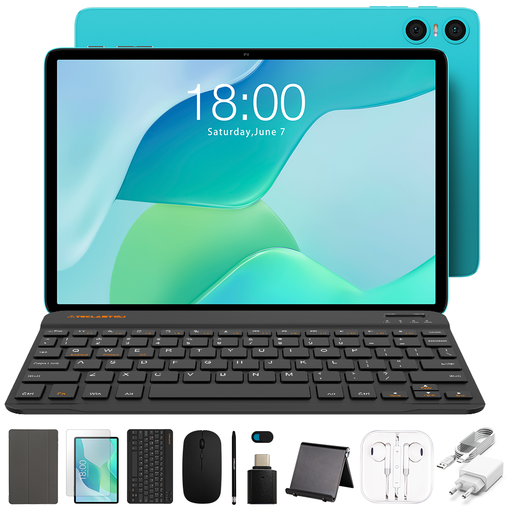 Image unavailable
TECLAST P33 10.1-inch, 9GB (3GB + 6GB virtual expansion), 64GB, accessory bundle with stylus
An option to compare if you’re looking for a tablet and stylus together in an accessory bundle.
10.1-inch; 9GB (3GB + 6GB virtual expansion) RAM; 64GB storage; the product title lists a case, Bluetooth keyboard, mouse, stand and stylus, among other accessories.
View at Joybuy
Frequently asked questions
Can I annotate a PDF of lecture slides directly on an iPad?
Yes. Apple describes built-in Markup tools for PDFs and other files on the iPad. Also check that your learning platform makes the file accessible and consider how you need to export it.
Does an e-paper tablet always need a light when used by a window?
No. According to BOOX, the standard Go 10.3 (Gen II) has no front light. If you also want to use the same tablet in low light, make sure you distinguish the standard version from the Lumi version with a front light.
Do I need a subscription to annotate PDFs on the reMarkable Paper Pro?
Not for standard PDF import and annotation, as described by reMarkable. According to reMarkable, it’s specifically the conversion of a PDF into an editable notebook that requires the Connect feature; check whether you need this extra step.


