Start with your exact tablet model: an Apple Pencil, Samsung S Pen and generic stylus aren’t automatically interchangeable. For lines that respond to pressure, you’ll need a pen and drawing app that both support pressure sensitivity; for sketching, tilt sensitivity and somewhere convenient to store the pen may matter more. Also check palm rejection, charging and replacement nibs for the specific version.
Who are these tablet pens for?
Illustrator with an existing iPad
You want to draw characters and scenes, so first check which Pencil is compatible with your iPad and whether you need pressure-sensitive lines. Apple lists the features available for each Pencil version and supported iPad model.
Artist with a Galaxy Tab
You’re looking for an S Pen that works with your specific Tab model. Samsung lists compatibility by version, so don’t assume that different S Pens offer the same features or support.
Sketch artist at a shared desk
You want to rest your hand on the screen while you draw, then easily store or maintain the pen afterwards. Check that these features are supported by your tablet and the specific pen version.
What should you look for in a tablet pen?
Apple Pencil for a compatible iPad
A good fit if: you choose the Pencil that Apple lists for your exact iPad model. Apple specifies pressure and tilt sensitivity for Apple Pencil (1st generation); check the features of other versions separately.
Keep in mind: having a USB-C connector alone doesn’t prove that the pen is compatible with your iPad or pressure-sensitive.
Samsung S Pen for a compatible Galaxy Tab
A good fit if: Samsung lists your specific Tab model as compatible with your chosen S Pen. The Creator Edition is listed for several Tab S generations; the S Pen for the Tab S11 series is listed for the Tab S11 and S11 Ultra.
Keep in mind: Samsung says the Creator Edition doesn’t have Bluetooth or require charging; S Pen versions aren’t universally interchangeable.
Logitech Crayon for a compatible iPad
A good fit if: tilt for varying line thickness and being able to rest your hand on the screen are important to you. Logitech specifies these features for the Crayon with USB-C.
Keep in mind: the statement about pressure sensitivity in the Logitech manual consulted refers to a Lightning version; check the features of the USB-C pen separately.
Generic stylus, such as the Adonit Dash 4
A good fit if: you want to make simple sketches on different touchscreens without assuming they support model-specific drawing features.
Keep in mind: Adonit describes different operating modes; basic touchscreen control doesn’t confirm that pressure sensitivity or palm rejection will work on your device.
| What to consider |
What to check before buying |
Who will value this? |
| Compatibility |
Compare your exact tablet model and generation with the pen’s compatibility list. |
If I want to keep using my existing tablet, I need to know first that the pen is compatible with my exact model. Around 36% of consumers put compatibility first. |
| Lines and shading |
Check pressure and tilt sensitivity separately, including whether your drawing app supports them. |
For illustrations with varied lines and shading, I want to know what input the pen and app recognise. Around 29% of consumers prioritise control over lines and shading. |
| Comfort and storage |
Check palm rejection for your device and see how the pen can be stored or attached. |
If I spend a long time drawing at a shared desk, I want to rest my hand comfortably and be able to find the pen afterwards. Around 21% of consumers prioritise this combination of needs. |
| Charging and maintenance |
Check how the pen charges, what’s included and whether replacement nibs are available for this exact version. |
For a pen I use regularly, I want to know how charging and nib replacement work. Around 14% of consumers prioritise easy maintenance. |
Which mistakes can you avoid?
-
Choosing a pen without checking your tablet model
Compatibility can vary between pen versions and devices. A pen that works with a similar tablet may not work with your model.
Look up your exact tablet model and compare it with the manufacturer’s compatibility information before choosing.
-
Confusing tilt sensitivity with pressure sensitivity
When illustrating, it can make a difference whether a line responds to the angle of the pen or the pressure you apply.
Check both features separately for the pen and the drawing app you want to use.
-
Assuming magnetic attachment means magnetic charging
Attachment, pairing and charging methods vary by version. For example, Apple says the Pencil (USB-C) charges via a cable, while the Pencil Pro supports magnetic attachment and charging on compatible iPads.
Check how the exact version charges and what’s included in the box.
Which brands are worth considering?
Apple
Pencil versions for specific supported iPads; a relevant choice if you already own an iPad.
- Apple says Pencil Pro offers squeeze and barrel roll controls. Apple describes Apple Pencil (1st generation) as pressure- and tilt-sensitive.
- The USB-C version pairs and charges via a cable. Check compatibility and features for each Pencil model.
Samsung
S Pen versions for specific Galaxy devices, including drawing pens for Tab S models.
- Samsung lists the Creator Edition for several Tab S generations, and the S Pen for the Tab S11 series for the Tab S11 and S11 Ultra.
- Samsung says the Creator Edition doesn’t have Bluetooth and doesn’t need charging. Check compatibility for each version separately.
Logitech
Crayon is an iPad-focused pen for sketching and writing.
- For the Crayon with USB-C, Logitech specifies tilt sensitivity, palm rejection and a replacement nib that’s available separately.
- The statement consulted about a lack of pressure sensitivity comes from a manual for a Lightning version; check this feature for the USB-C pen.
Adonit
The Dash 4 is an alternative for basic use across different touchscreens.
- Adonit describes touchscreen use and a separate mode for newer iPads.
- This product description doesn’t confirm that pressure or palm-rejection features will work on every screen.
Joybuy products for drawing on a tablet
These product picks are designed for drawing on a tablet you already own. Before buying, check that the pen works with your tablet model and offers the drawing features you want.
 Image unavailable
Logitech Crayon USB-C stylus for iPad, silver
For drawing on a compatible iPad; check that your tablet and drawing app work with this version.
Logitech specifies tilt sensitivity and palm rejection for the Crayon with USB-C. The replacement nib is available separately.
View at Joybuy
 Image unavailable
Apple Pencil Pro 2024 for iPad Air and iPad Pro
For illustrating on a compatible iPad when pressure and tilt sensitivity matter; check the exact iPad generation.
Apple describes squeeze and barrel roll controls for Pencil Pro. The product information lists compatibility with iPad Pro models with M4, iPad Air models with M2 and iPad mini with A17 Pro.
View at Joybuy
 Image unavailable
Apple Pencil (USB-C), white
For sketching on a compatible iPad if tilt sensitivity suits the way you draw.
Apple says it charges and pairs via a USB-C cable. With this version, magnetic attachment doesn’t automatically mean wireless charging.
View at Joybuy
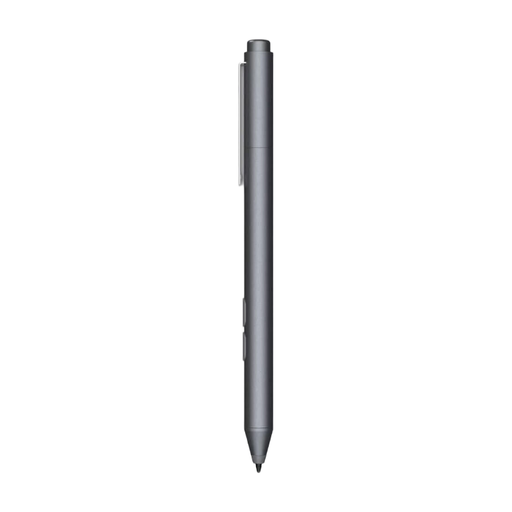 Image unavailable
HP MPP 1.51 stylus pen for PC and tablet
The product name says it can be used with a PC and tablet. Check that your device and drawing app support this pen before choosing.
The product name lists customisable buttons and 1 replaceable nib.
View at Joybuy
 Image unavailable
VoxorAI HL-U05 active stylus, white
The product name lists iOS, iPad, Android and Microsoft Universal. Check support for your exact tablet and drawing app.
The product information says it can be used on a capacitive screen; follow the instructions for the specific pen version.
View at Joybuy
Frequently asked questions
Can I use any stylus with my tablet?
No. Check your exact tablet model against the pen’s compatibility information. Basic touchscreen control doesn’t automatically mean that all drawing features are supported.
How can I keep a tablet pen handy at a shared desk?
Choose a regular place to put the pen after use and check how the specific version charges. Logitech says the nib on the Crayon with USB-C is replaceable and sold separately; for other pens, check which nibs are compatible.
Who can I contact if my pen doesn’t work properly?
For a consumer purchase in the Netherlands, the product must meet reasonable expectations. According to the Dutch government, the seller must provide a solution if there’s a problem; a manufacturer’s guarantee is in addition to this.
Do I have a cooling-off period when buying online in the Netherlands?
For eligible distance purchases from a business, the Dutch government says you’ll often have a 14-day cooling-off period, with some exceptions. This doesn’t necessarily apply to purchases from a private seller.


