
Lettering enthusiast with an existing tablet
You’re looking for a pen that works with your iPad or Galaxy tablet. The exact device model determines which pens are compatible; Apple Support and Samsung explain compatibility for each model or version.


Start with your tablet’s exact model: an Apple Pencil, Logitech Crayon and Samsung S Pen aren’t interchangeable. If you want to vary line thickness with pressure, choose a pen that’s confirmed to be compatible and pressure-sensitive. For simple lettering, a compatible pen without this feature may be enough. Also check how the pen charges and where you can store it, then print a test copy at the size you want for your card.
You’re looking for a pen that works with your iPad or Galaxy tablet. The exact device model determines which pens are compatible; Apple Support and Samsung explain compatibility for each model or version.
You want to control thin and thick lines as you write. Note the difference between pressure sensitivity and tilt sensitivity: one feature doesn’t replace the other.
You want to write, put the pen away between sessions and check your design at card size. A test print helps you see whether the lettering is legible and fits within the margins; Canva Help Centre recommends checking designs on paper.
A good fit if: you have a compatible iPad and want to vary your strokes using pressure.
Bear in mind: Apple Pencil Pro and the 2nd generation work with different iPad models; check the required software version too.
A good fit if: you mainly write or sketch on a supported iPad and don’t need pressure-sensitive strokes.
Bear in mind: neither is pressure-sensitive; the Apple Pencil (USB-C) charges via a cable, and you’ll need to check you’re looking at the right version of the Crayon.
A good fit if: you use a Galaxy tablet that supports the S Pen and want a pen designed for that model.
Bear in mind: the S Pen name alone doesn’t confirm compatibility; features vary by version.
| What to consider | What should you check? | Who is this most important for? |
|---|---|---|
| Compatibility | Look up your exact tablet model in the compatibility information; for Apple, also check the required iPadOS version. | If I want to keep using my existing iPad or Galaxy tablet, I’ll start with its exact model. Around 36% of consumers give compatibility with their existing tablet top priority. |
| Line control | Check whether the pen is pressure-sensitive if you want to control line thickness with pressure; tilt is a separate feature. | For brush lettering, I want to control line thickness with pressure, not just by tilting the pen. Around 29% of consumers prioritise pressure-controlled line variation. |
| Storage and charging | Check whether the pen can be stored magnetically and whether it charges via a cable; attaching magnetically doesn’t automatically mean it charges magnetically. | At a small desk, I want to be able to put the pen away easily between writing sessions and know whether I’ll need a cable. Around 21% of consumers give a practical workspace top priority. |
| Printing your card | Check the margins and legibility with a test print at the intended size; also check which replacement nib fits your pen. | I want to check that the lettering is legible and the margins are right at card size before printing the final version. Around 14% of consumers prioritise print quality and future costs. |
The Apple Pencil (USB-C) attaches magnetically, but pairing and charging are done via a USB-C cable, according to Apple.
Check separately how storage, pairing and charging work for the exact pen you’re considering.
Bear in mind that it charges via a USB-C cable, and check that you have a suitable cable.
The Apple Pencil (USB-C) and Logitech Crayon aren’t pressure-sensitive. With supported pens, tilt can affect a line, but it won’t control your stroke through pressure.
If you want to use pressure for brush lettering, check that the exact pen is pressure-sensitive and that your drawing app supports the feature.
Text that looks easy to read on screen may print too small or too close to the edge. Canva Help Centre recommends making a test print and checking the margins.
Check the safe margins in your design app and print the design at the intended size first.
A test print means using an extra sheet of paper before printing your final card.
Apple Pencil versions are designed for specific iPad models; check which iPad and software version are supported for each generation.
Samsung S Pen versions are designed for supported Galaxy tablets; replacement pens may also be specific to certain models.
Logitech Crayon is a pen for writing and drawing on supported iPads, but it doesn’t offer pressure-sensitive strokes.
This selection includes pens for hand lettering and sketching on tablets, with several iPad options and an HP MPP pen for compatible devices.
 Image unavailable
An option for writing and sketching on a compatible iPad if pressure sensitivity isn’t essential.
The product information lists iPad models from 2018 onwards and iOS 12.2 or later; Logitech states that Crayon isn’t pressure-sensitive.
 Image unavailable
Worth considering if you want to create pressure-sensitive strokes for hand lettering on a supported iPad.
Supports pressure and tilt sensitivity, as well as magnetic pairing and charging on compatible iPads. Apple Support lists iPadOS 17.5 or later for Pencil Pro; check the compatibility list for your model.
 Image unavailable
An option for writing and sketching on a compatible iPad when pressure-sensitive brush strokes aren’t needed.
Supports tilt, but not pressure sensitivity. Pairing and charging are done via a USB-C cable; magnetic attachment doesn’t mean this version charges magnetically.
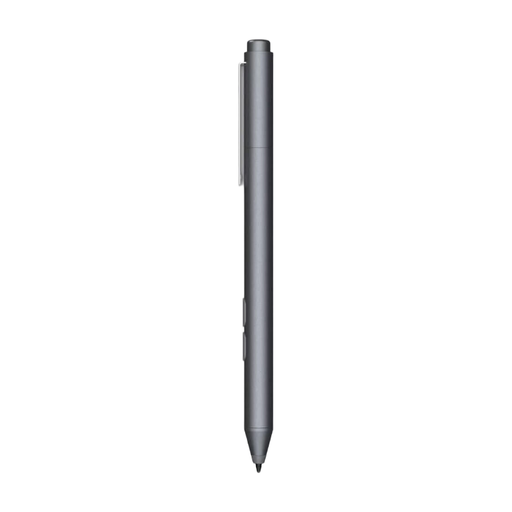 Image unavailable
An option to consider if your device supports MPP and you’re looking for a pen for writing or drawing.
The product name lists customisable buttons and one replaceable nib. Check that your specific device is compatible before buying.
 Image unavailable
A pressure-sensitive Apple Pencil for hand lettering on an iPad compatible with this generation.
The product information lists specific iPad Pro, iPad Air and iPad mini models. Check your exact tablet’s compatibility before choosing.
First, look up your exact tablet model and compare it with the pen’s compatibility information. Apple may also require a minimum iPadOS version; Samsung offers several S Pen versions.
Check the margins in your design app and make a test print at the size you want. Canva Help Centre points out that text which looks large on screen may be less legible on paper.
Look for a replacement nib that’s explicitly compatible with your pen. For consumer purchases in the Netherlands, the statutory guarantee lasts for as long as you could reasonably expect the product to last with normal use; ACM ConsuWijzer explains that the law doesn’t set a fixed two-year period.
For a standard online consumer purchase, you’ll generally have a statutory cooling-off period of up to 14 days after delivery. ACM ConsuWijzer lists some exceptions; check the terms that apply to your purchase.