
Teacher with an existing tablet
Wants to make sure the pen works with their exact iPad, Galaxy Tab or Windows tablet model. Apple, Samsung and Wacom all set out compatibility requirements for specific devices and pen versions.


Start with your exact tablet model and the pen it supports: a pen for iPad, Galaxy Tab or Windows won’t necessarily work with the others. Then check how your teaching app lets you create lines, angles and shapes; these features also depend on the software, as Microsoft Support and GeoGebra explain. At a shared workstation, it’s also worth thinking about how quickly you can get started and where you’ll put the pen between work sessions.
Wants to make sure the pen works with their exact iPad, Galaxy Tab or Windows tablet model. Apple, Samsung and Wacom all set out compatibility requirements for specific devices and pen versions.
Wants to create clear sketches during lessons and construct or edit lines and shapes. Microsoft Support explains how to convert ink to shapes in certain Windows apps, while GeoGebra offers tools for geometric constructions.
Wants to start writing without a complicated set-up and put the pen away easily between work sessions. Logitech describes the Crayon as a pen that doesn’t require a complicated Bluetooth pairing process; Samsung mentions magnetic storage for certain S Pen versions.
A good fit if: your iPad is on Apple’s compatibility list and you mainly write, sketch or annotate teaching materials.
Keep in mind: check both your iPad model and the features available in your teaching app; the pen won’t create geometric constructions by itself.
A good fit if: you use a compatible iPad and want to get started without a complicated Bluetooth pairing process.
Keep in mind: Logitech says the Crayon isn’t pressure-sensitive; check that your exact version is compatible too.
A good fit if: you choose an S Pen designed for your Galaxy Tab, for example, to use with Samsung Notes.
Keep in mind: features vary by version. Samsung says that some S Pens, including those for the Tab S9 FE and S10 FE, don’t support Bluetooth.
A good fit if: your Windows tablet supports Wacom AES or Microsoft Pen Protocol (MPP).
Keep in mind: Wacom says integration depends on the hardware configuration and system software.
| What to consider | What to look for when buying | Who should consider this? |
|---|---|---|
| Compatibility | Note down your exact tablet model and compare it with the compatibility information for the specific pen version. | If I want to keep using my existing tablet, I first need to know whether the pen will work with it. Around 36% of consumers prioritise tablet compatibility. |
| Geometric shapes | Try creating and editing a line, triangle and angle in the teaching app you plan to use. | If I need to adapt shapes for my lessons, I want to know which tools the app offers. Around 29% of consumers prioritise creating and editing geometric shapes. |
| Working at a shared desk | Check the pairing steps, palm rejection and options for storing the pen. | If I share my workspace between sessions, I want to get started quickly and put the pen away easily. Around 21% of consumers place particular importance on this day-to-day routine. |
| Maintenance | Check how the pen charges and whether you’ll need a cable, battery or replacement nib for that version. | If I use the pen regularly, I want to know in advance what I’ll need to keep it ready to use. Around 14% of consumers prioritise maintenance and the parts they’ll need. |
Apple lists specific iPad models, Samsung has different S Pen versions, and Wacom requires AES or MPP support for the Bamboo Ink Plus.
Before buying, compare your exact tablet model with the compatibility information for the full pen version.
Choosing the wrong one could mean extra time spent arranging an exchange.
Shape conversion and construction tools are features of specific software. Microsoft describes shape conversion in certain Windows apps, while GeoGebra Geometry offers tools for triangles, circles and angles, among other things.
Test your chosen teaching app with the shapes you actually use.
Samsung says that some S Pens, including those for the Tab S9 FE and S10 FE, don’t support Bluetooth. Check the features for the full model number of your pen.
Base your choice on Samsung’s information for your specific tablet and pen, rather than a general product description.
Apple Pencil versions for compatible iPads; the Pencil (USB-C) is worth considering for writing and annotating.
The Crayon (USB-C) is an option for writing and sketching on compatible iPads.
S Pen versions for specific Galaxy Tab models, including the Tab S9 FE series mentioned here.
The Bamboo Ink Plus is an option for Windows devices that support AES or MPP pen technology.
These product picks focus on pens for compatible iPads and Surface devices; check that each pen supports your exact tablet model.
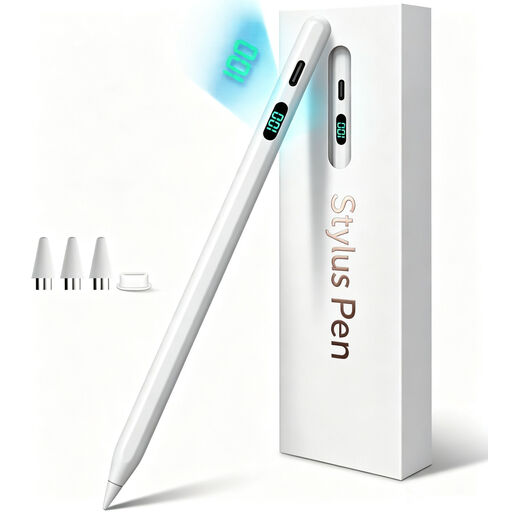 Image unavailable
An option for writing, drawing and annotating on a compatible iPad model; check support for your exact tablet.
The product information lists tilt detection, palm rejection and USB-C charging. Magnetic attachment is for storage; wireless charging isn’t supported. Pressure sensitivity isn’t listed.
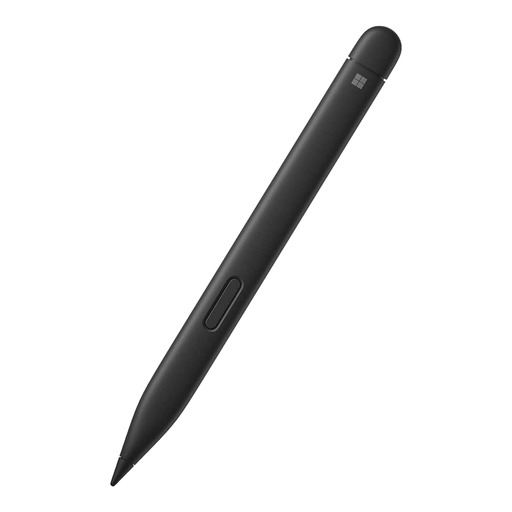 Image unavailable
An option for writing and drawing on Surface devices. Check that your specific Surface model supports this pen.
If pressure sensitivity or haptic feedback matters to you, check that the product information for this version matches how you plan to use it.
 Image unavailable
For writing and drawing on a compatible iPad without Bluetooth pairing; check that your iPad model is supported.
Logitech says the Crayon isn’t pressure-sensitive.
 Image unavailable
An option for drawing and taking notes on a compatible iPad Air or iPad Pro model; check compatibility with your exact tablet.
Before buying, check that this version and your iPad model support the features you need for your teaching app.
 Image unavailable
For writing, sketching and taking notes on a compatible iPad. Apple lists compatibility with iPad models that have a USB-C port; check your teaching app’s features too.
The product information lists tilt sensitivity, magnetic attachment for storage and USB-C charging.
No, your teaching app’s features matter too. Microsoft Support describes Ink to Shape for apps including OneNote for Windows; GeoGebra Geometry offers tools for triangles, circles and angles, among other things. These are software features, not universal properties of a pen.
First, check your tablet model and the app you plan to use. Logitech says the Crayon works with a compatible iPad without complicated Bluetooth pairing; Samsung mentions a magnetic holder for the relevant S Pen version. Don’t assume this applies to other models.
For a consumer purchase in the Netherlands, the seller must offer an appropriate free solution if the product doesn’t meet the standard you could reasonably expect during normal use. ACM ConsuWijzer and the Netherlands Authority for Consumers and Markets explain that there’s no single fixed statutory guarantee period that applies to every pen.
For a distance purchase by a consumer, a 14-day cooling-off period applies in many cases, although conditions and exceptions may apply. The Dutch Government, for example, explains that purchases from a private individual aren’t covered by these distance-selling rules.