
Teacher with an existing tablet
Wants to find out first whether a pen works with their exact tablet model. Apple Support in the Netherlands and Microsoft Support in the Netherlands explain compatibility by model.


First, choose a pen that works with your exact tablet model; extra features are no use if the two aren’t compatible. Then check whether your drawing app has ruler and shape tools, and assess screen glare separately: a pen won’t solve that. Manufacturers describe compatibility and features for specific devices and apps, rather than guaranteeing the same results in every classroom.
Wants to find out first whether a pen works with their exact tablet model. Apple Support in the Netherlands and Microsoft Support in the Netherlands explain compatibility by model.
Draws lines, angles and shapes while teaching, and can benefit from tools in the app they use. Microsoft Support in the Netherlands describes features in OneNote such as a ruler and shape tools.
Wants to see diagrams clearly on screen in daylight, so also considers the screen setup and any anti-reflective screen protector for their specific tablet model. Samsung Netherlands describes these protectors for certain Galaxy Tab models.
Start by checking that the pen and tablet are compatible. Then check the drawing tools in your app, and consider screen visibility, charging and storage as separate practical requirements.
| What to consider | What should you check? | Who is this important for? |
|---|---|---|
| Compatibility | Make a note of the full tablet model and check with the manufacturer whether your chosen pen version and any software requirements are supported. | I want to keep using my existing tablet and find out first whether the pen will work with it; around 33% of consumers give compatibility with their own tablet top priority. |
| Drawing shapes | Try the ruler, grid or shape tool in the version of the drawing app you actually use. | When I draw lines, angles and shapes while teaching, I want to be able to draw and edit them in my own app; around 27% of consumers prioritise geometry drawing. |
| Screen visibility in daylight | Check the screen in your classroom and, if you’re considering an anti-reflective screen protector, check the exact tablet variant. You could also try adjusting its position in relation to the window. | I want to see my diagrams clearly by the window, even if the pen feels comfortable to write with; around 27% of consumers give screen readability in daylight top priority. |
| Charging and storage | Check how the pen charges, whether it needs a cable or separate charger, and how you’ll store it between lessons. | I don’t want to interrupt a lesson because the pen hasn’t been charged or put away; around 13% of consumers give uninterrupted teaching top priority. |
Compatibility and features can vary by tablet model, as Apple Support in the Netherlands and Microsoft Support in the Netherlands explain.
Before ordering, compare your full tablet model and the exact pen version with the manufacturer’s compatibility information.
Apple Pencil (USB-C) charges via a cable, while Apple Pencil Pro attaches magnetically and charges on a compatible iPad. Charging options for Surface Slim Pen depend on the device and accessories, according to Microsoft Support in the Netherlands.
Check exactly how your chosen pen and tablet combination charges, and which cable or charger it needs.
The pen handles input, while an anti-reflective screen protector is designed to reduce screen glare. Samsung describes protectors for specific Galaxy Tab models and notes that the viewing experience can vary depending on the environment.
Assess the screen and its position by the window separately from how the pen feels to write with, and check that any screen protector will fit.
Apple Pencil (USB-C) and Apple Pencil Pro are options for specific supported iPads.
S Pen versions are designed for specific Galaxy Tabs; Samsung lists an S Pen as included with the Tab S10 FE series.
Crayon (USB-C) is an option for writing and sketching on a compatible iPad, not on just any tablet.
Surface Slim Pen is designed for a compatible Surface and a suitable Windows drawing workflow.
Tab Pen Plus is worth considering if you already have a compatible Lenovo tablet model.
These products include pen options for selected iPads and a Surface Slim Pen 2 for a compatible Surface. Check the exact tablet model, app and any limitations for each combination.
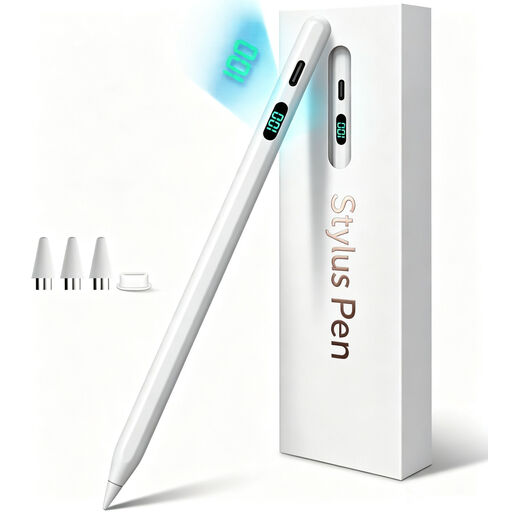 Image unavailable
For drawing and note-taking on a compatible iPad; check your exact model.
The description lists tilt detection and palm rejection, but not pressure sensitivity.
 Image unavailable
For writing, drawing and annotating on selected iPads; check your exact tablet variant.
Magnetic attachment is for storage, not wireless charging.
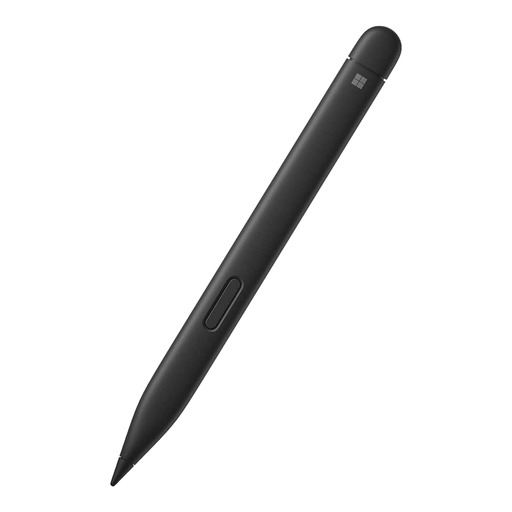 Image unavailable
For writing and drawing on a compatible Surface. The product description lists compatibility with Surface Pro 8 and Pro X Type Covers.
The description lists 4,096 pressure levels and haptic feedback; check the features and charging requirements for your Surface combination.
 Image unavailable
For writing and drawing in supported apps on a compatible iPad; check compatibility with your exact model.
The description lists iPad models from 2018 onwards with iOS 12.2 or later, tilt-based line width and palm rejection. It says pairing isn’t required.
 Image unavailable
For drawing and note-taking on supported iPads; the description lists iPad Pro M4, iPad Air M2 and iPad mini A17 Pro. Check exact compatibility.
The pen attaches and charges magnetically, and the description lists gestures for drawing tools. Check the required iPadOS version too.
No. First check that the pen works with your tablet, then see which drawing tools your app offers. Microsoft Support in the Netherlands describes a ruler and shape tools in OneNote; features can vary by app version and platform.
A pen won’t change reflections on the screen. Samsung Netherlands describes anti-reflective screen protectors for certain Galaxy Tab models and notes that the viewing experience can vary depending on the environment. Check the fit and assess the screen where you teach.
It depends on the model: Apple Pencil (USB-C) uses a USB-C cable, while Apple Pencil Pro attaches and charges magnetically on a compatible iPad. Microsoft Support in the Netherlands describes Surface Slim Pen charging options that depend on the device and accessory; a separate charger may be needed.
In the Netherlands, you generally have 14 days to change your mind when buying remotely from a business; terms and exceptions depend on the purchase, according to the Dutch Government. The Dutch Government also states that there is no fixed statutory warranty period in the Netherlands. Consumer rights don’t automatically apply when a school buys as a business customer.