Start by checking your exact tablet model: a pen that isn’t supported won’t be any use. Apple Support Netherlands and Samsung Netherlands list compatibility by model and version. If you want to vary line styles or add shading, compare the pen’s features with the support available in your drawing app. Also check whether you can rest your hand on the screen, and how the pen pairs and charges.
Who can benefit from a tablet pen for garden sketches?
Sketcher with an existing tablet
You’ll want to start with a pen that’s confirmed to work with your exact iPad or Galaxy Tab, so you can draw garden beds and paths straight on the screen. Apple Support Netherlands and Samsung Netherlands list compatibility by model and version.
Artist creating detailed garden plans
You want to use different line styles or shading in planting and layout sketches, so you compare pen features with what your app can do. Apple and Adonit explain their features and the conditions that apply.
Sketcher who works at a table for long periods
You want to rest your hand while drawing, and pair or charge the pen without unnecessary interruptions. Apple and Logitech explain hand contact, pairing and charging for specific pen and tablet combinations.
What should you look for in a tablet pen for garden planning?
If you already have a tablet, first check that the model matches. Then weigh up drawing controls, hand contact and charging.
| What to consider |
What should you check? |
Who is this important for? |
| Compatibility |
Compare your exact tablet model, the pen’s full model name and any software requirements with the manufacturer’s compatibility list. |
If my existing tablet doesn’t recognise the pen, I can’t use it to draw my garden plan. That’s why around 36% of consumers put compatibility with their own tablet first. |
| Line control |
Decide whether you need tilt, pressure sensitivity or shortcut buttons, and check separately whether your drawing app supports those features. |
For borders and planting beds, I want to choose between clean lines and more varied sketches. Around 29% of consumers give control over lines and details their highest priority. |
| Hand contact |
Check palm rejection for the pen and tablet combination; don’t attribute a noise level to a model without taking a measurement. |
If I want to rest my hand on the screen while working on my design, I want to avoid unwanted marks. Around 21% of consumers prioritise being able to work with their hand on the screen. |
| Pairing and charging |
Check separately how the pen pairs and charges, whether you need a cable, and how to store the pen. |
For a sketching session at the table, I want to know whether I need to pair the pen first or use a cable. Around 14% of consumers consider keeping the pen ready to use their most important concern. |
Which mistakes can you avoid when choosing?
-
Assuming a familiar pen name means universal compatibility
Apple Pencil versions and Samsung S Pen models don’t automatically work with every tablet. The wrong combination could make the drawing features you want unusable.
Before choosing, check the full model details for both the tablet and pen, as well as any software requirements.
-
Confusing magnetic attachment with magnetic charging
With Apple Pencil (USB-C), attaching the pen magnetically is not the same as charging it; Apple says it charges via a USB-C cable. According to Apple, Apple Pencil Pro pairs and charges magnetically on a compatible iPad.
Check attachment, pairing and charging as separate features, and make sure you have the cable you need.
-
Assuming a drawing feature works in every app
Adonit says that Note⁺ 2’s pressure sensitivity and shortcut buttons require pairing with specific apps. So the pen’s features alone don’t tell you whether your garden design app supports them.
Check both the pen and tablet combination and support in the app you want to use.
-
Continuing to use a worn or damaged pen tip
Logitech recommends replacing a damaged or worn Crayon tip to help prevent damage to your iPad screen.
Check the tip regularly and see whether a compatible replacement is available.
Which brands are worth comparing?
Apple
Apple Pencil versions are designed for specific iPads. The USB-C and Pro versions have different drawing controls and charging methods.
- Apple describes tilt sensitivity and pairing and charging via USB-C for Pencil (USB-C). For Pencil Pro, Apple lists features including squeeze, barrel roll, and magnetic pairing and charging.
- Supported iPads and software requirements vary by version. Check the latest compatibility list for your exact model.
Samsung
The S Pen EJ-PX510BJEGEU is a model-specific pen for the Galaxy Tab versions listed by Samsung.
- Samsung describes sketching with apps including Samsung Notes and PENUP, and magnetic storage for this model.
- The name S Pen doesn’t confirm that the pen works with every Galaxy Tab; check the full model combination.
Logitech
Crayon (USB-C) is a drawing and annotation pen for the iPads that Logitech lists as compatible.
- Logitech lists palm rejection, variable line thickness by tilting, and getting started without a separate Bluetooth pairing process.
- Tilt functionality doesn’t prove pressure sensitivity. Logitech recommends replacing a damaged or worn tip.
Adonit
Note⁺ 2 is designed for iPads on Adonit’s compatibility list; some features depend on the app you use.
- Adonit lists palm rejection, pressure sensitivity and shortcut buttons.
- According to Adonit, pressure sensitivity and shortcut buttons require pairing with specific apps. Adonit also says magnetic attachment isn’t supported on certain 2024 iPads.
Tablet pen options at Joybuy
These options range from pens for specific iPad and e-ink tablets to a general-purpose stylus. Before choosing, check that the pen is compatible with your exact tablet and the drawing features you want.
 No image available
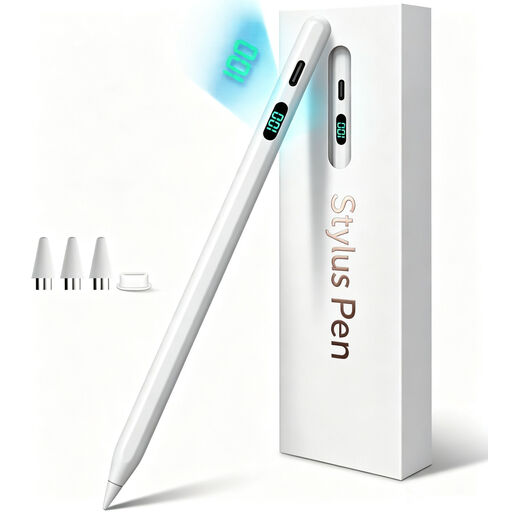
Input Pen stylus for iPad 2018–2026, USB-C
Worth considering if you use an iPad; check that this pen works with your exact model.
The product name specifies iPad 2018–2026 and USB-C fast charging.
View at Joybuy
 No image available
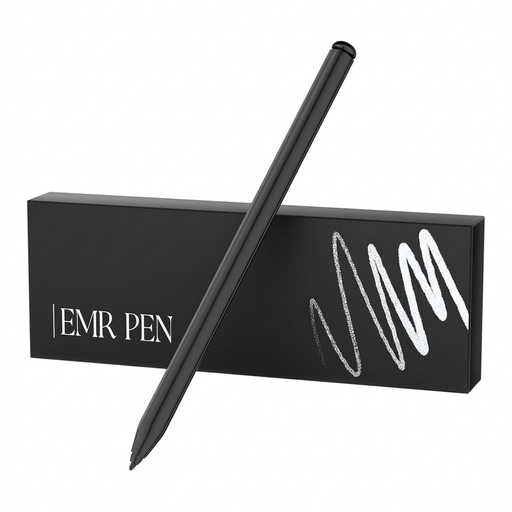
Zspeed EMR stylus SP-18, 4096 pressure levels, black
This pen is aimed at sketching on the e-ink tablets named in the product title, not on any iPad or Galaxy Tab.
The product name specifies reMarkable 1 and 2, Kindle Scribe and 4096 pressure levels.
View at Joybuy
 No image available
Logitech Crayon USB-C, silver
An option for sketching on an iPad that Logitech lists as compatible with Crayon, if you want to rest your hand on the screen.
Logitech lists palm rejection, variable line thickness by tilting, and getting started without a separate Bluetooth pairing process. Tilt functionality doesn’t prove pressure sensitivity. Logitech recommends replacing a damaged or worn tip to help prevent damage to your iPad screen.
View at Joybuy
 No image available
Apple Pencil Pro 2024
An option if your iPad model and software version support this pen, and you want to use its extra drawing controls.
Apple lists squeeze controls, barrel roll, and magnetic pairing and charging. Check the compatibility list; Apple specifies iPadOS 17.5 or later as a software requirement for Pencil Pro.
View at Joybuy
 No image available
Apple Pencil (USB-C), white
An option for outlines, paths and notes if you have an iPad that supports this version.
Apple lists tilt sensitivity and pairing and charging via a USB-C cable. Magnetic attachment doesn’t mean this model charges magnetically; check that your iPad is compatible.
View at Joybuy
Frequently asked questions about tablet pens
Can I use any Apple Pencil with my iPad?
No, not every Apple Pencil works with every iPad. Apple publishes separate compatibility lists for each version and also specifies software requirements for Pencil Pro and Pencil (USB-C). Find your exact iPad model on the list for the pen you’re considering.
How do I pair and charge Apple Pencil (USB-C)?
Apple describes pairing and charging with a USB-C cable on a compatible iPad. According to Apple, you can check the battery level in the Batteries widget or in the Pencil settings.
Does the pressure sensitivity of Adonit Note⁺ 2 work in every drawing app?
No, that isn’t guaranteed by the product specifications. Adonit says that pressure sensitivity and shortcut buttons require pairing with specific apps. Check whether the app you want to use for garden sketches supports these features.
What should I do if the tip of my Logitech Crayon gets damaged?
Logitech recommends replacing a damaged or worn tip to help prevent damage to your iPad screen. Check whether a compatible replacement tip is available.
What rights do I have in the Netherlands when I buy a tablet pen online?
For many online consumer purchases from a business, the Dutch government says you have a 14-day cooling-off period; check whether the rules apply to your purchase. The Netherlands doesn’t have a fixed statutory warranty period, according to the Dutch government: you’re entitled to a product that meets reasonable expectations, and if something is wrong, the seller is your point of contact.


