Start with your exact tablet model, then decide whether you mainly want to sketch a layout or need measurements you can check: a pen won’t automatically make a drawing to scale. For a compatible iPad, compare Apple Pencil models and Logitech Crayon for their controls and charging; for a compatible Galaxy Tab, choose a suitable S Pen. Check what your drawing app can do, too, and set up your standing desk so you don’t have to work in one position for long periods.
Who is this guide for?
Sketcher with an existing tablet
You want a suitable pen for quick layouts and notes, without paying for features you don’t need. Apple, Logitech and Samsung provide compatibility information for their pen models, so start by checking your exact tablet model.
Designer who wants to adjust measurements
You want to be able to change rooms and dimensions, and first check what your floor plan app supports. The magicplan Help Center explains how to draw rooms manually; a pen doesn’t replace checking the measurements.
Someone who draws while standing for long periods
You change position during drawing sessions and want a tablet and pen that are comfortable to use at a standing desk. Choosing a pen is separate from setting up your workstation.
What should you look for when choosing?
| What to consider |
What should you check? |
Who is this important for? |
| Compatibility |
Check your exact tablet model against the pen’s compatibility information. |
I want to make sure the pen works with my current tablet first; compatibility is a top priority for around 36% of consumers. |
| Measurements and scale |
Check whether your app supports drawing manually and adjusting dimensions. The magicplan Help Center describes this process for rooms. |
If I want to adjust measurements rather than just sketch a layout, I first check what my app can do. Around 29% of consumers prioritise measurements. |
| Controls while drawing |
Compare how the pen is stored, charged and controlled; choose features you’ll actually use while sketching. |
During a drawing session, I want to be able to pick up the pen quickly and change my working position; controls for drawing while standing are the main priority for around 21% of consumers. |
| Cost of use |
Check what you already own and which app features suit the way you work. The magicplan Help Center lists two projects with a free account and a separate Sketch subscription; check the current options in the app. |
I want to check in advance that my tablet and app can handle my entire workflow; overall costs of use matter most to around 14% of consumers. |
Common pitfalls
-
Choosing a pen without checking your tablet model
Pen models aren’t automatically compatible with every tablet. Apple, Logitech and Samsung publish compatibility details for specific models.
Make a note of your exact tablet model and check it against the manufacturer’s compatibility information before buying.
Choosing an incompatible pen could mean extra costs or the hassle of returning it.
-
Mistaking a neat sketch for a floor plan with verified measurements
A pen is an input tool; the app determines how you record and adjust dimensions. The magicplan Help Center describes drawing manually, with measurements that can be changed afterwards.
First decide whether you’re creating a draft layout or need accurate measurements, then check which process your app supports.
-
Assuming magnetic attachment means wireless charging
Apple says the Apple Pencil (USB-C) can attach magnetically to a compatible iPad for storage; pairing and charging are done using a USB-C cable.
Check how each pen pairs, charges and is stored, and bear in mind any cable connection mentioned.
-
Focusing only on the pen and overlooking the app
Your floor plan options also depend on the app and the features you need. The magicplan Help Center lists two projects with a free account and a separate Sketch subscription.
Check that the app’s workflow suits the way you work, and review current subscription options before signing up.
Brands to consider
Apple
Apple Pencil models are designed for supported iPads. The USB-C model and Pencil Pro offer different controls and charging options.
- According to Apple, the Apple Pencil (USB-C) pairs and charges via a USB-C cable; magnetic attachment is for storage.
- Apple lists features for Pencil Pro including squeeze, double-tap and magnetic charging.
- Check your exact iPad model and whether your chosen app supports the features you want; manufacturer information isn’t an independent performance test.
Samsung
S Pen models are designed for compatible Galaxy devices. Samsung’s information on the EJ-PX510 model reviewed here lists the Galaxy Tab S9 FE and S9 FE+.
- Samsung lists magnetic storage and IP68 for this model.
- Don’t assume the EJ-PX510’s compatibility and features apply to other S Pen models or Galaxy tablets without checking.
Logitech
Logitech Crayon is a pen for writing, annotating and creating diagrams on compatible iPads. For the USB-C model reviewed here, Logitech lists iPads from 2018 onwards.
- Logitech says the Crayon can be used without separate Bluetooth pairing; the manufacturer also lists tilt control, USB-C charging and palm rejection.
- Check compatibility for the exact model and don’t assume the Crayon has all the features of Apple Pencil Pro.
Joybuy product picks
These product picks are aimed at sketching and annotating on compatible iPads. Check that your exact iPad model is supported by each pen and that its listed controls work with your drawing app.
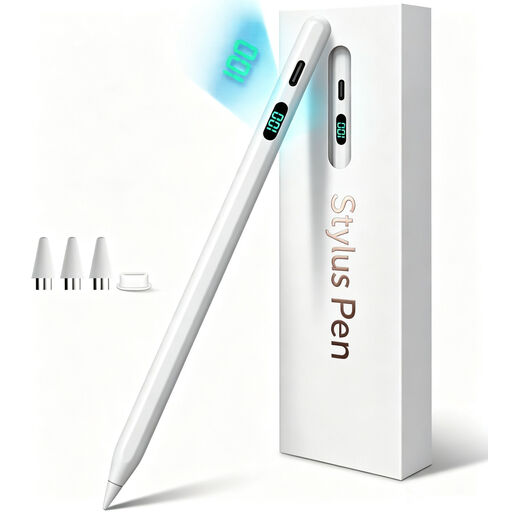 No image available
iPad stylus with USB-C fast charging, 2018–2026
For sketching on an iPad; check that your exact tablet model is within the listed 2018–2026 range. The product name specifies USB-C fast charging.
Joybuy
 No image available
iPad stylus with USB-C, tilt detection and palm rejection
For sketching and taking notes on selected iPad models; check that your tablet is compatible. The product information lists magnetic attachment for storage, not wireless charging.
Joybuy
 No image available
Logitech Crayon, USB-C, silver
For drawing and sketching on a compatible iPad. Logitech lists tilt control, palm rejection and use without separate Bluetooth pairing; the manufacturer lists iPad models from 2018 onwards as compatible.
Joybuy
 No image available
Apple Pencil Pro (2024) for iPad Air/iPad Pro
For drawing on an iPad supported by Apple. Apple lists squeeze, double-tap and magnetic pairing and charging; check that your exact iPad and drawing app support these controls.
Joybuy
 No image available
Apple Pencil (USB-C), white
For sketching and annotating on a compatible iPad. According to Apple, pairing and charging are done via a USB-C cable; magnetic attachment is for storage. Check compatibility with your iPad model.
Joybuy
Frequently asked questions
Can a precise stylus automatically create a floor plan to scale?
No. Check separately how your app records and adjusts dimensions. The magicplan Help Center explains how to draw manually and adjust dimensions afterwards; the pen is an input tool.
How do I charge the Apple Pencil (USB-C)?
According to Apple, pairing and charging are done using a USB-C charging cable. Magnetic attachment to the iPad is for storing the pen.
What should I consider if I draw at a standing desk for a long time?
Set up your workstation for the way you draw and change position when needed; no particular pen means you have to work in one position for long periods. Arboportaal outlines ergonomic principles for employers relating to standing work.
Are there ongoing costs for a floor plan app?
It depends on the app and how you use it. The magicplan Help Center lists two projects with a free account and a separate Sketch subscription; check the current subscription options for your region in the app.
What are my rights when I buy a pen online?
According to ACM ConsuWijzer, online purchases generally come with a statutory cooling-off period of up to 14 days after delivery, with some exceptions. You’re also covered by the legal guarantee if the product doesn’t perform as you could reasonably expect under normal use; contact the seller about this.


