Start with your exact tablet model and check that the pen is compatible with it. A pen being compatible with a particular brand doesn’t mean it will work with every model. For text labels, arrows and connecting lines, accurate input and a comfortable writing experience matter most. Extra features such as pressure sensitivity or shortcuts are mainly useful if your app and workflow support them. Also check whether your tablet already comes with a pen and how a separate pen is charged.
Who is this buying guide for?
Owner of an existing tablet
You’re looking for a separate pen and want to check first that it’s compatible with your exact tablet model, generation and software version. Apple Support, Samsung Netherlands and Lenovo Netherlands publish model-specific compatibility information.
Creator of detailed teaching diagrams
You regularly draw small labels, arrows and sketches, and want to decide whether features such as pressure sensitivity or extra pen controls suit the way you draw. Apple, Logitech and Adonit describe various features for their pen models.
Home tutor with digital teaching materials
You want to annotate diagrams and share them in a usable format from the app you use. Microsoft Support explains how to export a Whiteboard as an image.
What should you look for when buying?
First check compatibility with your tablet and app. Then decide which input features you need, and finally consider your workflow, charging and what’s already included with the tablet.
| What to consider |
What should you check? |
Who is this important for? |
| Compatibility |
Look up your exact tablet model and the required software version in the manufacturer’s compatibility information. Apple Support, Samsung Netherlands and Lenovo Netherlands provide model-specific details. |
If I’m looking for a pen for my existing tablet, I want to know first whether this particular model and software version are supported. Around 36% of consumers prioritise compatibility with their own tablet. |
| Precise line work |
Check that the pen and drawing app support the input features you want, such as tilt, palm rejection or pressure sensitivity. Don’t assume a feature is available unless it’s listed for the exact version. |
For small labels, arrows and connecting lines, I want to place my strokes accurately without choosing extra features I won’t use. Around 29% of consumers prioritise precise lines and legible labels. |
| Creating and sharing |
Check that the app has the export function you need and supports your preferred file format. Microsoft Support explains how to export a Whiteboard as an image in standard or high resolution. |
If I want to use diagrams in teaching materials, I need to be able to share the finished result from my app as well as draw it. Around 21% of consumers prioritise this workflow. |
| Additional purchases and maintenance |
Check what’s included in the tablet packaging, how the pen is charged and whether compatible replacement tips are available. Samsung lists an S Pen as included with the Galaxy Tab S10 FE+ version reviewed. |
Before buying an extra pen, I want to know whether a suitable one is already included and how to use and maintain it. Around 14% of consumers focus mainly on additional purchases and maintenance. |
Common buying mistakes
-
Choosing a pen by brand rather than tablet model
A pen that works with a particular tablet brand won’t necessarily be compatible with every tablet generation or software version from that brand.
Note down the full tablet model and check it against the manufacturer’s compatibility information before buying.
-
Confusing magnetic attachment with wireless charging
The Apple Pencil (USB-C) charges via a cable, while Apple says the Pencil Pro pairs and charges magnetically. So magnetic attachment alone doesn’t tell you how a pen is charged.
Check attachment, pairing and charging as separate features of the exact pen version.
-
Automatically buying a separate S Pen with a tablet bundle
Samsung lists an S Pen as included with the Galaxy Tab S10 FE+ version reviewed, so you may not need an extra pen.
Check what’s included with the exact tablet version before ordering a spare pen.
-
Assuming a similar product name means it’s the same version
A similar name alone doesn’t tell you whether a pen version is compatible with your tablet or offers the same features.
Check the full model name, compatibility and charging method for the specific product before you choose.
Relevant brands and pen ranges
Apple
Apple describes the Pencil (USB-C) as suitable for writing and annotating on supported iPads, and the Pencil Pro as compatible with a more limited range of iPads. Always check your exact iPad model and the required software version.
- Apple Support says the Pencil (USB-C) pairs and charges via a USB-C cable. Apple describes the Pencil Pro as pairing and charging magnetically.
- Pencil models have different compatibility lists, and extra controls aren’t essential for simple diagrams.
Samsung
Samsung describes model-specific S Pen options for certain Galaxy Tabs, including pens sold separately or as replacements. Check which pen model is compatible with your tablet.
- Samsung lists writing, sketching and magnetic storage as features of the S Pen reviewed.
- Samsung lists an S Pen as included with the Galaxy Tab S10 FE+ version reviewed. Check what comes with your specific tablet version.
Logitech
Logitech describes the Crayon (USB-C) as a pen for writing and drawing on compatible iPads. Check both that it’s the USB-C version and that your exact iPad model is supported.
- For the USB-C version, Logitech lists instant connection, tilt support and palm rejection.
- Features of an older Lightning version don’t automatically apply to the USB-C version.
Adonit
Adonit describes the Note⁺ 2 as an active pen for supported iPads. Check your exact tablet model before considering this pen.
- Adonit lists pressure sensitivity, palm rejection and two programmable buttons.
- Adonit lists iPad and iPad Pro models from 2018 onwards as compatible. Check whether your specific model is supported.
Lenovo
The Precision Pen 3 is designed for compatible Lenovo tablet systems. Check that it works with your exact tablet.
- Lenovo lists 4096 pressure levels, tilt support, and magnetic attachment and charging.
- Lenovo specifically recommends checking compatibility with the system you’re using.
Tablet pen options at Joybuy
These Joybuy products include pen options for certain iPads and other capacitive screens. For each product, check compatibility, input features and charging method for your tablet.
 Image unavailable
Input Pen stylus for iPad (2018–2026), USB-C
An option to consider if you want to draw or annotate on a compatible iPad. Check your exact tablet model.
The product title lists iPad models from 2018–2026 and USB-C charging. The description mentions tilt detection and palm rejection, but says pressure sensitivity isn’t supported.
Joybuy
 Image unavailable
Touchscreen stylus for Android and iOS
A possible option for writing or drawing on a capacitive screen. Check that the pen works with your device.
The product information lists a POM tip and two replacement tips.
Joybuy
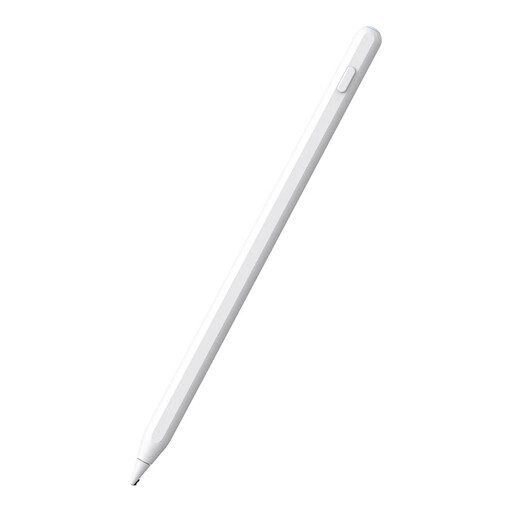 Image unavailable
Alternative stylus for iPad (2018–2026)
An option to compare if you’re looking for a stylus for a compatible iPad. Check the exact model.
The product information lists palm rejection and magnetic charging. The title gives the dimensions as 16,5 × 0,9 × 0,9 cm.
Joybuy
 Image unavailable
iPad stylus with USB-C charging
An option for drawing, notes and annotations on a compatible iPad model. Check the compatibility information for your tablet.
The product information lists tilt detection, palm rejection and USB-C charging. Magnetic attachment is for storage; wireless charging isn’t supported.
Joybuy
 Image unavailable
Logitech Crayon USB-C, silver
A pen option for writing and drawing if you have a compatible iPad and want to use tilt controls.
The product information lists iPads from 2018 onwards and iOS 12.2 or later, tilt for variable line thickness, palm rejection and USB-C charging. Check support for your exact iPad.
Joybuy
Frequently asked questions
Can I use any Apple Pencil with any iPad?
No. Apple publishes separate compatibility lists for each Pencil model. Check your exact iPad and, where specified, the minimum iPadOS version required.
How can I make a Whiteboard diagram suitable for teaching materials?
Microsoft Support explains how to export via Settings and Export image, with a choice of standard or high image resolution. Also check whether your other drawing apps can provide the file format you need.
Should I buy an S Pen straight away with a Galaxy Tab S10 FE+?
Not before checking what’s in the box: Samsung lists an S Pen as included with the Galaxy Tab S10 FE+ version reviewed in the Netherlands.
What warranty cover do I get when buying in the Netherlands?
According to the Dutch government, you’re entitled to a product that works properly. If there’s a fault, the seller must provide a solution. A manufacturer’s warranty doesn’t replace your statutory rights.
Can I always return a pen bought online within 14 days?
No, this doesn’t apply in every case. The Dutch government says there’s often a 14-day cooling-off period for distance selling, and also lists situations that don’t count as distance selling. Check the terms that apply to your specific purchase.


