
iPad owner with sketch plans
You want to quickly draw walls, doors and furniture on your existing iPad; the exact iPad model determines which Apple Pencil is compatible. Apple Support publishes compatibility information for each Pencil version.


If you already have a tablet, choose a pen that’s explicitly compatible with your exact model. Then decide whether you mainly want to sketch or also add measured room dimensions to a floor plan. A pen won’t automatically make a drawing to scale: measure important distances separately and check that any accessories and app features are compatible with what you already have.
You want to quickly draw walls, doors and furniture on your existing iPad; the exact iPad model determines which Apple Pencil is compatible. Apple Support publishes compatibility information for each Pencil version.
You’re looking for a pen designed for your Galaxy Tab or specific Lenovo model, so you don’t end up choosing one that won’t work with your tablet. Samsung and Lenovo specify compatibility for particular models and versions.
You want to position furniture accurately, so you also need to check measurements and add them to a floor plan. magicplan describes manual ways to create floor plans; check which app features are available for your device.
Start by checking that the pen is compatible with your tablet. Then decide how you want to record measurements and which pen or app features you’ll need.
| What to consider | What should you check? | Which consumers does this matter to? |
|---|---|---|
| Compatibility | Check the exact tablet model, software requirements and, if necessary, how the pen charges or connects. | If I already have a tablet, I want to be sure the pen works with that exact model; extra features are no use if the pen isn’t compatible. Around 36% of consumers prioritise compatibility. |
| Dimensions on the floor plan | Choose a method that lets you enter measured dimensions and check the app features available for your operating system. | When I’m planning furniture for a small room, I want to be able to enter measurements and check important distances, not just draw lines. Measurements are the top priority for around 29% of consumers. |
| Drawing comfort | Compare the features of the exact pen model; if a feature depends on an app, check that it’s available in your drawing app too. | If I do a lot of sketching, I want to draw comfortably and be sure the features work in my app. Around 21% of consumers give drawing comfort and supported features top priority. |
| Total cost of the set-up | Check exactly what’s included in the bundle and which app features you need for the way you work. | If I still need to put together a tablet, pen and app, I want to avoid buying a pen I already have or later having to pay for essential app features. The complete set-up is the top priority for around 14% of consumers. |
Apple lists Pencil versions by iPad model. Some iPads may also need an adapter when used with the first generation.
Compare the full model name and software requirements with the compatibility list for the pen you’re considering.
A stylus doesn’t measure room dimensions. According to magicplan, the accuracy of a room scan depends partly on the conditions, including the lighting.
Measure critical room and furniture distances separately before relying on the layout.
The magicplan Help Center lists manual drawing methods for Android, but doesn’t offer Auto-Scan or Manual Scan on that platform.
Check which floor-plan features are available for your device and use a manual method if necessary.
Lenovo describes the Tab Pen as optional with the Tab M11, although it is included with a specific bundle.
Check what’s included with the exact tablet model or bundle before buying a separate pen.
Apple Pencil versions are designed for specific iPad models, which is particularly relevant if you already own an iPad.
Samsung lists S Pens for specific Galaxy Tab models.
Lenovo describes the Tab Pen as available with the Tab M11, either separately or in a specific bundle.
The Logitech Crayon USB-C is an iPad pen for sketching.
The Note⁺ 2 is an option for the iPad models explicitly listed by Adonit.
This selection focuses on stylus pens for sketching on compatible tablets. Check that each pen supports your exact tablet model.
 No image available
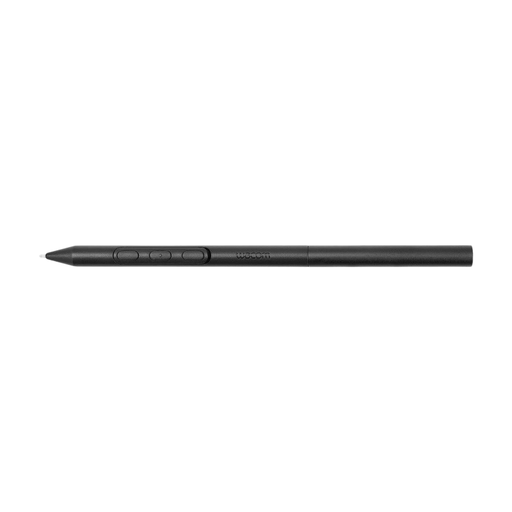
For drawing and sketching on a compatible Wacom tablet; listed compatible devices include the MovinkPad 11.
Customisable, battery-free EMR stylus.
 No image available
For sketching on a compatible iPad; check that your exact iPad model is supported.
Connector: USB-C. Colour: silver.
 No image available
For drawing and sketching on a compatible iPad Air or iPad Pro; check that your exact model is supported.
Model: Apple Pencil Pro (2024).
 No image available
For sketching and annotating on a compatible iPad. Apple lists tilt sensitivity and USB-C charging for this version; check compatibility with your exact iPad model.
Connection and charging: USB-C. Colour: white.
 No image available
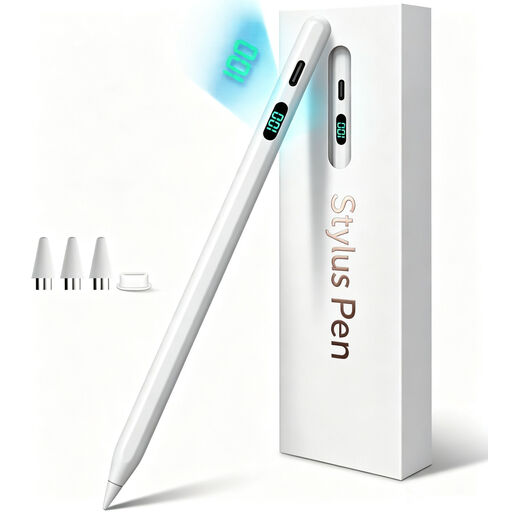
For sketching on selected iPad models; check that your exact model is supported.
Charging: USB-C. According to the product description, pressure sensitivity is not supported.
No. Apple provides a separate list of compatible iPad models for each Pencil version and specifies a minimum iPadOS version for some. Check your exact model before ordering.
Measure the room separately and enter the dimensions in a suitable floor-plan app. According to the magicplan Help Center, Android offers manual drawing methods, but not Auto-Scan or Manual Scan, so don’t rely on a scanning feature that isn’t listed for your device.
Check in advance whether replacement tips are available; Samsung, for example, explains how to replace the S Pen tip for the Tab S10 Lite. In the Netherlands, faulty products are also covered by the statutory guarantee from the seller, under the conditions described by ACM ConsuWijzer.
According to the Dutch government, in many cases you have 14 days to change your mind when buying remotely from a business online. This doesn’t apply to every transaction; for example, an online purchase from a private seller isn’t covered by the distance-selling rules explained here.