What should you look for?
Start by checking that the pen is compatible with your device. Then test line control in your drawing app, and finally assess screen reflections and your complete workspace setup.
| What to consider |
What should you check? |
Who is this important for? |
| Device compatibility |
Compare the full model name with the compatibility list and check for any software requirements. |
If you want to keep using your current tablet, you’ll want to make sure the pen and the features you need work with it. Around 31% of consumers prioritise compatibility with their existing device. |
| Screen readability |
Check the exact screen version and assess your setup with light coming from the same direction as in your workspace. |
If you work beside a bright window, you’ll want to be able to assess your comic page without basing your choice solely on a coating claim. Around 25% of consumers prioritise screen readability. |
| Line control |
Check pressure sensitivity for the exact pen model and test your inking brush in the drawing app you plan to use. |
If you want to control outlines and line weight with your strokes, support from both the pen and the app matters. Around 25% of consumers put line control at the top of their list. |
| Workspace and equipment |
Check what’s included in the bundle, what computer connection you need, and whether charging or software costs are involved. |
If you’re considering a pen display or still need to sort out parts of your drawing setup, you’ll want to consider the whole setup. Around 19% of consumers focus mainly on the total cost of their workspace. |
Joybuy products
This selection includes Wacom pen displays and drawing tablets for a computer-based setup, plus a stylus for selected iPad models. Check the compatibility of each product and what else you’ll need for your setup.
 No image available
Wacom One 14.0" pen display
A pen-display bundle for drawing on a computer; the description says a pen is included.
14-inch Full HD screen and 4,096 pressure levels. The description lists USB-C and compatibility with Windows, macOS and ChromeOS.
Joybuy
 No image available
Wacom Intuos Pro Large with Pro Pen 3
A drawing tablet with an included pen for digital artwork on a computer.
Active drawing area of 349 × 195 mm, 8,192 pressure levels and 60° tilt sensitivity. The description lists USB-C or Bluetooth; a Wacom driver is needed for the full pen, ExpressKey and touch features.
Joybuy
 No image available
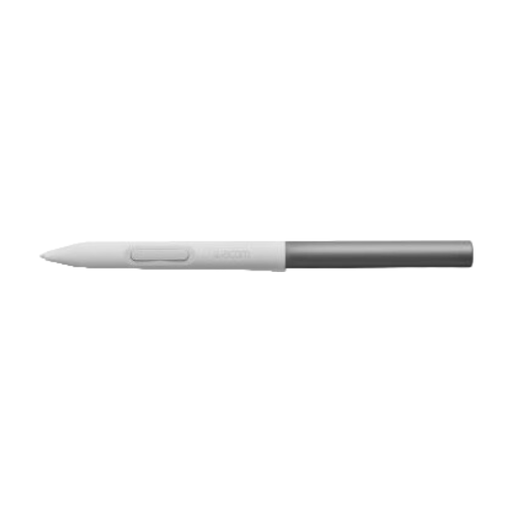
Wacom One Standard Pen White-Gray
A standalone pen for the Wacom One DTC133, which the product description lists as compatible.
The description says it works with the named tablet without pairing.
Joybuy
 No image available
Wacom One pen tablet small S
A compact drawing tablet for a computer, with a pressure-sensitive pen according to the product description.
A6 active area, Bluetooth 5.1 and USB-C. The description lists Windows and macOS and says a Wacom driver is needed for full pen functionality.
Joybuy
 No image available
Stylus with USB-C charging port for selected iPad models
A stylus for drawing and sketching on the selected iPad models listed in the product description.
The title lists tilt detection, palm rejection, magnetic attachment and an LED battery-level indicator. According to the description, magnetic attachment is for storage, not wireless charging.
Joybuy
Frequently asked questions
How can I check whether a pen works with my tablet?
Look up the full model name of your tablet and compare it with the pen manufacturer’s compatibility list. Apple, Samsung, Microsoft and Wacom list different supported devices, so also check the software requirements and features for your particular combination.
What should I set up before drawing my first comic line?
Follow the instructions for pairing or charging your pen, then test pressure sensitivity and the pen buttons in the drawing app you plan to use. Microsoft says the Surface Slim Pen needs a short charge before first use; Clip Studio Paint recommends trying a trial version to test your computer and peripherals.
Is Clip Studio Paint a one-off purchase on iPad or Android?
According to Celsys’s pricing page, iPad and Android plans are available monthly or annually; the listed one-off licence is for Windows and macOS. Check the current plan and device requirements when comparing the total cost of your workspace.
What are my rights when buying a pen online in the Netherlands?
ACM ConsuWijzer says that, in most cases, you have a statutory cooling-off period of up to 14 days after delivery for an online purchase, with some exceptions. You’re also entitled to a product that meets acceptable standards; Dutch statutory guarantee law doesn’t set a fixed general two-year period.


