
Schematic designer
You want to record components and connections in an electrically editable schematic, rather than just draw an image. KiCad documentation covers symbols, electrical connections and checks, among other things.


First decide whether you want to make a hand-drawn sketch or need an electrically editable schematic. For the former, consider digital paper or a tablet with a drawing app; for KiCad work, you’ll need a suitable Windows 2-in-1. By a bright window, the type of screen and the amount of light coming in are important considerations. Also check that the exact pen is compatible and whether it comes with the tablet.
You want to record components and connections in an electrically editable schematic, rather than just draw an image. KiCad documentation covers symbols, electrical connections and checks, among other things.
You mainly want to capture ideas by hand and need a screen that remains comfortable to use in light coming through the window. reMarkable describes the Paper Pro screen as anti-glare.
You want to sketch circuit diagrams and use the same device for other apps too. Apple describes Apple Pencil Pro support on iPad Air; Samsung lists a model-specific S Pen for the Galaxy Tab S11.
Suitable for: mainly recording ideas, connections and notes by hand in bright surroundings.
Consider: the file formats listed and the proprietary operating system don’t demonstrate that KiCad projects can be edited.
Suitable for: sketching in drawing apps and using those sketches alongside other tablet apps.
Consider: an anti-reflective coating or a separate screen protector doesn’t guarantee that every screen will be easy to read from your spot by the window.
Suitable for: sketching and using KiCad on the same device, if the chosen model and software suit the way you work.
Consider: the Surface Slim Pen is sold separately with the Surface Pro option described here. Also check the software and peripherals you’ll need.
First decide whether your finished work needs to be a sketch or an electrically editable file. Then compare the screen, pen compatibility and what’s included with the model you’re considering.
| Buying concern | What should you check? | Who is this more important to? |
|---|---|---|
| Readability by the window | Compare the screen technology and anti-reflective properties of the exact model. If possible, assess the screen from your usual seat. | If I want to keep seeing fine lines and labels in incoming light, the screen choice matters a lot to me. Around 31% of consumers prioritise readability by the window. |
| Electrically editable schematic | Decide whether you’ll want to open and edit files in KiCad later; check which Windows version is suitable and what project components are needed. | When I need symbols, connections and electrical checks, I’m looking for more than a drawing app. Around 25% of consumers need an editable schematic. |
| Neat lines and pen control | Check pen compatibility with the complete tablet model and see whether the app you want has grid, alignment and shape tools. | If I want to sketch components and connections clearly without needing a full electrical CAD project, I look for drawing aids and good pen control. Around 25% of consumers prioritise accurate sketching. |
| Complete tablet-and-pen combination | Check what’s in the box, the exact pen version and whether you’ll need a screen protector or other accessories. | I want to know in advance which items suit the way I work and what I may need to buy separately. Around 19% of consumers prioritise getting the complete setup. |
Grid and shape tools can help organise lines and shapes, but KiCad treats symbols, electrical connections and checks as separate schematic functions.
Before you buy, decide what editable end file you need and which schematic editor is suitable for it.
With a hand-drawn sketch, you may still need to enter the symbols and connections into a schematic editor later.
Apple and Samsung describe compatibility for specific tablet generations and pen models.
Note down the full tablet model and compare it with the compatibility information for the exact pen.
With some combinations, you’ll need to buy a compatible pen separately.
Product specifications and manufacturers’ claims don’t tell you how easy the screen will be to read from your seat or in the light coming through your window.
Compare the right screen version and, if possible, view it in lighting conditions similar to those at your workspace.
The pen, keyboard or anti-reflective screen protector may be sold separately.
Compare what’s included with the model you’re considering, and only factor in accessories you need for the way you work.
The Paper Pro is a digital paper option for hand-drawn circuit sketches in bright surroundings.
iPad Air with a compatible Apple Pencil is a tablet option for sketching and drawing apps.
The Galaxy Tab S11 with S Pen is an Android option for hand-drawn circuit sketches.
Surface Pro is a Windows 2-in-1 option for anyone who wants to use drawing and schematic design software on one device.
These Joybuy products are suitable for hand-drawn circuit sketches with a pen. They’re not automatically suitable for creating or checking an electrically editable KiCad schematic, so check the screen limitations and pen version too.
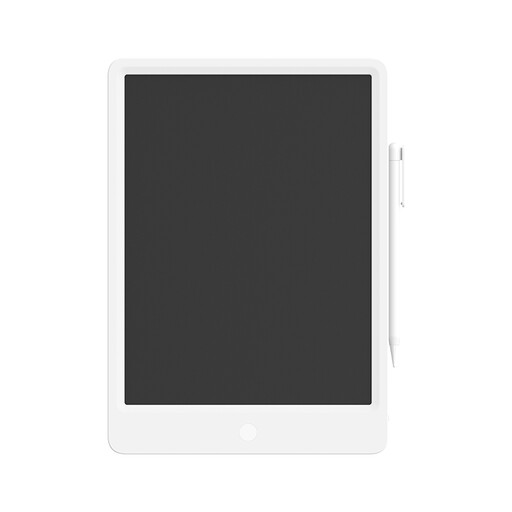 No image available
An LCD writing tablet with a stylus for drawing by hand.
The product is described as reusable; this doesn’t establish that it’s suitable for editing KiCad projects.
 No image available
The product title lists T-pen compatibility and a 12.7-inch screen for hand-drawn sketches.
The title lists Android 15, Helio G99, 20 GB (8 GB + 12 GB virtual) RAM and 256 GB storage. The product information advises against prolonged exposure to sunlight.
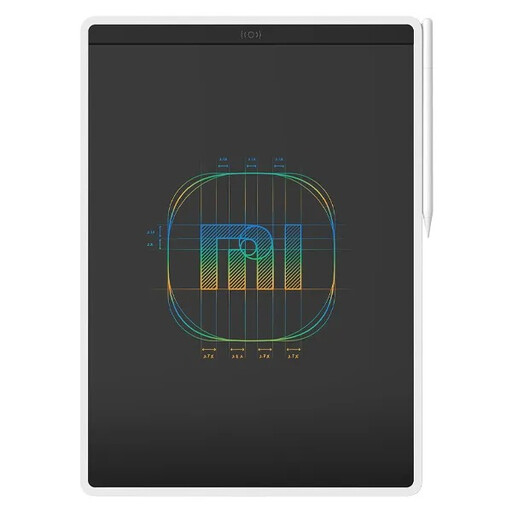 No image available
The product description says you can write and draw on a pressure-sensitive screen for hand-drawn sketches.
The product description lists a 13.5-inch size. Pressure sensitivity alone doesn’t indicate that it has electrical schematic functions.
 No image available
The title says a stylus is included for hand-drawn sketches.
The listed specifications include a 12.7-inch 2K screen, 20 GB (8 GB + 12 GB virtual) RAM and 256 GB storage. The product information advises against prolonged exposure to sunlight.
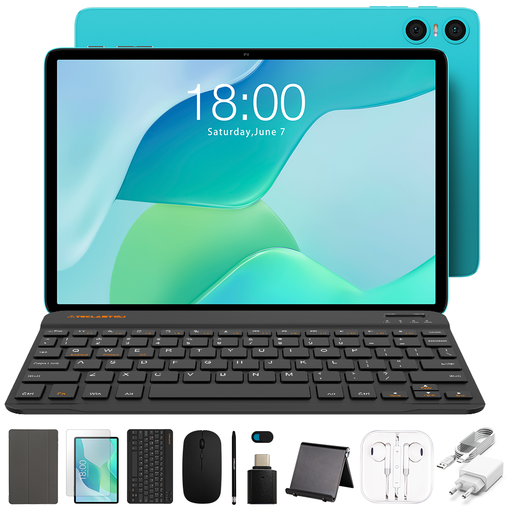 No image available
The title lists a stylus and accessories for use at a workspace; check which items are included with the offer.
The title lists 9 GB (3 GB + 6 GB virtual expansion) RAM and 64 GB storage. The product information advises against prolonged exposure to sunlight.
Not just because a drawing app can create straight lines. KiCad documents separate functions for symbols, connections and electrical checks. If you need those checks, choose a suitable schematic editor.
In a suitable drawing app, try the grid and magnetic alignment first, then test the shape tools. Concepts documents these features; check which ones are available on your platform and in your version of the app.
No, it depends on the model and offer. Microsoft says the Surface Slim Pen is sold separately; Apple specifies Pencil support, but the Pencil isn’t listed among the contents of the iPad Air box. Check what’s included with the specific offer.
For a consumer purchase made online in the Netherlands, you’ll usually have a statutory 14-day cooling-off period from delivery, although exceptions may apply. ACM ConsuWijzer also explains the legal guarantee that applies if a product breaks sooner than you could reasonably expect under normal use. Check the applicable terms and contact the seller about your legal guarantee.