
Botanical detail artist
You paint fine veins, flower edges and varied brushstrokes. Compatibility and pen controls matter more to you than features you won’t use.


Start with your exact tablet model: Apple Pencil, Samsung S Pen and Lenovo models all have different compatibility requirements. Then choose the pen controls you need for fine lines and shading, and check how the pen pairs, charges and stores. A pen for sketching won’t necessarily offer the same features as a pressure-sensitive pen.
You paint fine veins, flower edges and varied brushstrokes. Compatibility and pen controls matter more to you than features you won’t use.
You’re looking for a pen that works with your current iPad, Galaxy or Lenovo tablet, and want to avoid choosing an incompatible model.
You want to get started quickly and be able to charge or store the pen afterwards, without leaving loose items on your workspace.
First, check that the pen works with your tablet. Then compare the drawing controls you need and how you’ll charge and store it.
| What to consider | What should you check? | Who is this important for? |
|---|---|---|
| Compatibility | Compare the full tablet model and generation with the manufacturer’s compatibility list. For Apple Pencil Pro, also check the required iPadOS version. | If I want to keep using my current tablet, I’ll first check that the pen is designed for it. Around 30% of consumers put compatibility first. |
| Line and brush control | Check whether each pen model supports pressure sensitivity, tilt and any additional controls. Also check that the features you want work in your drawing app. | For fine veins and shading, I want to know how I can control the brushstroke. Around 30% of consumers prioritise control over lines and shading. |
| Charging and storage | Check separately whether the pen attaches magnetically and how it actually pairs and charges; a cable may be needed. | If I want to clear a shared workspace quickly, I want to know how the pen can be stored and charged after use. Around 20% of consumers consider this routine most important. |
| Accessories and aftercare | Check what’s included in the box and whether you’ll need an adapter for your tablet or replacement tips for the pen. | If I want to factor in extra accessories and maintenance, I’ll check the box contents and terms in advance. Around 20% of consumers put these additional costs and aftercare first. |
Compatibility can vary by model and generation. Apple also specifies a USB-C to Apple Pencil Adapter for Apple Pencil (1st generation) with iPad (10th generation) and iPad (A16).
Check the full tablet name, the exact pen version, any software requirements and what’s included in the box.
Tilt and pressure are different ways to control a stroke. Logitech describes tilt control for Crayon (USB-C), while Apple lists both pressure and tilt sensitivity for Apple Pencil (1st generation).
Choose based on the brush controls you need, and check the specifications for the exact version.
Apple Pencil Pro pairs and charges magnetically with a compatible iPad. Apple Pencil (USB-C) stores magnetically, but pairs and charges via a USB-C cable.
Check storage, pairing and charging separately before choosing a pen for a shared workspace.
The Dutch government distinguishes between the legal guarantee and an additional guarantee on offer. An additional guarantee is only useful if it gives you more rights.
Compare the additional terms with your existing rights, and contact the seller if the product is faulty.
Apple Pencil models are worth considering if you already own an iPad; compatibility varies by iPad generation.
Samsung S Pen versions are designed for supported Galaxy devices. Creator Edition is a separate version for drawing and writing.
Precision Pen 3 is an option to look into if you already have a compatible Lenovo tablet.
Crayon (USB-C) is an iPad pen for drawing and writing, with tilt control.
These product options are pens for compatible Surface, iPad, Galaxy and MPP devices. Before buying, check that the exact pen works with your tablet.
 No image available
Could be a good fit for detailed drawing if you use a compatible Surface device.
The product information lists pressure sensitivity with 4,096 levels and haptic feedback. Check compatibility with your Surface device.
 No image available
Designed for drawing with varied brushstrokes on a compatible iPad.
The product information lists pressure and tilt sensitivity, rotation control, and magnetic pairing and charging. Apple Support lists compatible iPad models and iPadOS 17.5 or later; check that your model is supported.
 No image available
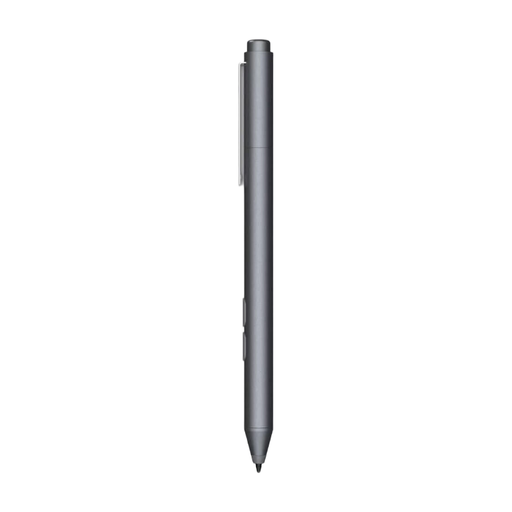
Could be suitable for detailed drawing with a fine tip if your device supports MPP.
The product information lists a pressure-sensitive tip, customisable buttons, one replaceable tip and an AAAA battery. Check compatibility with your device.
 No image available
Could be a good fit for detailed sketching if you use one of the Galaxy Tab models listed.
The product information lists compatibility with Galaxy Tab S9 FE and Tab S9 FE+, and magnetic attachment for storage and charging on the designated part of the tablet.
 No image available
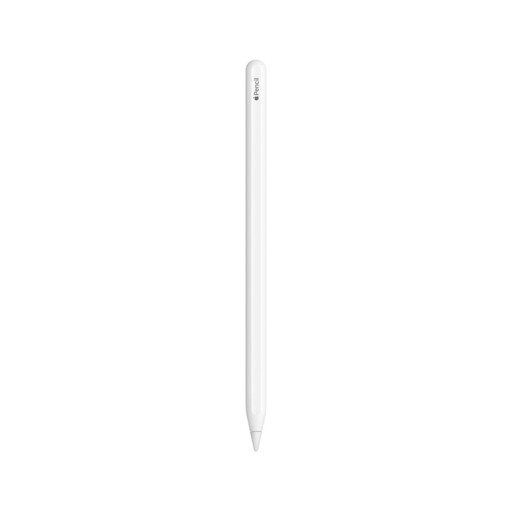
Could be a good fit for drawing and painting on a compatible iPad.
The product information lists magnetic pairing and charging, and double-tap to switch tools. Check which iPad models are supported by this pen.
Find your tablet’s full model name and generation, then compare them with the compatibility list for the exact pen. Apple also lists iPadOS requirements for some Pencil models; Samsung and Lenovo likewise recommend checking support for your specific device.
Check how the exact version charges. Apple Pencil Pro pairs and charges magnetically with a compatible iPad, while Apple Pencil (USB-C) can be stored magnetically but pairs and charges via a USB-C cable. Logitech describes USB-C charging for Crayon (USB-C).
First, check that the pen and iPad are compatible and that you’re using the correct charging or connection method. Apple recommends removing a case or cover and trying again if you have pairing problems; Apple Pencil (1st generation) requires the adapter mentioned for iPad (A16) and iPad (10th generation).
Check which tips are included with your exact pen and whether they can be replaced. Samsung lists two pen tips and a replacement tool for Creator Edition; Lenovo lists an extra tip with Precision Pen 3.
For a typical distance purchase from a business, you usually have 14 days to change your mind, according to the Dutch government. If a product is faulty, contact the seller about your legal guarantee; there is no fixed statutory guarantee period in the Netherlands.