Start by checking your exact tablet model and making sure the pen works with it and offers the brush functions you need. A compatible battery-free EMR pen means one less thing to charge, while an Apple Pencil Pro charges magnetically on certain iPads. A USB-C pen may suit sketching, but check its pressure sensitivity and app support separately if you plan to paint.
Who is this choice relevant to?
Painter with limited charging options
You regularly create animal studies and don’t want to add charging a pen to your list. First, check whether your tablet supports a compatible battery-free pen; STAEDTLER describes the Noris digital jumbo as a pen for compatible EMR screens.
Detail-focused iPad painter
You want to use the pen and brush features available for fur, outlines and shading. Apple and Adonit tie compatibility and features to specific iPad models and, for certain features, apps.
Sketcher with an existing tablet
You mainly want to capture animal poses and shapes without choosing an incompatible pen. Your exact tablet model determines which options are suitable, so check the manufacturer’s information for that model.
What should you look for when choosing?
Battery-free EMR pen
Choose this option: if your tablet is confirmed to have a compatible EMR screen and you don’t want to add a separate pen-charging task.
Bear in mind: a touchscreen alone doesn’t prove EMR compatibility, and your tablet still needs charging.
S Pen for a compatible Galaxy Tab model
Choose this option: if you have a Galaxy Tab that supports the S Pen supplied for it and you’re looking for a version that doesn’t need charging.
Bear in mind: features vary between S Pen models, so don’t assume one version has the same features as another.
Apple Pencil Pro for a compatible iPad
Choose this option: if your iPad is on Apple’s compatibility list and you want to charge the pen magnetically on the tablet.
Bear in mind: the pen still needs charging and isn’t compatible with every iPad.
USB-C or app-dependent pen
Choose this option: if charging is fine and you mainly sketch, or if your tablet and painting app support the features you want.
Bear in mind: some pens charge by cable, and tilt sensitivity isn’t the same as pressure sensitivity.
| Consideration |
What to check before buying |
Who is this important to? |
| No separate charging task |
Check whether the pen itself needs charging and whether your tablet supports it. |
I don’t want to stop to charge my pen during an animal study; around 29% of consumers prioritise avoiding this kind of charging interruption. |
| Tablet compatibility |
Make a note of your full tablet model and, if necessary, check the software version in the manufacturer’s compatibility information too. |
I want to avoid buying a pen that doesn’t work with my tablet; around 29% of consumers give compatibility top priority. |
| Control over brush strokes |
Check whether you need pen pressure or tilt, and whether both the pen and your painting app support that feature. |
I want to use pen pressure for fur, shading or details; around 24% of consumers prioritise useful brush control. |
| Pen tips and aftercare |
Check whether suitable replacement tips are included or available, and distinguish normal wear and tear from warranty cover. |
I want to know in advance how to replace a worn tip and what aftercare to expect; around 18% of consumers give this the most consideration. |
Common buying mistakes
-
Confusing magnetic attachment with magnetic charging
Apple describes the Apple Pencil (USB-C) as attaching magnetically for storage, but it charges using a USB-C cable. The Apple Pencil Pro charges magnetically on a compatible iPad.
Check the product information to see exactly how the pen charges; ‘magnetic’ on its own doesn’t tell you enough.
-
Confusing tilt sensitivity with pressure sensitivity
Logitech describes the Crayon as offering tilt-controlled line thickness, but says the pen isn’t pressure-sensitive. These are different ways of controlling brush strokes.
Check specifically whether the pen is pressure-sensitive and whether your painting app supports this feature.
-
Assuming an EMR pen works with any tablet
STAEDTLER says the Noris digital jumbo only works with compatible EMR screens. Having a touchscreen doesn’t in itself mean that a tablet supports it.
Before ordering, compare your full tablet model with the compatibility information for the specific pen.
-
Assuming one S Pen has the same features as another
Samsung offers different S Pen versions; features such as Bluetooth and charging aren’t the same across every model.
Check the exact Galaxy Tab and S Pen combination in Samsung’s information.
Brands to compare
STAEDTLER
The Noris digital jumbo 180J 22 is designed for EMR tablets confirmed to be compatible.
- STAEDTLER lists 4,096 pressure levels, a replaceable tip and spare tips included; the pen doesn’t need charging or pairing.
- The pen only works with compatible EMR screens. The digital eraser depends on the app.
Samsung
The S Pen is a model-specific option for supported Galaxy Tabs; some versions don’t need to be charged separately.
- Samsung says that S Pens for models including the Tab S9 FE and Tab S10 FE don’t support Bluetooth.
- The S Pen Pro is a different version and needs charging. Check features for each pen and tablet model.
Apple
Apple Pencil Pro and Apple Pencil (USB-C) are compatible with different, model-specific groups of iPads.
- Apple describes the Pencil Pro as charging magnetically on a compatible iPad. The Pencil (USB-C) charges by cable and can be stored magnetically.
- Check your exact iPad model; magnetic storage doesn’t automatically mean magnetic charging.
Logitech
Crayon (USB-C) is an option for supported iPads if sketching and tilt-controlled lines are all you need.
- Logitech lists USB-C charging and tilt-controlled line thickness.
- According to the Logitech guide, Crayon isn’t pressure-sensitive, so it may not be the right choice if pen pressure is essential for your painting app.
Adonit
The Note⁺ 2 may suit iPads and apps specifically supported by Adonit.
- Adonit lists pressure sensitivity, tilt and programmable buttons.
- According to Adonit, pressure sensitivity and buttons require pairing with specific apps; check support for your painting app.
Pens for drawing on tablets
This selection includes pens for drawing on compatible Wacom tablets and iPads, as well as an active stylus for tablet use. Check the exact tablet model and charging method for each product.
 No image available
Wacom Pro Pen 3 Customisable Battery-Free EMR Stylus, black
For drawing without a separate pen-charging task, provided your tablet is compatible. The product information lists models including the MovinkPad 11 and Cintiq Pro; check your exact model.
View at Joybuy
 No image available
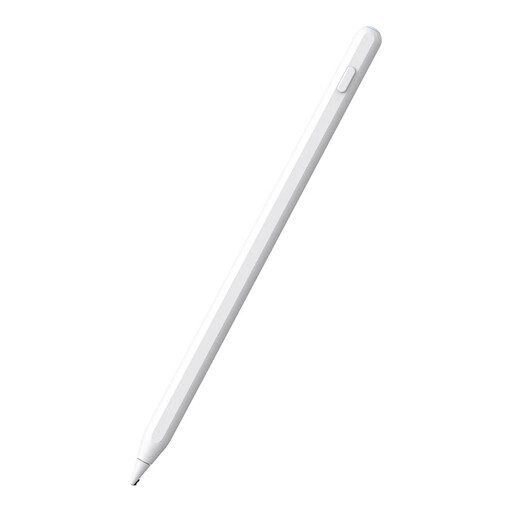
Alternative stylus for iPad, white, 16.5 x 0.9 x 0.9 cm
For drawing on a compatible iPad if charging via the tablet suits the way you use it. The product information lists a built-in battery and magnetic charging; check that your iPad model is supported.
View at Joybuy
 No image available
Apple Pencil Pro 2024
An option for painting on a compatible iPad. Apple describes magnetic pairing and charging; check that your exact iPad model is supported.
View at Joybuy
 No image available
Apple Pencil 2nd Generation
The product title lists compatibility with specific generations of iPad Pro, iPad Air and iPad mini. Before choosing this pen, check whether your exact iPad model is included.
View at Joybuy
 No image available
VoxorAI HL-U05 active stylus, white
The product title lists iOS, iPad, Android and Microsoft as compatible platforms. The product information mentions a built-in lithium battery and charging; check support for your tablet and app.
View at Joybuy
Frequently asked questions
Do you still need to charge your tablet if the pen is battery-free?
Yes. For the Noris digital jumbo, ‘no charging’ applies to the pen, not the tablet. If you have a Galaxy Tab, check the specific S Pen version too: Samsung distinguishes between models with and without a charging function.
How can you make sure a pen works with your brush?
Check tablet compatibility, the pen’s features and support from your drawing app separately. According to Adonit, pressure sensitivity and shortcut buttons on the Note⁺ 2 require pairing with specific apps; the Logitech guide says that Crayon isn’t pressure-sensitive.
Can you replace a worn pen tip?
It depends on the pen. STAEDTLER lists five spare tips with the Noris digital jumbo; Apple sells replacement tips that, according to Apple, fit the Pencil Pro and Pencil (USB-C), among others. Always check which version is right for your pen.
Are you always entitled to exactly two years’ legal guarantee in the Netherlands?
No. According to the Dutch government, there is no fixed period for the legal guarantee in the Netherlands; it depends on what you could reasonably expect from the product. If there’s a fault, contact the seller.
Can you return a pen bought online?
For many distance purchases from a business, the Dutch government says you have a 14-day cooling-off period, although there are exceptions. Check which terms apply to your order.


