
Researcher who shares annotations
You want to save and share an annotated PDF or a note. Apple Support, Samsung Support and reMarkable Support each describe ways to work with or transfer PDFs.


Start by thinking about how you want to use your annotated PDF later. A standard iPad or Android tablet suits workflows involving other apps, while a paper-like device offers a more focused way to read and write. Then compare the stylus and PDF export options, screen space and weight, and what you can do without Wi-Fi. Apple Support, Samsung Support and reMarkable Support describe different ways of working with PDFs; this is not a comparative hands-on test.
You want to save and share an annotated PDF or a note. Apple Support, Samsung Support and reMarkable Support each describe ways to work with or transfer PDFs.
You spend long stretches reading at a hotel desk and are weighing screen space and a paper-like reading experience against portability and the limitations of a specialist device. Apple lists different screen sizes and weights for the iPad Air; reMarkable and BOOX describe devices with ePaper screens.
You want to prepare articles in advance and know which transfers or syncs will require a connection later. reMarkable Support describes options including USB transfer and syncing when Wi-Fi is available.
A good fit if: you want to annotate PDFs and use other iPad apps too.
Trade-off: Apple lists compatible Pencil models, but does not include a Pencil in the box contents for the iPad Air reviewed.
A good fit if: you want to work with PDFs in a note-taking app; Samsung describes importing, annotating and exporting via Samsung Notes.
Trade-off: check the stylus and box contents for the exact version you choose.
A good fit if: reading and writing in your hotel room matter more than a standard tablet workflow.
Trade-off: test the import and export process with your own PDF; some reMarkable features are part of Connect.
| What to consider | What to look for before buying | Why it matters to consumers |
|---|---|---|
| Using PDFs later | Test importing, annotating and exporting, then reopen the file in the app you use for your next steps. | I want to get my notes back into my research workflow without awkward extra steps; around 33% of consumers say getting annotations back is their top priority. |
| Reading space and writing experience | Look at an article of your own with figures, and compare the screen size and weight of the models you are considering. | When reading long articles, I want to see the text and figures clearly and still have space for notes; around 27% of consumers prioritise the reading and writing experience. |
| Working without Wi-Fi | Save articles to the device in advance, then test opening, annotating and transferring them later without a network connection. | If the hotel Wi-Fi is unreliable, I want to be able to open my articles and transfer my work later; around 20% of consumers say offline access is their top priority. |
| Required kit and features | Check the stylus and other items included with the exact version, and whether you need any cloud services for your workflow. | I want to know in advance which items and features my workflow requires, not just which tablet to choose; around 20% of consumers prioritise having all the kit they need. |
Working with and transferring PDFs can vary between apps and devices. Successfully adding annotations does not necessarily mean you can then use the result in your research workflow.
Test the whole process with the same article: import it, add notes, export it and reopen it in the app you use to continue working.
If the export does not suit your workflow, transferring annotations could take extra time.
Box contents vary by model and bundle. Apple does not list a Pencil among the box contents for the iPad Air reviewed; a specific Lenovo bundle does include a stylus.
Check the box or bundle contents for the exact version, and make sure the stylus works with the tablet you have chosen.
You may need to buy a compatible stylus or another essential item separately.
reMarkable also describes using its devices without Connect, although certain features, including handwriting search and cloud storage and syncing, are linked to Connect.
Decide which features you need and check whether the available transfer options without a subscription suit your workflow.
The iPad Air is a standard tablet option if you want to annotate PDFs and choose between two screen sizes.
The Galaxy Tab offers an Android option if you want to work with PDFs in a note-taking app.
The Paper Pro is an option if you are considering a device focused on reading and writing.
The Note Air6 C is an option for weighing up colour ePaper and an Android-based research environment.
The Idea Tab Pro is a standard Android tablet for which Lenovo describes a specific stylus bundle.
This product selection includes tablets for reading and note-taking, including Android models and an e-ink tablet. Test with your own PDF to see whether annotating and exporting fit your research workflow.
 No image available
An option for combining reading and writing with an included Tab Pen Pro.
The product name lists an 11.1-inch 3.2K touchscreen, Snapdragon 8 Gen 3, 12 GB LPDDR5X, 256 GB UFS 4.0, Wi-Fi 7 and Android 15.
 No image available
A standard Android tablet to consider for reading and note-taking; check whether the exact version includes a stylus.
The product name lists an 11-inch IPS screen, 90 Hz, 500 nits and Android 15. According to the product information, the charger for this version must be bought separately.
 No image available
The product name lists an included stylus pen, making this worth considering if you want to read and take notes on one tablet.
The product name lists a 12.7-inch 2K screen, 20 GB RAM (8 GB + 12 GB virtual expansion) and 256 GB of storage.
 No image available
An e-ink tablet to consider for reading and note-taking; test with your own PDF to see whether annotations and export suit your workflow.
The product name lists a 10.65-inch E-Ink screen.
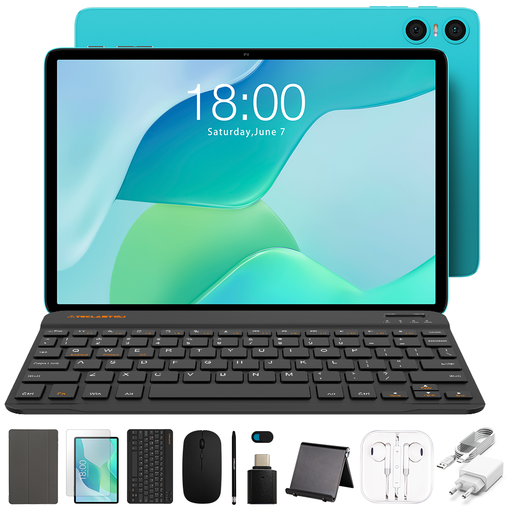 No image available
The product name lists a stylus pen in the set; check that the included accessories suit your reading and annotation needs.
The set also includes a case, Bluetooth keyboard and mouse. The product name lists 3 GB RAM plus 6 GB virtual expansion and 64 GB of storage.
Check the exact model and packaging. For the iPad Air reviewed, Apple lists support for Apple Pencil Pro and Apple Pencil (USB-C), while the Lenovo Idea Tab Pro Essentials Bundle described includes a Tab Pen Plus. Do not rely on the brand name alone.
Save sample articles to your device before you leave, then test your own annotation and export process. reMarkable Support describes options including USB transfer and notes that imported files sync when Wi-Fi is available.
Not for every feature: reMarkable also describes using its devices without Connect. The company links features including handwriting search and unlimited cloud storage and syncing to Connect; check which features your workflow requires.
No. ACM ConsuWijzer explains that the Netherlands does not have a fixed two-year legal guarantee period for every product: your entitlement depends on what you could reasonably expect from the product under normal use. The manufacturer’s guarantee is separate.
For a standard distance purchase by a consumer, you generally have a statutory 14-day cooling-off period after delivery; ACM ConsuWijzer lists statutory exceptions. Check the terms for the specific purchase, and do not assume that consumer rights automatically apply to a business purchase.