First, decide how you’ll transfer photos from your camera or memory card, and where you’ll keep a second copy. An iPad or Android tablet may suit you for selecting photos on the go; a Windows 2-in-1 is worth comparing if you want to keep using your existing computer-based workflow. Check the ports, the app you want to use and any accessories for the exact model.
Who is this guide for?
Photographers who want to transfer photos on location
You want to import camera files during an excursion and keep a separate copy as well. In that case, the connection and transfer process matter more than the screen specifications alone. Apple Support explains how to import from a camera or SD card to an iPad; Google Android Help covers SD card storage options on Android.
Travellers who want to select photos on the go
You view your shots while you’re out and want to strike a practical balance between screen space, storage and weight. The Consumers’ Association highlights screen size and storage capacity as factors to consider when choosing a tablet.
Users with an existing computer-based workflow
You want to keep using your familiar folders and input method as much as possible, so you’re considering a 2-in-1. Microsoft describes the Surface Pro as a device for both tablet and laptop use.
What should you look for when choosing?
iPad with iPadOS
A good fit if: you want to import photos into the Photos app using a compatible card reader or camera connection, then select them on a tablet.
Bear in mind: check which reader or adapter is compatible with your camera. The export method described in Photos exports unmodified originals; check separately how to save edited versions.
Android tablet
A good fit if: local file transfer or a microSD slot is important to you; Lenovo lists this connection for the Idea Tab Pro product line.
Bear in mind: a microSD slot isn’t automatically a reader for the card in your camera. Check the exact model and test your import and organising app with your own files.
Windows 2-in-1
A good fit if: you want a tablet that can also offer a laptop-style workflow with folders and a keyboard.
Bear in mind: check that your photo software and card reader are compatible with the model you choose. Microsoft says the keyboard and Slim Pen for the Surface Pro reviewed here are sold separately.
Decide which requirement matters most for your excursion, then check it against the exact tablet model.
| Priority |
What should you check? |
Who is this important for? |
| Transferring and copying photos |
Check the card type, compatible reader, import steps and a separate destination for a second copy. |
If I want to import camera files while I’m out, I also want to keep a copy somewhere other than the tablet. Around 36% of consumers say transferring files and keeping a second copy are their main concerns when buying. |
| Viewing and storing photos locally |
Compare the screen size and available storage using a sample set of your own photos; also check whether the model offers storage expansion. |
When I want to view and organise lots of shots, the combination of screen space and available storage matters to me. Around 29% of consumers say this is their main concern when buying. |
| Easy to carry |
Compare the weight of the exact model, including the case and card reader you plan to take with you. |
If I need to carry my tablet alongside my camera kit, I want to know how heavy the complete set will be beforehand. Portability is the top priority for around 21% of consumers. |
| Compatibility with your computer-based workflow |
Check that your chosen model is compatible with the app, file format, controls and card reader you want to use. |
When I want to keep using my familiar software and folder system, I look for a tablet that fits in with them. Around 14% of consumers name this as their main concern when buying. |
Things to consider before you set off
-
Assuming storage on the tablet counts as a second copy
Importing photos to the tablet doesn’t, by itself, create a copy on another storage device.
Before you set off, test both importing and copying a few of your own photos to a separate destination.
Depending on your camera and workflow, you may need a compatible card reader and a separate storage device.
-
Assuming every export includes your edits
Apple says that the export function to external storage described here exports unmodified originals.
Keep originals and edited exports separate, and check the export function in the app you use to edit your photos.
-
Assuming an IP68 rating means protection in all weather
Samsung’s IP68 rating for the Galaxy Tab S10 FE series and the included S Pen is based on laboratory conditions involving fresh water. It doesn’t mean the device is protected in every outdoor situation.
Read the conditions for the exact model, and protect the tablet and its connections appropriately for your excursion.
-
Planning your workflow around the tablet alone
Photo transfers may require a compatible reader and external storage. For laptop use with the Surface Pro reviewed here, Microsoft says accessories such as the keyboard are sold separately.
Before you buy, make a list of the connections and accessories you’ll need for transferring files and using the device.
Brands to compare
Apple
An iPadOS option for importing and selecting photos while you’re out.
- Apple Support explains how to import from a camera or SD card; check which compatible adapter or card reader you’ll need.
- The external drive export function described here exports unmodified originals. Apple Netherlands lists the Wi-Fi versions of the 11-inch and 13-inch iPad Air at 464 and 616 grams respectively.
Samsung
The Galaxy Tab S10 FE is an Android tablet worth comparing if an included pen and use in different locations are important to you.
- Samsung Netherlands lists an IP68 rating for the Tab S10 FE, FE+ and included S Pen under specified laboratory conditions involving fresh water.
- That test description doesn’t guarantee protection in every outdoor situation. Check the storage and connections on the exact model.
Lenovo
The Idea Tab Pro product line is an Android option to compare if a larger screen and local storage expansion matter to you.
- Lenovo specifies a 12.7-inch screen, a microSD slot and USB-C with USB 5 Gbps for this product line.
- Configurations and accessories may vary by region or model. Check that the card, app and model you choose are compatible with your workflow.
Xiaomi
The Pad 8 is an Android option to compare if screen size and internal storage are important to you.
- Xiaomi specifies an 11.2-inch screen and versions with 128, 256 or 512 GB of storage.
- Usable storage is lower because the system software takes up space. The specifications alone don’t confirm that your camera or archiving app will work.
Microsoft
The Surface Pro is a Windows 2-in-1 to compare if you want to combine tablet use with a laptop-style way of working.
- Microsoft describes the Surface Pro as suitable for both tablet and laptop use.
- The keyboard and Slim Pen for the Surface Pro reviewed here are sold separately. Make sure you distinguish between editions and configurations, and check that your photo software is compatible.
Joybuy products
This selection includes Android tablets with different screen and storage configurations, plus an 11-inch iPad Air for viewing and storing photos locally. Check that the connections and transfer method work with your camera and app.
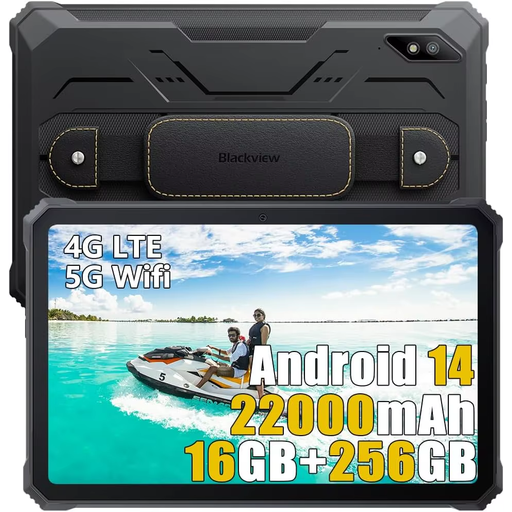 Image unavailable
Blackview Active 8 Pro, 256 GB
An Android tablet to consider if you want to store photos locally; check that it has the right connection and app for your camera before you buy.
The product name lists a 10.36-inch screen, 16 GB (8 GB + 8 GB) and 256 GB of storage.
View on Joybuy
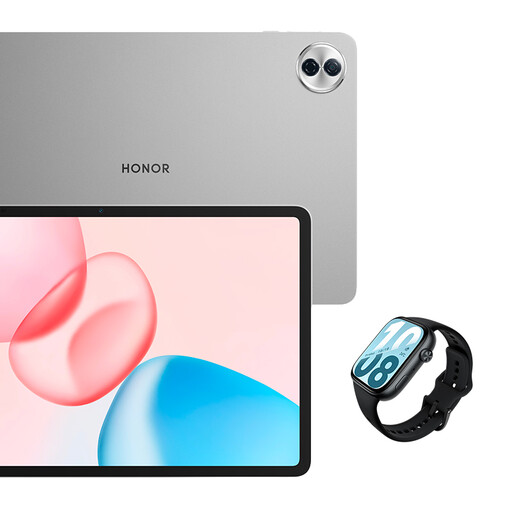 Image unavailable
HONOR Pad 10 + Watch X5i bundle, 256 GB
The tablet in this bundle may suit you if you want to view photos on a larger screen; check how to transfer photos from your camera separately.
The product name lists a 12.1-inch 2.5K screen, 120 Hz, Wi-Fi and 256 GB of storage for the tablet. The bundle also includes a Watch X5i.
View on Joybuy
 Image unavailable
Lenovo Idea Tab Plus Wi-Fi, 256 GB, with pen
A tablet with pen input to consider if you want to use that method when organising photos; check that your archiving app supports it.
The product name lists a 12.1-inch 2.5K screen, 8 GB RAM, 256 GB of storage and an included pen. According to the product information, the charger isn’t included; check that you have a compatible one.
View on Joybuy
 Image unavailable
Apple 11-inch iPad Air (M4) Wi-Fi, 256 GB
Apple Support explains how to import photos to an iPad from a camera or SD card using a compatible connection or card reader.
The product name lists an 11-inch iPad Air (M4), Wi-Fi and 256 GB of storage. The external storage export method described here exports unmodified originals; check separately how to save edited versions.
View on Joybuy
 Image unavailable
Lenovo IdeaTab (MediaTek Dimensity 6300), 128 GB
An Android tablet to compare if you want to view and store photos locally on an excursion; check the import method your camera requires.
The product name lists Android 15, an 11-inch IPS screen with 90 Hz and 128 GB of storage. According to the product information, the charger isn’t included; check that you have a compatible one.
View on Joybuy
Frequently asked questions
Can I transfer photos directly from my camera or SD card to an iPad?
Yes. Apple Support explains how to import photos into the Photos app from a digital camera or SD card. Use a compatible adapter or card reader, and try the steps with your own camera before you set off.
Does the iPad export function described here save edited photos to an external drive?
Not as an edited version when you use ‘Export Unmodified Original’: Apple Support says this saves the unmodified original. For edited photos, check the export function in the app you used to edit them.
Is a microSD slot the same as a reader for my camera’s SD card?
No. Lenovo specifies a microSD slot for the Idea Tab Pro, but check which card format your camera uses and which reader and app you’ll need to transfer your photos.
Do I need a keyboard or pen for a Surface Pro?
Only if you want to use one in your workflow. Microsoft says the keyboard and Slim Pen for the Surface Pro reviewed here are sold separately; check the accessories available for the exact edition.
How does the statutory guarantee work for a tablet bought in the Netherlands?
According to the Dutch government, you’re entitled to a product that works properly, and the Netherlands has no fixed statutory guarantee period. If a product is faulty, contact the seller; the appropriate remedy depends on the circumstances, not just the manufacturer’s guarantee.


