
Managing shared access
If several staff members use the same tablet, you’ll want to control who can view or edit member information. The Dutch Data Protection Authority stresses that access rights should be set appropriately.


Start with your membership app and the access rights each staff member needs, then choose a tablet. An Android tablet may be suitable if the app works on it and the user profiles you need are available on the exact model. Shared iPad requires organisational management, while Windows is mainly relevant if your membership system depends on it. Test forms and data entry on the model you choose: a device profile does not replace access rights in your membership system.
If several staff members use the same tablet, you’ll want to control who can view or edit member information. The Dutch Data Protection Authority stresses that access rights should be set appropriately.
You regularly update names, contact details or forms, and want to check how readable the forms are and how easy it is to enter information on the model you choose.
You already use a membership app or a Windows programme and want to keep working the same way. The Consumers’ Association highlights the importance of choosing the right operating system. Test your own software on the exact model.
This option is suitable when: the membership app works on the model and you want staff to use separate device profiles.
Bear in mind: profile options and settings can vary by model and software version. Device profiles do not automatically manage permissions in the membership app.
This option is suitable when: your existing setup uses iPad apps or your organisation can manage Shared iPad.
Bear in mind: Shared iPad requires supervision, device management and Managed Apple Accounts. Also check that the membership app works in the session setup you’ve chosen.
This option is suitable when: your membership system depends on a Windows programme or an existing Windows setup.
Bear in mind: test the programme on the exact tablet and check which input accessories you’ll need.
When several people share a workstation, your choice comes down to the membership app, access rights and how you’ll enter information. The Dutch Data Protection Authority stresses that organisations must protect personal data appropriately and manage access rights.
| What to consider | What to check before buying | Who should pay particular attention? |
|---|---|---|
| Access when sharing a device | Check user profiles on the exact model and set separate permissions in the membership app. | I want staff to see or edit only the member information they’re authorised to access, even when the tablet is shared. Around 33% of consumers put restricted access at the top of their list. |
| Readability and data entry | Try a representative form on screen and test data entry with and without a suitable keyboard. | If I regularly update forms or records, I want to be able to read the text and enter information quickly. Around 27% of consumers give ease of data entry top priority. |
| Software compatibility | Test the membership app and sign-in method on the exact operating system; check any management requirements. | I want to keep using my existing programme and sign-in method, without assuming compatibility based on the model name alone. Around 20% of consumers put software compatibility first. |
| Tablet and setup | Check which accessories are included and whether you need mobile connectivity or additional device management. | I only want to pay for the setup our workplace needs, and to know in advance which accessories that involves. Around 20% of consumers start by considering the cost of the tablet and setup. |
A separate profile doesn’t automatically determine who can view or edit member information in your system. The Dutch Data Protection Authority stresses that access rights should be managed appropriately.
Test permissions using separate staff accounts in the actual membership app.
Allow time to set up and maintain permissions in the app.
Apple has management and supervision requirements for Shared iPad. Also check that the membership app works in the session setup you intend to use.
Decide in advance who will manage the iPad, then test sign-in and the membership app in the chosen session.
Your organisation may need to arrange device management and set up the necessary configuration.
Accessories vary by model. Apple lists Pencil support for certain models, but the Pencil isn’t included in the stated box contents; Microsoft describes the Type Cover as an add-on.
Check the box contents for the exact model and compare them with the input method you need.
A stylus or keyboard you need may involve an additional purchase and compatibility checks for the tablet.
An Android option to consider if user profiles and a screen suitable for forms are important.
A relevant choice if your membership app works on iPadOS or your organisation can manage Shared iPad.
The Tab M11 is an Android model worth including in a comparison, particularly if you’re considering a bundle with a pen.
A Windows option to consider if your membership system depends on Windows software.
Another Android option to compare for screen size and specifications.
The products below are Android tablets for use at a shared workstation. Check that the membership app and the user settings you need work on each model.
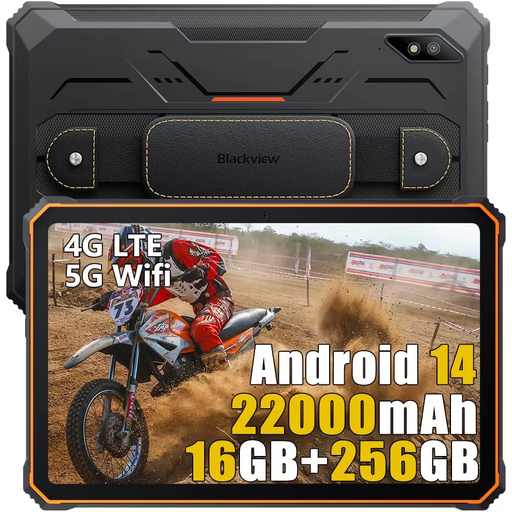 Image unavailable
Use the 10.36-inch HD screen to review your membership forms at the table; test the membership app on this model.
Android 13, 10.36-inch HD screen, 16 GB (8 GB + 8 GB) and 256 GB storage.
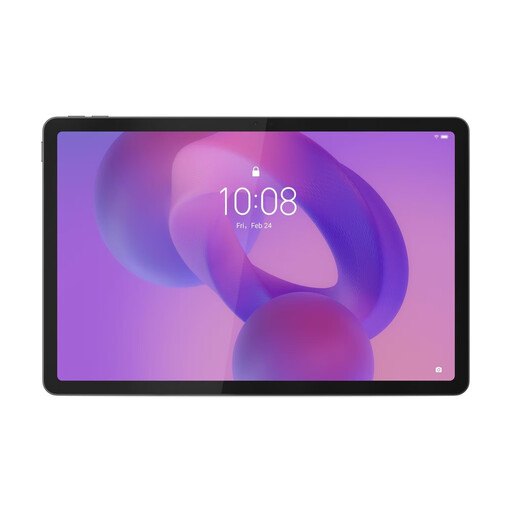 Image unavailable
View your own membership forms on the 11-inch screen and test the app and sign-in method on this model.
Android tablet with an 11-inch 2.5K screen and MediaTek Dimensity 6300.
 Image unavailable
If you’d like to review forms on a larger screen, try them on this model and check that the membership app works.
Android 16, 13.4-inch screen, 20 GB (6 GB + 14 GB virtual) RAM, 128 GB storage and folio case included.
 Image unavailable
The included Tab Pen may be useful if you want to make notes on membership forms; check that the app works on the version you choose.
11-inch IPS screen, 8 GB RAM, 128 GB storage and Android 15. The Tab Pen is listed as included; the charger is not included.
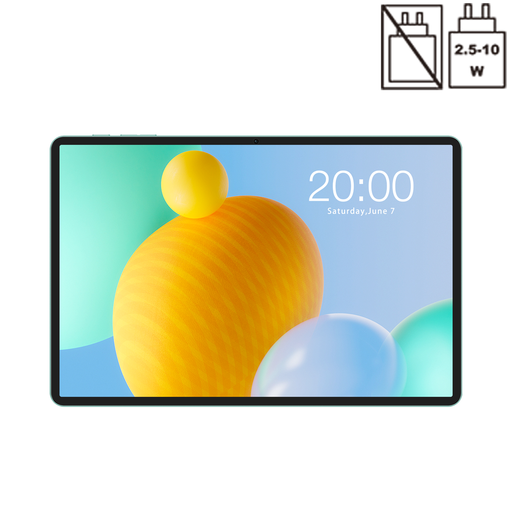 Image unavailable
Review your membership forms on the 11-inch screen and check that the membership app and sign-in method work on this model.
Android 16, 128 GB storage and 32 GB (6 GB + 26 GB virtual) RAM.
Yes. Sharing a device doesn’t have to mean staff have the same permissions in your membership system. The Dutch Data Protection Authority stresses that organisations should manage access rights appropriately. Set permissions for each staff member in the systems you use, and also check how the tablet will be shared.
No, don’t assume that. Google says a device without a user-management option can’t add users; Samsung also warns that settings vary by model and software version. Check the feature on the exact model.
According to Apple, Shared iPad requires supervision, device management and Managed Apple Accounts. Check who will handle the setup and test whether the membership app works in the session format your organisation plans to use.
Test the membership app on the exact model and operating system before you choose. Try a typical task, the sign-in method and the forms staff actually use.
Test the membership app with a test record and the input method you plan to use. The Dutch Data Protection Authority highlights screen locking and keeping tablet software and apps up to date. Also agree who will manage and maintain access rights.