First, choose a tablet that lets your team edit meeting minutes in the app and shared documents they actually use; a larger screen won’t fix an unsuitable document workflow. For lengthy minutes, compare the tablet with its compatible keyboard as a complete setup. If you often make handwritten notes, choose a compatible pen, and consider Windows if your workflow requires desktop software. Also check sharing permissions and security if the minutes contain personal data.
Who is this guide for?
Editing minutes together
You work in the same document as colleagues during or after a meeting. Check that your app, storage location and editing permissions support collaboration. Microsoft Support lists OneDrive and SharePoint as storage options for collaborative editing.
Typing lengthy minutes
You record lots of decisions and action points, so you’ll want to compare the tablet with a suitable keyboard as a complete setup. Which? notes that a laptop may be more convenient for word processing, so think about how much typing you’ll be doing.
Annotating meeting papers
You highlight passages or add handwritten notes. Check which pen works with the exact tablet version and whether it’s included in the bundle you’ve chosen. Manufacturers offer different pen and accessory combinations for different models.
What should you look for in a tablet for meeting minutes?
iPadOS with a keyboard
A good fit if: your team can edit documents in the iPad app or browser you’ve chosen, and you regularly type lengthy minutes.
Bear in mind: keyboard compatibility varies by iPad model. Apple lists a Magic Keyboard Folio for the iPad (A16) and a separate Magic Keyboard option for the iPad Air (M4).
Android tablet with a pen
A good fit if: you mainly highlight passages or add handwritten notes, and the collaboration app meets your needs on Android.
Bear in mind: the pen and keyboard depend on the model and bundle. Samsung lists an S Pen as included with the Galaxy Tab S10 FE; Lenovo offers Idea Tab Pro versions with a pen.
Windows tablet
A good fit if: your meeting-minutes workflow requires a specific Windows desktop programme or a desktop-focused setup.
Bear in mind: test the required programme on the exact configuration. The Surface Pro 13-inch, 11th Edition, has an optional keyboard; Tweakers notes that Windows can be less comfortable to use as a tablet without a keyboard.
| What to consider |
What should you check? |
Who should pay extra attention? |
| Working together in one document |
Test the actual meeting-minutes file, app, storage location and editing permissions with a colleague. |
If I need to work on the same document at the same time as colleagues, I want to know in advance whether our workflow supports collaborative editing. This is the top priority for around 36% of consumers. |
| Typing lengthy minutes |
Check that the keyboard is compatible, review its layout and see what’s included in the bundle. |
When recording lengthy decisions and action points, I want to know whether the complete setup is comfortable to type on. Around 29% of consumers put typing first. |
| Annotating passages |
Check pen compatibility and whether the pen is included with your chosen version. |
If I highlight papers or write notes by hand during a meeting, the pen needs to work with this exact model. This is the top buying priority for around 21% of consumers. |
| Continuing to use desktop software |
Test the required programme and meeting-minutes file on the configuration you’re considering. |
If my team needs a specific desktop programme, I want to know before buying whether it works on the tablet. Around 14% of consumers prioritise this desktop workflow. |
Common buying mistakes
-
Comparing tablets on their own
A suitable keyboard or compatible pen can vary by model and isn’t always included in the bundle. As a result, the complete setup may differ from what you expect based on the tablet alone.
Compare accessories for the exact version and check what’s in the box. Tweakers recommends factoring accessory costs into your comparison.
-
Assuming every Word file can be edited collaboratively
Being able to open a file doesn’t automatically mean colleagues can work on it at the same time. The file type, storage location and editing permissions also matter.
Test the actual meeting-minutes file with a colleague before choosing a tablet. For the Word collaboration it describes, Microsoft Support lists a supported .docx file and storage in OneDrive or SharePoint among the requirements.
-
Assuming a bigger screen is always more convenient
A bigger screen can give you more room for text, but it may be less convenient to carry around. Which? highlights this trade-off with larger tablets.
Compare the document layout with the space available on your table, and consider how often you’ll be carrying the tablet.
-
Assuming a shared tablet means meeting minutes are safely shared
Access to a shared device doesn’t automatically determine who can view or edit a document. Meeting minutes may also contain personal data.
Ask the organisation’s responsible team to review sharing permissions and security, and check the contents before sharing the document further. The Dutch Data Protection Authority stresses that organisations must determine appropriate security measures.
Brands to compare
Apple
Worth considering for teams that want to edit meeting minutes on iPadOS and are looking at a keyboard or pen setup.
- Apple lists support for the Magic Keyboard Folio and specific Apple Pencil models for the iPad (A16).
- The iPad Air (M4) has different accessory options. Check compatibility for your exact iPad model.
Samsung
The Galaxy Tab S10 FE is an Android option for anyone who wants to annotate meeting papers with a pen.
- Samsung lists a 10.9-inch screen and an included S Pen for this range.
- Check that your team’s collaboration app and any keyboard you’re considering work with your chosen version.
Lenovo
The Idea Tab Pro is an Android option with a larger screen; Lenovo lists versions and bundles with different accessories.
- For one version reviewed, Lenovo lists a 12.7-inch screen and a pen bundle.
- Check the contents of the exact product number, as accessories may also be sold separately.
Microsoft
The Surface Pro 13-inch, 11th Edition, is worth considering if your meeting-minutes workflow requires Windows.
- Microsoft lists Windows 11 for this model.
- The keyboard is optional. Test the required software on your chosen configuration, and bear in mind how it works without a keyboard.
Joybuy tablets for working with meeting minutes
These Joybuy product picks are suited to working with meeting minutes, whether you’re viewing documents, making notes with a pen or using a keyboard.
 No image available
Lenovo Yoga Tab ZAG60028PL, 11.1 inches, 8 GB/256 GB
An option for viewing meeting papers and making notes with the included Tab Pen Pro.
The product title lists an 11.1-inch touchscreen, 3.2K resolution, 144 Hz, Snapdragon 8 Gen 3, Wi-Fi 7 and Android 15. The description gives the weight as 458 g.
View at Joybuy
 No image available
Lenovo Idea Tab Plus WiFi, 12.1 inches, 8 GB/256 GB, with pen
Well suited to viewing documents and adding notes or highlights with the Lenovo Pen mentioned in the listing.
The product title lists a 12.1-inch screen, 2.5K, 8 GB RAM and 256 GB storage.
View at Joybuy
 No image available
iFLYTEK AINOTE Air 2, 8.2-inch E Ink tablet with stylus
A compact option for anyone who wants to add handwritten notes. The product description also mentions transcription and taking meeting minutes.
The product title lists an 8.2-inch E Ink screen and a stylus; it also mentions a protective case.
View at Joybuy
 No image available
Lenovo IdeaTab, MediaTek Dimensity 6300, 8 GB/128 GB
An option for viewing documents and making notes with the included pen.
The product title lists an 11-inch IPS screen, 90 Hz and Android 15. According to the product description, the charger must be bought separately.
View at Joybuy
 No image available
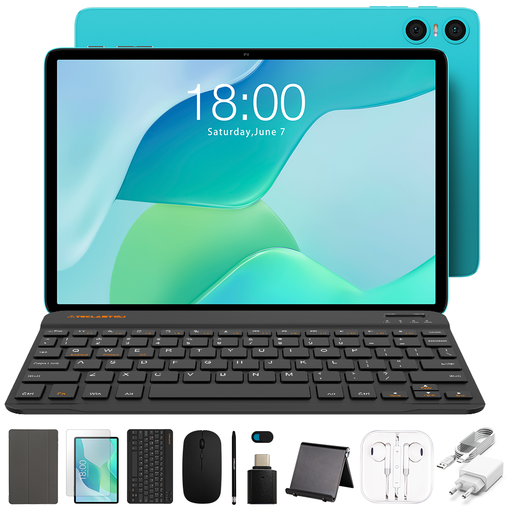
Teclast P33, 10.1 inches, 64 GB, with keyboard and stylus
This bundle may suit anyone who wants to type meeting minutes and add notes with a stylus.
The product title lists 9 GB RAM, made up of 3 GB plus 6 GB virtual expansion, 64 GB storage, a case, Bluetooth keyboard and stylus. The keyboard is described as English.
View at Joybuy
Frequently asked questions
Can colleagues edit the same meeting minutes in Word at the same time?
Yes, if your chosen Word workflow supports collaborative editing. Microsoft Support lists a supported .docx file and storage in OneDrive or SharePoint among the requirements; also check that colleagues have editing permissions. Choosing a tablet alone won’t guarantee this.
How do you share meeting minutes with colleagues?
Save the document in the shared workspace your team uses and give access only to the people who need it. Check that they can open and edit the file, and review its contents, including any personal data, before sharing it further.
Can you work on meeting minutes with colleagues offline at the same time?
An internet connection is needed for the online Word collaboration described here. Check what offline features your chosen app offers, and don’t assume that colleagues will see offline changes straight away.
What can you do if your tablet is faulty as a consumer?
According to the Dutch government, the retailer must provide a solution if a product is faulty. Your statutory rights are separate from any manufacturer’s warranty; there is no fixed statutory warranty period in the Netherlands.
Can you share meeting minutes that include participants’ names without checking first?
Not without considering the applicable privacy rules. If meeting minutes contain personal data, the organisation must have a legal basis for processing it and determine appropriate security measures, among other requirements. The measures needed depend on the circumstances; this does not mean that cloud services are generally prohibited or that consent is always required for every set of minutes.


