
Comparing documents
You want to view drawings, material data and notes on one screen. The space available for multiple windows and how clearly your own files are displayed are important factors when choosing.


First, choose a tablet that can run the project files and required apps you use. A larger screen can make it easier to view documents side by side, but it may be less comfortable to hold for long periods. Also check whether the stylus you need is included and whether the apps support split-screen view.
You want to view drawings, material data and notes on one screen. The space available for multiple windows and how clearly your own files are displayed are important factors when choosing.
You take your tablet with you on a site walk and want to read or annotate material information. A comfortable size to hold and suitable stylus input may also influence your choice.
Your choice depends on whether you can access the project app, materials passport or any required Windows programme. Check your own software and files on the type of device you’re considering.
Start with the files and apps you need for a project review, then consider how much screen space and portability matter for the way you work.
| What to consider | What should you check? | Who is this important for? |
|---|---|---|
| Space to compare documents | Open a representative drawing and materials overview at the same time. Check that both windows and the apps you use work side by side. | If I want to view drawings and material data at the same time, the content needs to remain legible on the screen I choose. Around 33% of consumers say comparing documents on one screen is their main need. |
| Annotating and portability | Check stylus compatibility, what’s included with the model, the weight, and whether the app saves annotations in the file format you need. | If I want to add notes during a site walk, the tablet needs to be easy to handle and work with my stylus in my annotation app. Around 27% of consumers say annotating on the move is their main need. |
| Access to project software | Using your own account, test a PDF, the project platform and any required Windows software on the type of device you’re considering. | If my project relies on existing apps or project files, I want to be able to open them on the tablet I choose. Around 20% of consumers say software compatibility is their main need. |
| Access to and management of project data | Decide which files need to be available offline, who needs access and what rules apply to sharing documents. | If I need project information while I’m out and about, I want to know in advance what’s available locally and how access is managed. Around 20% of consumers say access and data management are their main needs. |
The screen size alone doesn’t prove that your project apps will work together in split-screen view. Test the combination of drawing, materials overview and annotation app you actually use.
Open representative files in the apps you plan to use before deciding on a screen size.
A tablet may support a particular type of stylus even if it’s sold separately. Keyboards may also be sold separately, depending on the model.
Check the exact model, compatible stylus and what’s included in the box.
You may need to buy a compatible stylus or keyboard separately.
Madaster describes a PDF summary and information available through a platform; these aren’t automatically the same thing. Decide which project data you’ll need during a site walk without an internet connection.
Check which data you can save in advance and what requires access to the platform.
Consumer rights don’t automatically apply in the same way to a business order.
Check who you’re buying on behalf of and read the terms that apply to your purchase before ordering.
The 11-inch or 13-inch iPad Air is an option if the project apps you need work on iPadOS and you want to choose between portability and more room for documents.
The Galaxy Tab S10 FE and FE+ offer Android screen sizes of 10.9 and 13.1 inches respectively, for anyone who wants to use their tablet for both notes and documents.
The Idea Tab Pro is a 12.7-inch Android option for anyone looking for more space for documents.
The 12-inch Surface Pro is a Windows option if a required programme won’t run on iPadOS or Android.
The Pad 7 is a more compact Android option if reading on the move matters more than having as much space as possible for two documents.
These tablets include larger screens that offer more room for documents, as well as more compact options for reading and taking notes on the move. Check that your own project files and apps work with each model.
 No image available
The 13-inch screen gives you room for project documents; check that the apps you need work on iPadOS.
Wi-Fi; 128 GB storage. Supports Apple Pencil Pro and Apple Pencil (USB-C); the Pencil is sold separately.
 No image available
The 12.7-inch screen and included stylus make this a good fit for anyone who wants to view documents and take notes on a tablet.
2K screen; 20 GB RAM (8 GB + 12 GB virtual) and 256 GB storage. The product title says a stylus is included.
 No image available
This compact E Ink tablet is designed for reading and annotating PDFs; its smaller screen offers less space to view project documents side by side.
8.2-inch E Ink screen; stylus. Check that its features suit your project files and apps.
 No image available
The 11-inch size is a more compact option for anyone who wants to take notes and carry their tablet around; there’s less room for viewing documents side by side than on a larger screen.
11-inch IPS screen; 8 GB RAM and 128 GB storage; Android 15. The product description says a Tab Pen is included and that a charger isn’t supplied as standard.
 No image available
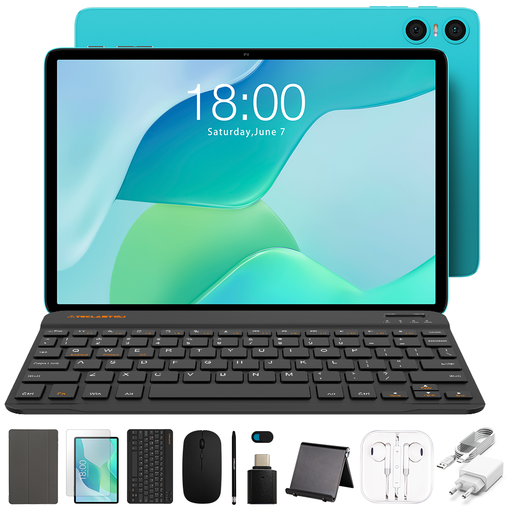
The 10.1-inch screen is a smaller option for anyone looking for a tablet with stylus input; bear in mind that there’s less room to view project documents side by side.
9 GB RAM (3 GB + 6 GB virtual expansion) and 64 GB storage. The product title lists a case, Bluetooth keyboard and mouse, stand, charger, data cable, stylus, earphones, OTG adapter cable and camera protection.
Test the documents in the apps you actually use. Samsung describes split-screen app view through App Pair, but that doesn’t confirm that every combination of project apps or file formats will work well.
It depends on the platform and the available export options. Madaster describes, among other things, a PDF one-pager and a QR code that links to object information on the platform. A locally saved PDF and access to online information aren’t automatically the same thing, so check in advance which data you’ll need offline.
Check that the stylus is compatible, that it’s included with the model you choose and that your annotation app saves changes in the file format you need. Apple lists Pencil support for the iPad Air; Microsoft says the pen and keyboard for the 12-inch Surface Pro, 2nd Edition, are sold separately.
Compare the model and accessories you need before ordering. According to the Dutch government, consumers have a 14-day cooling-off period for many online purchases, and statutory guarantees apply alongside any manufacturer’s guarantee. These consumer rights don’t automatically apply in the same way to a business order.
First, consider how the material will be used and your organisation’s policies. The Dutch Data Protection Authority notes that the GDPR may apply to images featuring people that are taken and published professionally. It also warns that personal data can remain in shared documents.