Match the screen size to the scans you view: a larger screen gives you more room for wide maps and details, while a smaller model is easier to carry. The Consumentenbond notes that extra-large tablets are less portable. Test one of your own scans on the screen size you’re considering. Separately, check whether your annotation app can save the edited PDF and whether the right pen is compatible with that model.
Who is this relevant to?
Readers of large maps and scans
You want to view place names, lines and hard-to-read details on wide archive images side by side. The National Archives describes features such as zooming in and out and viewing a scan full-screen. So compare the whole map and its details on the screen size you’re considering.
Researchers who annotate scans
You want to save your own references alongside a PDF and find them again later. Check that your chosen app can import the scan, save your annotations and let you reopen or export the edited version.
Researchers working on the move
You view scans in different locations and need to weigh portability against screen space. Also check that your viewer works on the tablet and that you can access any files you need in advance if you don’t want to rely on an internet connection.
What should you look for when choosing?
| What to consider |
What should you check? |
Who is this important to? |
| Reading maps and handwriting |
Open one of your own scans and compare the full image with small details, zoomed in and, if relevant, alongside your notes. |
If I want to view wide maps and difficult handwriting, I prioritise a clear overview and legibility. Around 36% of consumers make legibility their top priority. |
| Annotating references |
Test one of your own PDFs in the app you plan to use. Save an annotation, then reopen or export the edited version. Check pen compatibility and what’s included in the bundle. |
If I want to keep references with the right scan, I focus on how writing and saving work. Around 29% of consumers make annotation their top priority. |
| Portability and access |
Try out the weight and size in the position you’ll use it in. Check that your viewer works and that scans can be stored locally. |
If I read in different locations, I weigh portability against having enough room to display a map. Around 21% of consumers prioritise portability and access. |
| Cost and useful life |
Check which pen or accessories you’ll need, what’s included in the bundle and how long software support is expected to last. |
If I want to weigh up the total purchase cost and expected useful life, I check accessories and support as well as the tablet itself. Around 14% of consumers put cost and useful life first. |
What to consider when buying and using a tablet
-
A larger screen doesn’t guarantee legible handwriting
Legibility also depends on the scan and how it’s laid out. A large screen can also be less comfortable to hold for long periods.
View the same difficult passage and a full map on the screen size you’re considering.
-
Don’t assume every pen will work or be included
Pen compatibility varies by tablet model. With some versions, the pen is sold separately.
Check the exact tablet model, the compatible pen model and what’s included in your chosen bundle.
-
Don’t treat an automatic transcription as a flawless original
The Utrecht Archives warns that computer-generated transcriptions may contain errors. As a result, an incorrect name or reference could go unnoticed.
Check important names and numbers against the scan and keep a reference to the original.
Brands to compare
Samsung
The Galaxy Tab S10 FE and FE+ are Android options with S Pen support. According to Samsung, the FE+ has a 13.1-inch screen.
- Samsung Notes explains how to import and annotate PDF files.
- Available features may vary by device and software version. The FE and FE+ are different versions, so check the pen and bundle for the exact model.
Apple
The 11-inch and 13-inch iPad Air (M4) are iPadOS options that support Apple Pencil Pro and Apple Pencil (USB-C). Apple describes built-in tools for annotating PDFs.
- For the Wi-Fi models, Apple lists weights of 464 grams for the 11-inch iPad Air and 616 grams for the 13-inch model.
- The listed box contents don’t include a Pencil. Check compatibility and the bundle for the version you choose.
Lenovo
The Tab P12 is an Android option with a 12.7-inch screen.
- Lenovo says security patches for this model will continue through June 2027.
- Check whether a pen is included and whether the remaining announced support period suits how long you plan to use the tablet.
OnePlus
The Pad 3 is an Android option with a 13.2-inch screen.
- The generous screen size could be useful if you want to view larger files side by side.
- OnePlus lists the Stylo 2 as an accessory, but not among the items included in the box. Check the pen bundle and whether your PDF app suits the way you work.
Tablets for viewing scans
These tablets have different screen sizes for viewing scans; some product titles also mention a pen or accessory. Check what’s included with each version and which annotation app you can use.
 No image available
Lenovo Idea Tab Plus WiFi, 12.1-inch, 2.5K, 8 GB RAM, 256 GB, with pen, pink
The 12.1-inch screen gives you room to view scans, and the product title also mentions a pen.
The product title lists a 2.5K screen, 8 GB RAM and 256 GB storage. Check the bundle and that your annotation app works before buying.
View at Joybuy
 No image available
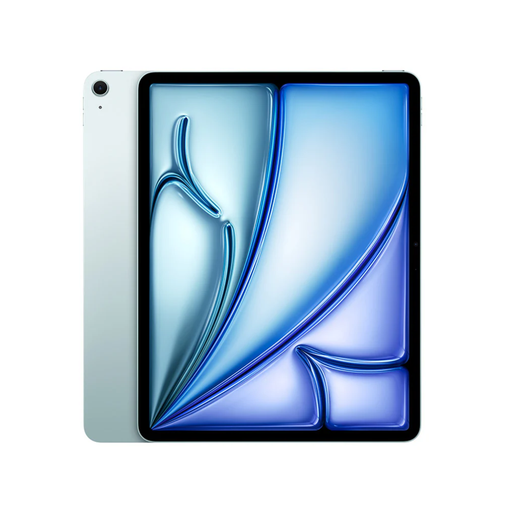
Apple 13-inch iPad Air (M4), Wi-Fi, 128 GB, blue
The 13-inch version gives you room for wide scans. Apple describes tools for annotating PDFs on the iPad.
Apple lists support for Apple Pencil Pro and Apple Pencil (USB-C). The Pencil isn’t included, so check that your chosen pen is compatible.
View at Joybuy
 No image available
TECLAST T65, 13.4-inch, 120 Hz, Android 16
The listed 13.4-inch screen is a large size for viewing scans. When choosing, also consider how easy it is to carry and hold.
The product title lists Android 16 and a folio case.
View at Joybuy
 No image available
TECLAST ArtPad Pro, 12.7-inch, 2K, 256 GB, with stylus
The 12.7-inch screen gives you room for scans, and the product title says a stylus is included.
The product title lists a 2K screen and 256 GB storage. Check that the pen and your chosen annotation app work together for the way you plan to use them.
View at Joybuy
 No image available
Apple 11-inch iPad Air (M4), Wi-Fi, 256 GB, Space Grey
The 11-inch version is a more portable screen size for reading on the move, but offers less room for wide maps than a larger model.
Apple describes PDF annotation tools for the iPad and lists support for Apple Pencil Pro and Apple Pencil (USB-C) on the iPad Air (M4). The Pencil is sold separately.
View at Joybuy
Frequently asked questions
Can an archive viewer save my handwritten notes on a scan?
Don’t assume it can without testing first. The National Archives describes features such as zooming, rotating and saving a crop. For annotations you want to keep, try a suitable annotation app with a copy of your scan, then reopen the saved file.
How can you check that notes in a PDF have been saved?
Annotate a copy of one of your own PDFs, save it, then reopen or export the file. Samsung describes importing and annotating PDFs in Samsung Notes; Apple describes built-in tools for annotating PDFs on the iPad. The process depends on the device, software and file.
Are automatic transcriptions enough to check a handwritten reference?
Always check an important reference against the scan. The Utrecht Archives warns that computer-generated transcriptions may contain errors.
How do you know which pen is right for your tablet?
Check pen compatibility with your exact tablet model and whether it’s included in your chosen bundle. Apple lists support for specific Apple Pencil models on the iPad Air (M4); Samsung describes writing with the S Pen on the Galaxy Tab S10 FE range. Also check that the pen works with the app you use for scans.
Can you return a tablet bought online if the screen isn’t right for your scans?
For many online purchases from a business in the Netherlands, you have a 14-day cooling-off period. The Dutch government lists exceptions, including online purchases from a private seller. Check which terms apply to your purchase.


