
Library with a fixed programme display
You want to show event notes to visitors in one fixed place and are choosing a tablet mainly for readability and positioning.


Start with how you’ll use it: for visitors reading notes from a fixed spot, screen space, viewing distance and a suitable stand matter most. For staff who carry notes with them, portability and compatibility with existing apps are more important. If visitors will use a touchscreen, test the app restrictions and physical set-up too. Screen size or battery capacity alone won’t prove that a tablet will remain easy to read or stay on all day in your library.
You want to show event notes to visitors in one fixed place and are choosing a tablet mainly for readability and positioning.
You let visitors open information themselves and need to restrict access to other apps and settings.
You read or edit notes during activities and need a manageable device that works with your existing apps.
Choose this when: visitors view the programme and notes in one fixed place; test the text from the intended viewing distance.
Bear in mind: a larger screen is less convenient to carry and doesn’t, by itself, guarantee readability from a distance.
Choose this when: visitors can use the presentation app but shouldn’t be able to browse freely through other apps.
Bear in mind: restricting an app doesn’t replace a suitable stand or good passcode management.
Choose this when: staff carry or edit notes during activities and want to keep using their existing apps.
Bear in mind: switching between iPadOS and Android may mean reinstalling apps, according to the Dutch Consumers' Association.
| What to consider | What should you check? | Who is this most important for? |
|---|---|---|
| Readability in place | View the actual notes from the intended distance and compare text size, screen size and the position of the stand. | If I want visitors to read the information from a fixed spot, I’ll test the layout on site first. About 36% of consumers prioritise readability at a distance. |
| Visitor access | Test the presentation app, leaving the app, the passcode and the stand on the device you’ve chosen. | If visitors will touch the screen, I want to stop them from navigating away from the presentation. About 29% of consumers prioritise restricted visitor access. |
| Carrying and editing | Check the weight, the apps and files you need, and how the device performs during the planned hours of use. | If I carry or edit notes during activities, I’ll look for a manageable device with access to my existing apps. About 21% of consumers prioritise working on the move. |
| Set-up requirements | Check that the model, stand, power connection and any app requirements are suitable for the location. | If I want to plan the full set-up in advance, I’ll identify the equipment and management requirements. About 14% of consumers prioritise this overall need. |
Screen size and brightness are specifications; the positioning and text size also affect what visitors can read from the chosen spot.
Try displaying the actual event notes at the intended location before choosing a screen size.
The Samsung model reviewed is Wi-Fi, Silver and 128 GB (SM-X230NZSREUB). A Joybuy listing for a grey A11+ with 256 GB is a different model.
Compare the model number, colour, storage and connectivity before choosing a particular model.
A software restriction controls app use; it doesn’t manage the tablet’s physical positioning or access to the device.
Test the app restriction with the stand, cabling and passcode at the intended location.
The 11-inch iPad (A16) is an option if your library uses iPad apps or wants to temporarily restrict a screen to one app.
The Galaxy Tab A11+ is an 11-inch Android option to compare for displaying notes at a counter or on a stand.
The REDMI Pad 2 Pro is a 12,1-inch option to compare when screen space matters; the Redmi Pad 2 is a separate 11-inch model.
The Tab M11 is an Android option to compare if staff also want to make notes with a pen.
These tablets are options to compare for a fixed presentation spot or for staff who want to carry, view or edit notes with a pen. Check the presentation app, the stand you need and access to a power supply for each model.
 No image available
An option to compare if you want to view notes on a fixed screen and edit them with a pen.
The product title lists an 11.1-inch touchscreen, 3.2K resolution, 144Hz, Snapdragon 8 Gen 3, 12GB LPDDR5X, 256GB UFS 4.0 and an included Tab Pen Pro.
 No image available
A tablet to compare with the other models for the presentation app and the place where you want to display notes.
The product title lists 128GB of storage and the colour Space Grey. Before choosing, check the screen size and that the required app works on this model.
 No image available
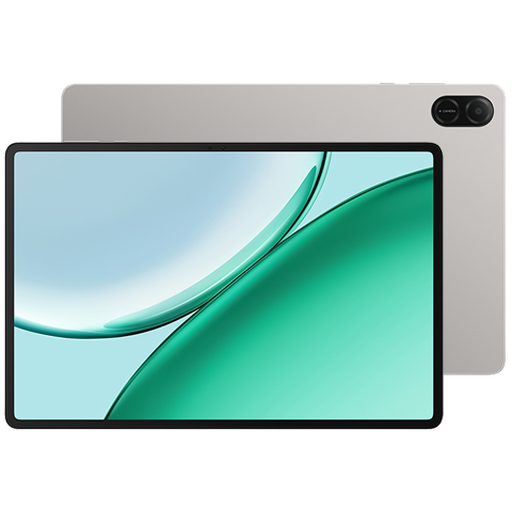
An option to compare if you want a larger screen for information in a fixed spot and to annotate notes with a pen.
The product title lists a 12.1-inch screen, 2.5K, Wi-Fi, 8GB RAM, 256GB storage and an included pen.
 No image available
An option to compare for a fixed information point; view the notes from the intended distance before choosing a screen size.
The product title lists a 13.4-inch screen, 120Hz, Android 16, 128GB storage and an included folio case.
 No image available
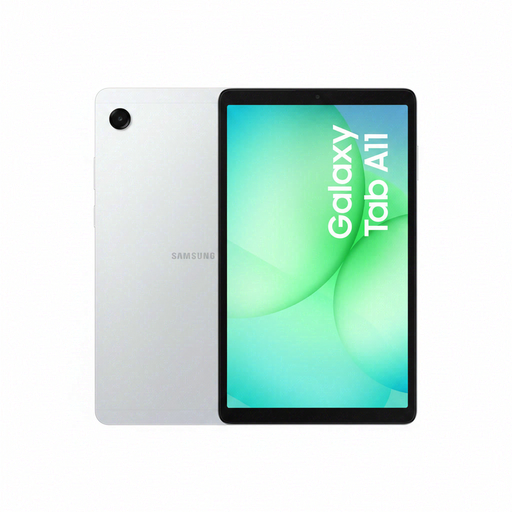
A tablet to compare if staff want to carry notes around; check that the screen size and apps you need suit the activity.
The product title lists model X135, 64GB storage and the colour Silver.
Test an app restriction on the device using the presentation app and passcode. Apple Support explains how Guided Access can temporarily restrict an iPad to one app; Google Android Help describes App pinning for Android and advises contacting the manufacturer if the settings aren’t available. This feature doesn’t provide physical security or position the tablet.
You can’t tell from battery capacity alone. Test the device you’ve chosen with the actual content and screen settings for the required number of hours, or make sure there’s a suitable power connection.
No. Check the presentation app and files on the operating system you’ve chosen before switching. The Dutch Consumers' Association notes that moving between iPadOS and Android, for example, may mean reinstalling apps.
Names and recognisable photos can be personal data. According to the Dutch Data Protection Authority, an organisation needs an appropriate legal basis under the GDPR to process this data. Recognisable images of event visitors also require consideration of the rules on taking and publishing photos. A programme without personal data doesn’t raise this specific issue.