Choose based on what you do between appointments: a more compact tablet is handy for reading and jotting down quick notes, while a larger screen or a keyboard gives you more room for documents and writing. Before you buy, check that your teaching app, files, required stylus and any need for mobile internet are compatible with the exact model. If you need specific Windows desktop software, a Windows 2-in-1 is another option worth exploring.
Who is this guide for?
Teacher who is often on the go
You want to open teaching materials and make a quick note between appointments, without carrying much extra weight. The Dutch Consumers' Association highlights size and weight as factors to consider when choosing a tablet.
Lesson planner with lots of documents
You edit text or view several documents at once, so screen space and a suitable way to input text matter more to you. Compare the screen size and how you want to type or write.
Teacher who relies on specific work software
Start by considering the apps and files you use for lessons. Check that the exact app version and features fit the way you already work.
What should you look for?
iPad with iPadOS
Good for: mainly reading documents, making quick edits and carrying a compact tablet.
Keep in mind: check that your teaching app works and which Pencil or keyboard you need. Compatibility doesn’t mean an accessory is included.
Android tablet
Good for: Android users who want to annotate teaching materials with a stylus or view them on a larger screen.
Keep in mind: screen sizes vary by model. Also check whether the stylus, keyboard and charger are included with the exact version.
Windows 2-in-1
Good for: anyone who needs a specific Windows desktop application or a keyboard-focused workflow to prepare lessons.
Keep in mind: check that the required software and peripherals work with the exact version. The keyboard and stylus may be sold separately.
First decide whether you mainly want to carry your tablet around, write on it or use your existing software. The percentages below are for consumers considering a tablet to prepare lessons between client visits.
| Factor |
What should you check? |
Who is it important for? |
| Carrying it between appointments |
Compare the weight and screen size of the exact version with the space you have when you’re out and about. Apple says the Wi-Fi version of the 11-inch iPad (A16) weighs 477 grams; Lenovo lists a 12.7-inch screen for the Idea Tab Pro. |
If I’m walking a lot and taking the tablet in and out of my bag, I want it to be practical to carry. Around 33% of consumers say portability is their main consideration. |
| Working without Wi-Fi |
Test whether your teaching app and files work offline. Choose a version with mobile internet only if you need it; Apple offers Wi-Fi and Wi-Fi + Cellular versions. |
If I need to open teaching materials during short breaks, I want to know whether I’ll need an internet connection. Around 27% of consumers prioritise being able to keep working between appointments. |
| Writing and editing documents |
Decide whether you mainly handwrite, type or do both. Check stylus compatibility and what’s included in the specific offer, including whether there’s a keyboard. |
If I’m taking notes or editing longer documents, I want a suitable input method and enough room to work. Around 20% of consumers focus mainly on the stylus, keyboard and screen space. |
| Compatibility with your software |
Make a list of essential apps, files and peripherals, then test the required features on the operating system and version you’re considering. |
If my lesson preparation depends on specific software or files, I want to check that my workflow will work beforehand. Around 20% of consumers start with the work software they need. |
Common mistakes when choosing
-
Choosing based only on screen size
A larger screen can be useful for documents, but you’ll also need to carry the tablet between appointments.
Compare the size and weight of the exact version with what’s practical for your space and carrying needs.
-
Assuming the stylus or keyboard mentioned is included
Accessory compatibility doesn’t automatically tell you what comes with a particular version or bundle.
Check what’s included in the specific offer and which accessories you need for the way you work.
A stylus, keyboard or charger may be sold separately with certain versions or bundles.
-
Assuming a tablet app will support your entire workflow
An app version may handle files, editing or connections differently from the workflow you rely on to prepare lessons.
Try preparing a complete lesson using your own app and files. If you need specific desktop software, explore a Windows option.
-
Assuming the manufacturer’s warranty covers all your statutory rights
For a consumer purchase, a stated commercial warranty period isn’t automatically the same as your statutory rights if something goes wrong.
Keep your proof of purchase and contact the seller if there’s a fault. ACM ConsuWijzer explains that your statutory guarantee depends on what you could reasonably expect from the product. For a business purchase, don’t assume the same consumer rules apply.
Brands to compare
Apple
The 11-inch iPad (A16) reviewed here is a compact iPadOS option for reading and annotating on the go.
- Apple lists the Wi-Fi version at 477 grams and says it supports Apple Pencil (USB‑C) and the first-generation Pencil.
- Apple doesn’t list a Pencil in the box contents for this version. Check which stylus and app suit your workflow.
Samsung
The Galaxy Tab S10 FE range offers an Android option with S Pen support. The FE and FE+ differ in screen size, among other things.
- Samsung lists a 10.9-inch screen for the FE and a 13.1-inch screen for the FE+.
- Check the exact FE or FE+ version and whether your chosen bundle includes the accessories you need.
Lenovo
The Idea Tab Pro ZAE40020SE is an Android option for anyone who wants to view documents on a larger screen.
- For this version, Lenovo lists a 12.7-inch screen, 8 GB of RAM and 256 GB of storage.
- What’s included varies by offer. Check separately whether the stylus, keyboard and charger are included.
Microsoft
Surface Pro is a Windows 2-in-1 option worth exploring if you need to use desktop software as well as a tablet.
- Microsoft lists an adjustable stand for the Surface Pro reviewed here.
- Microsoft sells the Slim Pen and keyboard separately. Check that your software and peripherals work with the version you choose.
Joybuy tablets for life on the go
This selection includes tablets for reading on the go, taking notes and working with documents. Check that each model’s apps, input method and connectivity suit the way you prepare lessons.
 No image available
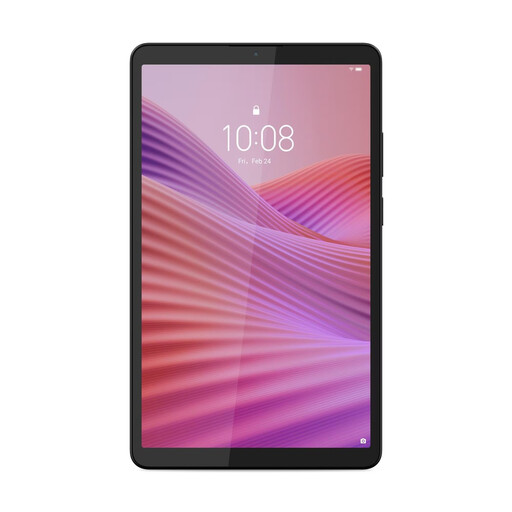
Lenovo Tab One 8.7-inch Wi-Fi tablet, 4 GB RAM, 128 GB storage, Luna Grey (ZAF00221GR)
A good fit if you mainly want to read teaching materials on the go and need a tablet for everyday tasks.
The product name lists an 8.7-inch screen, Wi-Fi, 4 GB of RAM and 128 GB of storage.
Joybuy
 No image available
Apple 11-inch iPad Air (M4), Wi-Fi, 256 GB, Space Grey
Worth considering if you want to edit documents or take notes between appointments.
The product name lists an 11-inch screen, Wi-Fi and 256 GB of storage. The product information says it supports Apple Pencil Pro; check which accessories are included with this version.
Joybuy
 No image available
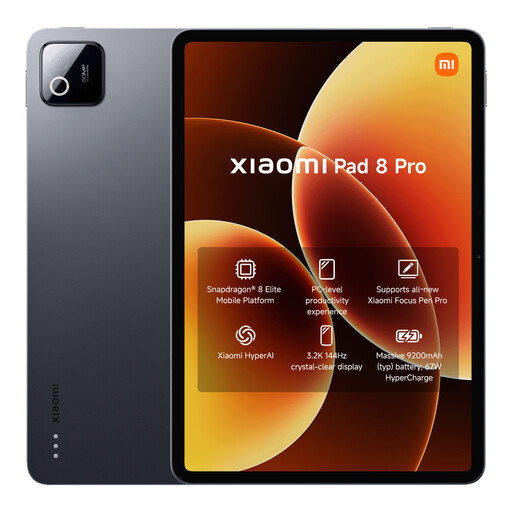
Xiaomi Pad 8 Pro, grey, 12 GB RAM, 512 GB storage
The product description mentions productivity as a use case. Check whether the model suits the files and apps you use to prepare lessons.
The product name lists 12 GB of RAM and 512 GB of storage.
Joybuy
 No image available
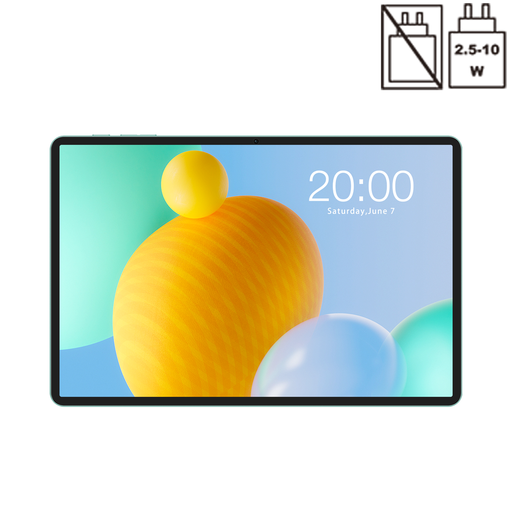
TECLAST P50, 11-inch, Android 16, 4G LTE, Dual SIM, 128 GB ROM
Worth considering if you want an 11-inch tablet for studying and need a mobile connection while you’re out and about.
The product name lists Android 16, 4G LTE, Dual SIM and 128 GB ROM. Check that your teaching app and files are compatible with this version.
Joybuy
 No image available
iFLYTEK AINOTE 2, 10.65-inch E-Ink tablet
Worth considering if handwritten lesson notes and converting notes to text are important to you.
The product information mentions handwriting-to-text and speech-to-text. Speech-to-text requires an internet connection.
Joybuy
Frequently asked questions
Do I need a 5G tablet to prepare lessons on the go?
Not just because you work on the go. First check whether you can use your lesson files and app offline. Choose a version with mobile connectivity if you also want to work online independently when Wi-Fi isn’t available. Apple, for example, offers Wi-Fi and Wi-Fi + Cellular versions.
Do the stylus, keyboard and charger come in the box?
It depends on the version and bundle. For the iPad reviewed here, Apple lists the tablet and a USB‑C charging cable as box contents. Microsoft says the Surface pen and keyboard reviewed here are sold separately. Lenovo offers different versions and bundles, so check what’s included in the offer you choose.
How can I get my tablet ready for short work sessions?
Before you head out, test your own teaching app and a representative lesson file, and check whether you can open the files you need offline. The Dutch Data Protection Authority recommends using a passcode and keeping software up to date on tablets, among other measures.
What should I consider if my tablet contains client data?
If you process personal data as part of an organisation, the GDPR requires appropriate security measures. What’s appropriate depends on the processing and the risks involved. The Dutch Data Protection Authority lists access protection and software updates as tablet security measures. Assess security in the context of the data and your working environment.
What are my rights in the Netherlands if a tablet breaks prematurely during normal use?
For a consumer purchase, ACM ConsuWijzer says the seller must offer an appropriate solution if the product doesn’t meet what you could reasonably expect during normal use. This statutory right doesn’t automatically give every purchase a fixed two-year period. For a business purchase, check the applicable contract terms separately.


