
Teacher who types lesson plans
Creates longer documents or presentations on the go and mainly needs a suitable app, a practical keyboard and enough room to work.


Choose based on the school apps you use and what you do most often on the go: typing long documents, annotating teaching materials or using desktop software. Check that the stylus or keyboard you need is compatible with the exact tablet version, and test in advance how your school files work offline; Microsoft explains that this varies between apps and operating systems. Don’t count on there being a charging point on every train, and make sure your use of pupil data complies with your school’s policies.
Creates longer documents or presentations on the go and mainly needs a suitable app, a practical keyboard and enough room to work.
Reads worksheets or teaching materials and adds handwritten notes or highlights. Check which stylus is compatible with the tablet version and whether it’s included in your chosen bundle.
Wants to keep working without an internet connection and needs to check what their file app can read, edit and save offline.
Choose this if: your school apps work on iPadOS and you mainly type lesson plans or annotate documents. Apple lists support for Magic Keyboard Folio and Apple Pencil for the 11-inch iPad (A16).
Consider: Check which accessories are included with the exact version and whether the mobile version of each required school app supports the editing you need.
Choose this if: your school apps work on Android and you regularly make notes or highlight documents. Samsung lists stylus features for the Galaxy Tab S10 FE; Lenovo offers a folio keyboard designed for the Idea Tab series.
Consider: Stylus support doesn’t mean a stylus or keyboard is included in every bundle. Microsoft describes files marked for offline use in OneDrive for Android as read-only; an offline edit can be saved as a new file.
Choose this if: a required teaching app needs the desktop version of Windows, or extended word processing matters more than having the most compact tablet possible.
Consider: Assess the specific device with its keyboard for portability and battery life. The Consumers’ Association notes that a laptop may be more convenient for word processing and demanding software.
| What to consider | What should you check? | Who is this most relevant to? |
|---|---|---|
| Typing long lesson plans | Test the school app with your intended keyboard, layout and setup on a small table. Check that the keyboard is compatible with the exact tablet version. | If I write longer lesson plans on the go, I want to type comfortably without relying on the on-screen keyboard all the time; around 33% of consumers prioritise typing. |
| Working offline | Open a representative file online, then test without an internet connection whether you can read, edit, save and sync it in your school apps. | If I can’t rely on a stable connection during my journey, I want to be able to use files I’ve prepared in advance; around 27% of consumers prioritise working offline. |
| Annotating teaching materials | Check which stylus works with the exact version, whether it’s included and whether you can use it to annotate and save your teaching files. | If I prepare worksheets with handwritten notes, I want to be able to save my annotations in the document; around 20% of consumers prioritise annotation. |
| Carrying and charging | Consider the size and weight, including the case and keyboard, and charge the tablet before you leave. NS says that sockets and USB charging points depend on the type of train. | If I carry the tablet every day and don’t want to rely on a charging point while travelling, size and battery life matter; around 20% of consumers prioritise this. |
Stylus support doesn’t automatically make a tablet suitable for typing. A keyboard, stylus or case may need to be bought separately.
Compare the exact tablet version with the accessories you need. Also check the keyboard layout and what’s included in the bundle.
A compatible keyboard, stylus or case may cost extra, depending on the combination you choose.
Offline access and editing don’t work the same way in every app. Microsoft explains that files marked for offline use in OneDrive for Android are read-only; an edit can be saved as a new file.
Before travelling, test a real lesson file in the app you use and check how changes are saved.
More screen space can help with documents, but a larger tablet is less convenient to carry. Charging points aren’t guaranteed on every train either.
Consider your workspace and the weight of the complete setup, not just the screen size. Charge the tablet before you leave.
Schools must handle pupil data carefully and decide how managed or personal devices can be used under their policies.
Before you buy, ask your IT administrator which devices and apps are allowed to access school data.
The 11-inch iPad (A16) available in the Netherlands is an option for teachers who use iPadOS and are considering a keyboard or stylus.
The Galaxy Tab S10 FE is an Android option for anyone who wants to edit teaching materials with a stylus.
The Idea Tab series is an Android option for using a stylus, with a folio keyboard designed for the series.
This selection of Joybuy products includes Android tablets for planning lessons on the go. Check whether a stylus or compatible keyboard is included with each version and whether your school apps work on it.
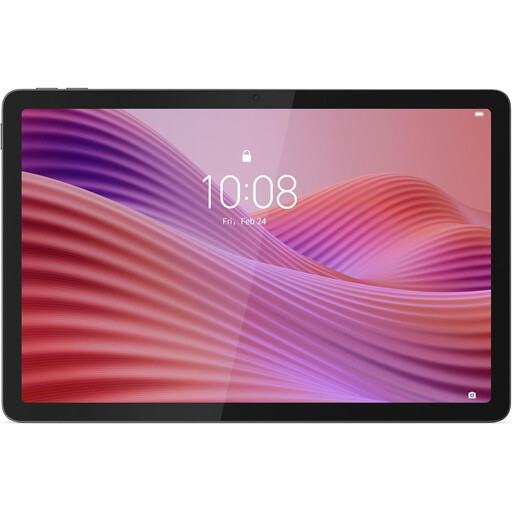 No image available
A compact Android option for accessing lesson files on the go; check that your school apps and preferred accessories are compatible.
10.1-inch WUXGA screen, 4 GB memory, 128 GB storage, Wi-Fi 5 and Android 14. The listed specifications include microSD expansion, a weight of 425 g and a protective case with stand.
No image available
This version may suit you if you want to use a mobile network as well as Wi-Fi; 4G LTE requires network coverage.
10.1-inch WUXGA screen, 4 GB memory, 128 GB storage, Wi-Fi 5, Android 14 and 4G LTE. The specifications list microSD expansion, a weight of 425 g and a protective case with stand.
 No image available
The included Lenovo Pen is useful if you want to annotate lesson documents on the go; check that the app you use saves your annotations.
12.1-inch 2.5K screen, 8 GB RAM and 256 GB storage. The product information lists a Lenovo Pen as included.
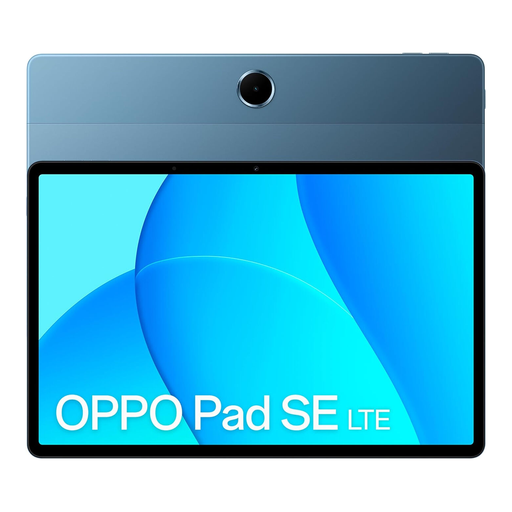 No image available
An Android tablet option for lesson files and apps; LTE provides mobile connectivity only where there is network coverage.
11-inch screen, 6 GB RAM, 128 GB storage and LTE. Model number: OPD2420 EUN.
 No image available
The product information lists a Lenovo Tab Pen as included, which may be useful for annotating documents. Try the stylus with your own lesson files.
8 GB RAM, 128 GB storage, 11-inch IPS screen, 90 Hz, 500 nits and Android 15. According to the product specifications, the storage can be expanded using microSD; the listed weight is 480 g.
It depends on the app and operating system. Microsoft Support explains that an Office file can be edited offline after it has been opened online. According to Microsoft, files marked for offline use in OneDrive for iOS can be edited in linked Office apps; files in OneDrive for Android are described as read-only, and an edit can be saved as a new file. Test your own workflow before you leave.
No, don’t count on it. NS says that sockets and USB charging points depend on the type of train. Charge your tablet before you leave.
Check with your school before using a personal tablet to access pupil data. The Dutch Data Protection Authority stresses that schools must handle personal data carefully and securely; Kennisnet’s standards framework treats the security and use of managed and personal devices as part of school policy.
No. According to the Dutch government, when you buy a product in the Netherlands you’re entitled to a product that works as it should, and there’s no fixed statutory guarantee period for all products. A manufacturer’s warranty or extended warranty comes on top of your statutory rights.
Make a representative lesson file available offline and test whether you can read, edit and save it without an internet connection. Once you reconnect, check that your changes sync correctly and follow your school’s policy on accessing school data.