
Lesson planner
You work on longer lesson plans at a table. So start by assessing the keyboard and the school apps you need. Apple Netherlands and Microsoft Netherlands describe keyboard options for their respective models.


Start with your main task: typing longer lesson plans, annotating documents, or reading and organising resources. Then check that the exact combination of tablet, keyboard, pen and school software suits the way you work; accessories may be sold separately. If your lesson planning involves pupil data, also follow your school’s security policies.
You work on longer lesson plans at a table. So start by assessing the keyboard and the school apps you need. Apple Netherlands and Microsoft Netherlands describe keyboard options for their respective models.
You read resources or teaching materials and add handwritten notes. Check that the pen is compatible with the exact tablet version and that it’s included in your chosen bundle. Apple Netherlands and Samsung Netherlands describe pen use for their respective models.
You take your tablet to the library and want to browse resources without carrying an awkwardly large device. Compare the screen space with the size you’re happy to carry; Lenovo Netherlands and Xiaomi Netherlands list screen sizes for their respective models.
| What to consider | What to check | Who should prioritise this? |
|---|---|---|
| Typing and school files | Check that the keyboard is compatible with the exact model and that the operating system supports the apps and files you need. Apple Netherlands describes a Magic Keyboard Folio for the iPad (A16); Microsoft lists keyboard options for the Surface Pro. | If I write long lesson plans, I want to type comfortably and edit my school files. Around 33% of consumers put typing and school files first. |
| Taking notes with a pen | Compare the pen compatible with the exact version and check what’s included in your chosen bundle. Apple Netherlands lists two compatible Apple Pencil options for the iPad (A16); Samsung Netherlands describes pen use for the Galaxy Tab S10 FE series. | If I want to annotate documents as I read, the pen needs to work well with my tablet and the way I use it. Around 27% of consumers put annotation first. |
| Screen space and portability | Compare the screen size of the exact version with the size you’re happy to carry. Lenovo Netherlands lists a 12,7-inch screen for the Tab P12; Xiaomi Netherlands lists an 11,2-inch screen for the Pad 7. | If I want to view resources alongside my notes, I’m looking for a useful balance between screen space and portability. Around 20% of consumers put screen size first. |
| Working without Wi-Fi | Check whether the school apps you need work offline and how files sync afterwards. If files contain personal data, make sure local storage complies with your school’s security policies. | If the library connection drops, I want to know whether I can still open my lesson files. Around 20% of consumers put offline access first. |
Apple lists the keyboard for the iPad (A16) separately; Microsoft says the keyboard and Slim Pen for the Surface Pro described are sold separately.
Compare the complete set and check what’s in the box for the exact version.
So a keyboard or pen may be a separate accessory.
Compatibility and keyboard layouts can vary between versions. Xiaomi lists a US English keyboard layout for the Focus Keyboard for the Pad 7.
Check the full model, connection type and accessory compatibility before choosing.
Lenovo lists security updates for the Tab P12 through to June 2027. This alone doesn’t tell you what the update policy will be after that.
Ask about the policy for the exact model and check your school’s requirements.
The iPad (A16) could suit a routine that involves reading, typing and using a pen, provided your school apps are compatible with iPadOS.
The Galaxy Tab S10 FE series is an Android option for those who value pen use and want to compare screen sizes.
The Surface Pro is a Windows 2-in-1 option when your school’s way of working or the software you need calls for it.
The Tab P12 is an Android option to consider if screen space is important when reading and organising teaching materials.
The Pad 7 is an Android option with an 11,2-inch screen to compare for reading and portability.
This selection includes tablets for lesson planning, from standalone tablet models to versions whose product names mention a keyboard or stylus. Check which accessories and specifications apply to the version you choose.
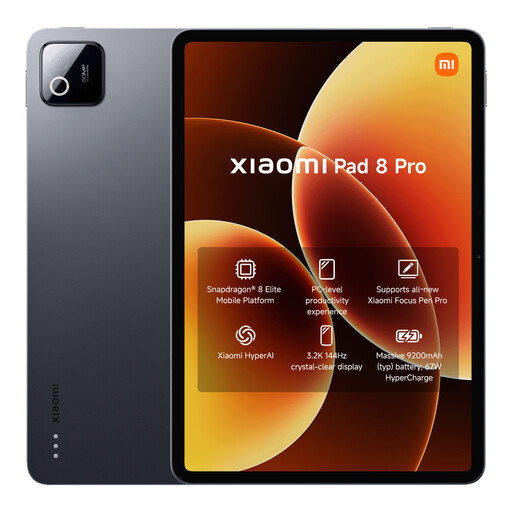 Image unavailable
A tablet option for preparing teaching materials on a tablet.
The product name lists 12 GB RAM and 512 GB storage.
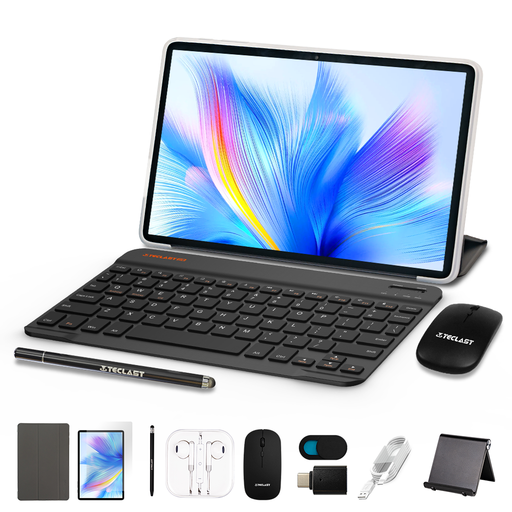 Image unavailable
A tablet option for looking through teaching materials at a library table.
The product name lists Android 16, 16 GB RAM (3 GB + 13 GB virtual), 128 GB storage and a 90 Hz IPS screen.
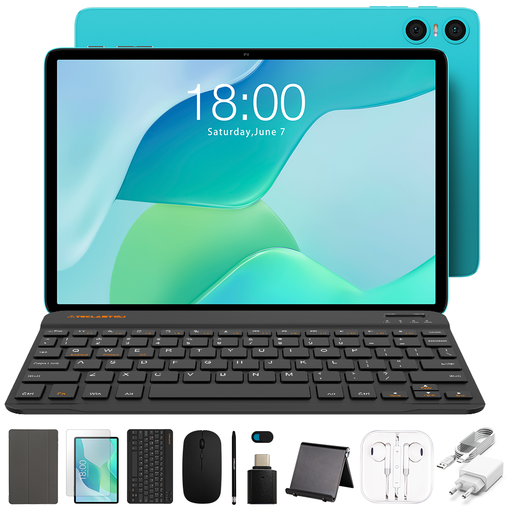 Image unavailable
The product name lists a bundle with a Bluetooth keyboard and stylus for typing and making handwritten notes.
The product name lists 9 GB RAM, made up of 3 GB plus 6 GB virtual expansion, and 64 GB storage. A case, mouse, stand and various cables are also mentioned; check the bundle contents for the version you choose.
 Image unavailable
A tablet option for preparing teaching materials on an iPad; the product description lists support for Apple Pencil Pro and Magic Keyboard.
The product name lists Wi-Fi and 256 GB storage. According to the product information, the pen and keyboard are sold separately.
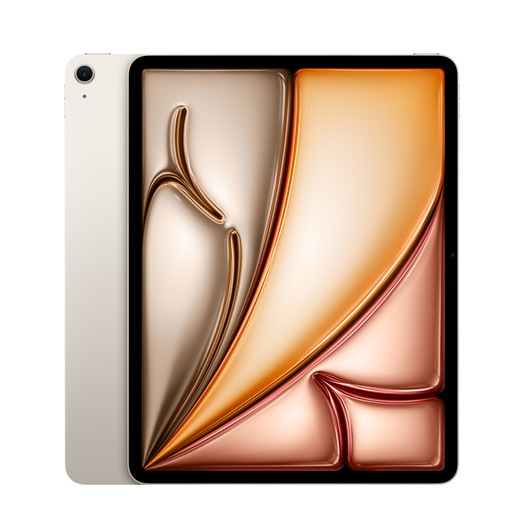 Image unavailable
A tablet option for preparing teaching materials on an iPad and comparing the larger-screen version.
The product name lists Wi-Fi and 128 GB storage. According to the product information, the pen and keyboard are sold separately.
No, it depends on your main task. Choose a suitable keyboard if you mainly type longer texts, and check pen compatibility if you want to make handwritten notes. For each exact tablet version, check what’s included in your chosen bundle.
Check in advance whether you can open the lesson files you need offline in your school apps and sync them later. If the files contain personal data, first make sure local storage complies with your school’s security policies. The Dutch Data Protection Authority stresses that schools must process personal data carefully and securely.
For a consumer purchase made at a distance, ACM ConsuWijzer generally allows a 14-day cooling-off period from delivery. You’re also entitled under ACM ConsuWijzer to a product that meets what you could reasonably expect. The exact rules that apply depend, among other things, on who makes the purchase; check this if your school is buying as a business.
That isn’t determined by the tablet you choose alone. According to the Dutch Data Protection Authority, the school is responsible for processing pupil data carefully and securely. So follow your school’s policies on devices, accounts and storage, and use the working environment it approves.