
Lesson-plan typists
You write longer texts away from home and want to know whether the keyboard, your working posture and school software work well together. Apple, Lenovo and Microsoft describe different options and configurations.


For longer lesson plans, a suitable keyboard and compatible school software are essential. For annotating teaching materials, the right pen and compatible apps matter more. Then compare the size with the tables you work at, check which accessories are actually included and follow your school’s rules on pupil data.
You write longer texts away from home and want to know whether the keyboard, your working posture and school software work well together. Apple, Lenovo and Microsoft describe different options and configurations.
You mainly edit teaching documents by adding handwritten notes, so you compare pen support, the screen and suitable apps. Apple, Samsung and Lenovo list pen options for specific models.
You move between workspaces and consider the size, available table space and how to handle data carefully in public. The Dutch Data Protection Authority and Veilig Internetten offer relevant advice on data protection and public Wi-Fi.
First, check that the required school software works with your chosen operating system. Then decide whether you’ll mainly be typing, annotating or need a complete setup for working in different places.
| What to consider | What should you check? | Who should pay extra attention? |
|---|---|---|
| Typing longer lesson plans | Check keyboard compatibility and layout, what’s included and whether your school software is supported. | If I write longer lesson plans, I want to type comfortably and use my school apps. Around 33% of consumers say typing is their main purchase concern. |
| Annotating teaching materials | Check which pen works with the exact model and whether you can edit documents in the app you need. | If I want to add handwritten notes to teaching materials, the pen and document app need to suit the way I work. Around 27% of consumers prioritise annotating. |
| Portability and what’s included | Compare the size and weight of the exact model; also check whether a pen and keyboard are included. | If I work at different café tables, I’m looking for a setup that fits without overlooking any accessories I need. Around 20% of consumers prioritise portability and a complete package. |
| Data in a public place | Ask which apps and devices your school allows. Veilig Internetten recommends using a VPN or mobile hotspot on public Wi-Fi; also watch out for people looking over your shoulder. | If my lesson preparation includes pupil data, I want to follow my school’s rules and prevent others from seeing it. Around 20% of consumers say handling data carefully is their top priority. |
Pen support doesn’t automatically mean that a pen or keyboard is included with the model. Options vary by product and configuration.
Before buying, check the exact model, what’s in the box and which accessories are compatible with your school software.
A larger device takes up more table space. Apple lists the Wi-Fi versions of the 11-inch and 13-inch iPad Air as weighing 464 and 616 grams respectively; these figures are for the devices without accessories.
Allow for the complete setup, including any pen and keyboard, and compare it with the space available where you usually work.
How you handle pupil data and public Wi-Fi matters just as much as your choice of device.
Follow your school’s rules, keep sensitive information out of sight and think carefully about how you connect. Veilig Internetten lists a VPN or mobile hotspot as options for using public Wi-Fi.
The iPad Air range offers 11-inch and 13-inch models, so you can weigh up screen space against size.
The Galaxy Tab S10 FE is an Android option if you want to annotate teaching materials with a pen.
The Idea Tab Pro Gen 2 bundle reviewed here combines a larger screen with a pen and keyboard.
Surface Pro offers a Windows 2-in-1 option if a required school application needs a suitable Windows environment.
This selection includes tablets and 2-in-1 devices for typing, taking notes or working with documents on the go. For each model, check that the listed accessories and school software suit the way you plan to use it.
 Image unavailable
Use the keyboard or tablet mode to work with documents in different ways. Before buying, check that your school software works on Windows 11 Home.
14-inch 2K touchscreen with a 16:10 aspect ratio; QWERTY keyboard and 360-degree hinge.
Intel Core 5 120U, 8 GB RAM and 512 GB SSD.
USB-C charger and stylus are not included. The product description specifies a compatible 45–100 W USB-C Power Delivery charger.
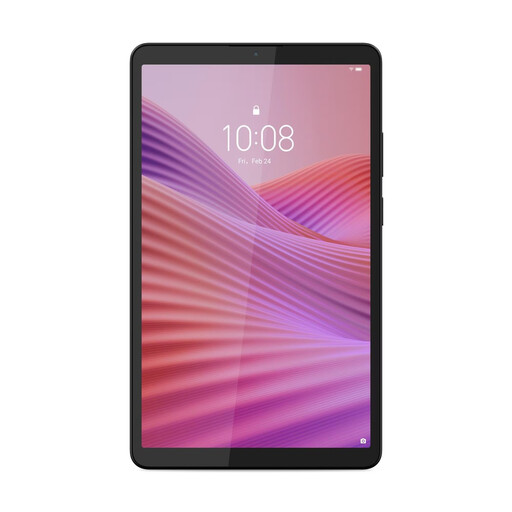 Image unavailable
The compact size may suit anyone who mainly wants to access teaching materials and documents on the go. Check that the school apps you need work on this model.
8.7-inch touchscreen, 4 GB RAM and 128 GB storage.
The product description lists Android 14 or later and Wi-Fi.
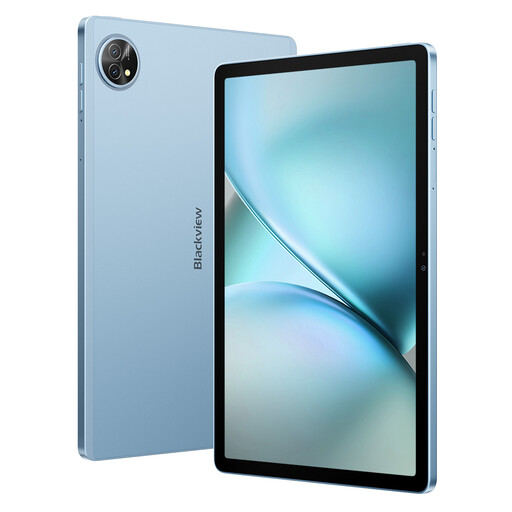 Image unavailable
The product title lists both a keyboard and a stylus. Check that the school apps and document formats suit the way you work.
11-inch 2K FHD screen; the title lists 24 GB RAM (8 GB + 16 GB) and 128 GB storage.
The product description warns that the stylus tip may scratch the screen; a screen protector is not included.
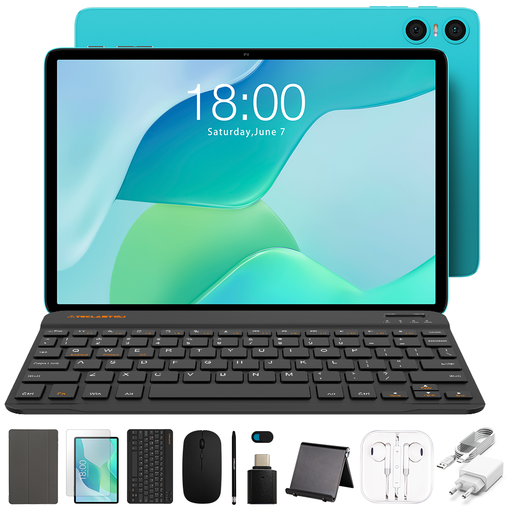 Image unavailable
The bundle lists input accessories for typing and annotating. Check that the English keyboard layout suits you.
10.1-inch screen and 64 GB storage. The listed RAM is 9 GB, made up of 3 GB RAM and 6 GB of virtual expansion.
The title lists a Bluetooth keyboard, mouse, stylus, stand and case.
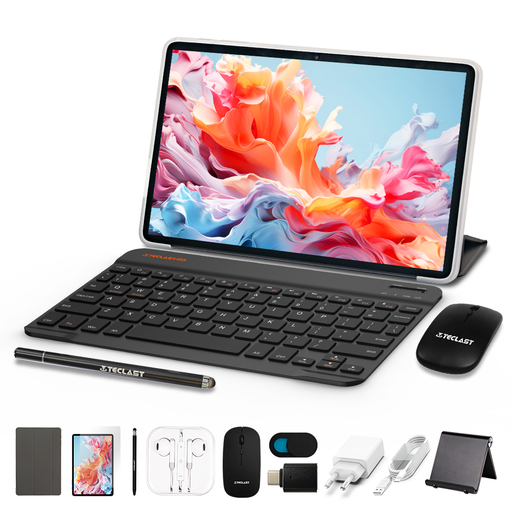 Image unavailable
The title lists a keyboard and stylus for typing and annotating. Check that the apps and documents you need work on this model.
128 GB storage. The listed RAM is 16 GB, made up of 3 GB RAM and 13 GB of virtual expansion.
The title also lists a mouse and case. The product description warns that the stylus tip may scratch the screen and recommends a screen protector, which is not included.
Choose based on your main task. For longer texts, first check for a suitable keyboard and compatible school software; for annotations, look at the pen and document app. Pen support and what’s included vary by model.
Follow your school’s security rules and watch out for people looking over your shoulder. For public Wi-Fi, Veilig Internetten lists a VPN or a mobile data hotspot as options.
According to the Dutch government, the seller is your point of contact if there’s a problem with a product. The Netherlands has no fixed statutory warranty period for all products; what you can expect from a tablet depends on the product and the circumstances.
You can’t decide this based on the tablet model alone. Ask your school which devices, apps and working practices are allowed. The Dutch Data Protection Authority explains schools’ obligations to protect pupil data.