If you mainly read scans of handwritten letters, choose based on how easy your own scans are to enlarge and read. Try a sample on screen, and see how easy it is to pan around and return to the full page. A larger screen shows more of a letter at once, while a smaller device may be more comfortable to hold. If you read in bed, it’s also worth checking whether you can turn the brightness down enough. An e-reader may be an alternative for typed text, but the Consumers’ Association says e-readers are less suitable for PDFs and image-heavy material.
Who reads historical letters on a tablet?
Reader of handwritten scans
You want to view old letters as the original images and regularly zoom in to decipher the handwriting. The National Archives describes the use of scans for archival research, while the Utrecht Archives points out that old handwriting can be difficult to read.
Reader who holds their tablet
You read lying down or sitting semi-upright, and weigh the screen space against how comfortable the tablet is to hold. Apple and Samsung’s specifications show that screen sizes and weights vary between models.
Evening reader of transcriptions
You mainly read typed text alongside scans or instead of them, and want to adjust the screen in a dark room. The Utrecht Archives describes transcriptions as typed versions of handwritten documents, while Apple Support explains brightness and display settings on iPad.
What should you look for in a tablet for letter scans?
Around 11-inch tablet
A good fit if: you read scans with small or difficult handwriting and want to see more of a letter at once.
Trade-off: a larger device may be harder to hold. Try one of your own scans before you decide.
Compact 8.7-inch tablet
A good fit if: being able to hold the tablet and change position matters more than seeing a full scan all at once.
Trade-off: you may need to zoom in and pan around more often to view a full letter scan.
E-reader
A good fit if: you mainly read continuous, typed letter text and long reading sessions matter more to you than viewing scans.
Trade-off: according to the Consumers’ Association, e-readers are less suitable for PDFs and image-heavy material.
When reading letter scans, how well your own document works matters more than any single screen specification. The National Archives describes the use of scans, while the Utrecht Archives explains how to decipher handwriting and use transcriptions.
| What to consider |
What should you check? |
Who is this most important for? |
| Scan readability |
Open a representative letter scan and try zooming in, panning around and returning to the full page. |
If I want to decipher handwriting in the original image, I test one of my own scans before choosing a screen. Around 33% of consumers put scan readability first. |
| Screen space and handling |
Compare the size and weight of the exact version, including the case you plan to use. |
If I hold the tablet in bed and change position regularly, I weigh screen space against ease of handling. Around 27% of consumers prioritise ease of handling. |
| Settings for evening reading |
Try the lowest usable brightness with both a scan and typed text. Also test the settings in the app you’ll be using. |
If I read in a dark room, I want to be able to adjust the brightness and see how my document is displayed. Around 20% of consumers choose display settings as their first consideration. |
| Saving and annotating |
Check whether you’re allowed to download the scan, what file format you’ll get and whether the exact version includes the stylus you want. |
If I want to save letters or make notes, I check the download options, storage and whether a stylus is included. Around 20% of consumers prioritise saving and annotating. |
Common mistakes when choosing
-
Assuming high resolution guarantees a readable letter
A screen specification doesn’t tell you whether the original scan is sharp enough or the handwriting is easy to decipher.
Before you choose, test a representative scan and check whether the collection offers a transcription too.
-
Confusing dark mode with a dark letter scan
A system setting and the display of a document image aren’t the same thing. A light scan may stay light even when the interface is dark.
Test brightness and document display separately in the app you want to use.
-
Assuming a compatible stylus is included
Stylus compatibility and what’s included in a specific tablet bundle are two different things.
Check which stylus works with the exact version and what’s in the box.
Tablet brands worth comparing
Apple
The iPad (A16) is an 11-inch option for viewing scans and, if you like, annotating them with a compatible Pencil.
- For the Wi-Fi version, Apple lists a weight of 477 g, a resolution of 2360 × 1640 pixels and support for Apple Pencil (USB-C) and Apple Pencil (1st generation).
- These specifications don’t guarantee that a particular scan will be readable. Check which Pencil works with the version you choose and whether it’s included.
Samsung
The Galaxy Tab A11 is a compact 8.7-inch option; the Galaxy Tab A11+ 6 GB/128 GB Wi-Fi is a separate 11-inch model.
- Samsung lists a resolution of 1340 × 800 pixels for the Tab A11. The Consumers’ Association gives the Tab A11+ 6 GB/128 GB Wi-Fi a resolution of 1920 × 1200 pixels and a weight of 479 g.
- The A11 and A11+ are different models. None of these figures measures how readable your letter scan is.
Lenovo
The Tab M11 is an 11-inch Android option worth comparing if you’d also like to make notes with a stylus.
- Lenovo lists a Wi-Fi version with 4 GB/128 GB, a 1920 × 1200 IPS screen and a stylus.
- This information applies to the version mentioned, not automatically to every Tab M11 bundle. Check what the offer includes.
Xiaomi
The Redmi Pad 2 is an 11-inch Android option worth comparing for scans and adjustable reading mode.
- For the Redmi Pad 2 without 4G, Xiaomi lists a resolution of 2560 × 1600 pixels, a reading mode and a weight of 510 g.
- These are manufacturer specifications, not an independent test of comfort in bed or handwriting readability.
Joybuy tablets for letters and scans
These Joybuy products are tablets around 11 inches that you can try out with your own letter scans. Some product names also mention stylus support or a stylus bundle.
 No image available
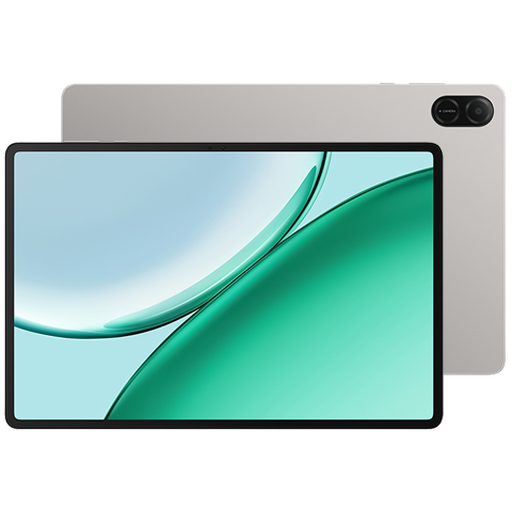
Lenovo Yoga Tab ZAG60028PL, 11.1 inch, 3.2K, 144Hz, with Tab Pen Pro
An option for trying one of your own letter scans on a screen around 11 inches and, if you like, making notes.
The product name lists an 11.1-inch 3.2K touchscreen, 144Hz and an included Tab Pen Pro.
View at Joybuy
 No image available
HONOR Pad X8b, 128 GB, Space Grey
Compare this tablet with your own scans and see whether its size works comfortably for reading in bed.
The product name lists 128 GB of storage.
View at Joybuy
 No image available
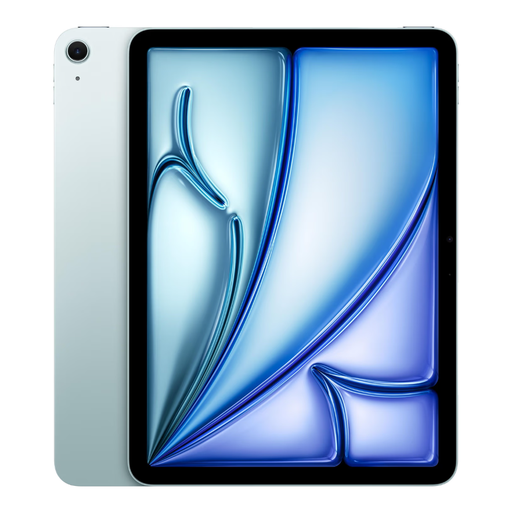
Apple 11-inch iPad Air (M4), Wi-Fi, 128 GB, blue
An 11-inch option to compare with your own scans if you’d also like to add notes.
The product name lists Wi-Fi and 128 GB of storage. The description mentions compatibility with Apple Pencil Pro and Apple Pencil USB-C; check which stylus suits the way you’ll use it.
View at Joybuy
 No image available
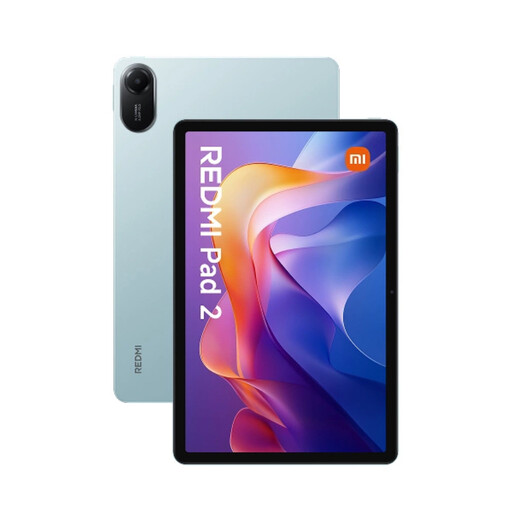
Xiaomi Redmi Pad 2, 4 GB/128 GB, Wi-Fi, green
Compare this version with a representative scan if you’re looking for a tablet around 11 inches.
The product name lists 4 GB/128 GB and Wi-Fi. The description mentions support for compatible styluses; check whether the stylus you want is included with this version.
View at Joybuy
 No image available
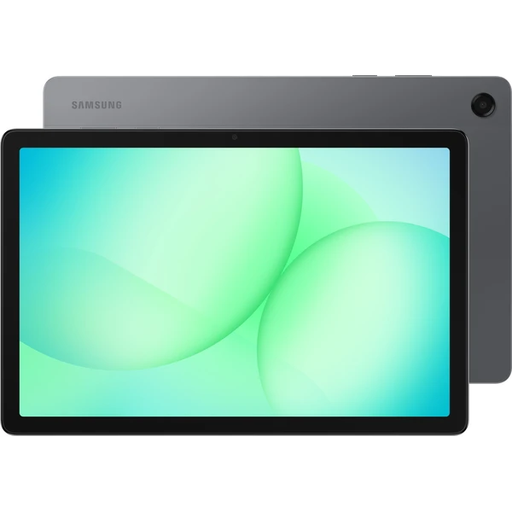
Samsung Galaxy Tab A11 Plus, 11 inch, 128 GB, Wi-Fi, grey
An 11-inch option to try with your own letter scan if screen space matters to you.
The product name lists 128 GB of storage and Wi-Fi.
View at Joybuy
Frequently asked questions
Why can’t I always search the text in an old letter scan?
A scan is an image of the document, so it isn’t automatically searchable text. The Utrecht Archives describes transcriptions as typed versions of handwritten documents. Check whether the collection offers one before assuming you can search the scan.
How do I set up an iPad for reading in the evening?
According to Apple Support, you can adjust the brightness and use features such as Dark Mode or Night Shift. Also check how the document appears in the archive viewer itself, as a system setting may not change the light background of a letter scan.
What are my rights when I buy a tablet online?
According to the Dutch Government, when you buy something remotely, the seller must provide information including details of the cooling-off period, which is usually 14 days. If there’s a problem with a product you’ve bought, the seller is your point of contact for the statutory guarantee. Check the terms that apply to your purchase.
Can I download and share historical letter scans?
That depends on the rights information for the specific scan. The National Archives links free reuse on its website to both a download button and the designation ‘Public domain’ or ‘CC0’. The Dutch Government distinguishes between making a copy for your own use and distributing or making protected material available to the public. Check the collection’s terms before sharing a scan.


