
Plan reader working with detailed maps
You want to view legends and small labels on colour harbour plans, and weigh up extra screen space against portability. The Consumentenbond notes that extra-large tablets are less easy to carry around.


A larger screen can give you more room for a harbour plan and its legend, but screen size alone doesn’t guarantee that details will be easy to read. Test your own files in the window layout you plan to use. Choose iPadOS or Android if the apps you need work on that platform. Consider a Windows 2-in-1 only if the specific course software and any required drivers work on the exact model. Apple lists the 13-inch iPad Air Wi-Fi at 616 grams, compared with 464 grams for the 11-inch version; the Consumentenbond notes that extra-large tablets are less easy to carry around.
You want to view legends and small labels on colour harbour plans, and weigh up extra screen space against portability. The Consumentenbond notes that extra-large tablets are less easy to carry around.
You switch between a plan, its notes and other references, or want to view them all at once. Apple Support describes Apps in Windows for iPads running iPadOS 26 or later; Samsung lists multitasking for the Galaxy Tab S10 FE series. Check your preferred layout with the apps you use.
You need to check that the required design app works with your chosen operating system and processor. Autodesk describes DWG access on web and mobile; Microsoft describes emulation for x86 and x64 apps on Windows devices with Arm processors. Check the specific app and any required drivers separately.
Start by checking how clearly you can read your own plan and whether the window layout works for you. Then consider which screen size, stylus and software will suit it.
| What to consider | What to look for | Who is this important for? |
|---|---|---|
| Readability of plans and legends | Open one of your own plans on the screen size you’re considering and compare the legend and small labels. | If I read plans with detailed legends, I want to view the details without having to zoom in all the time. Around 28% of consumers give readability of plans and legends their highest priority. |
| Using multiple references at once | Try the required apps side by side and check that the content remains readable when resized. | When I compare a plan with its notes, I want to be able to view the documents in a practical layout. Around 28% of consumers put viewing references at the same time at the top of their list. |
| Annotating and taking notes | Check stylus compatibility, what’s included in the box, and whether your document app saves and reopens annotations. | When I make notes on drawings, I want to know that the stylus and app work together and that my notes are saved. Around 17% of consumers give annotating and writing their highest priority. |
| Required design software | Check the app name, version and licence, as well as any processor or driver requirements for the exact model. | If my course specifies a particular design app, I need to check that it works on my chosen device before screen size or stylus becomes a deciding factor. Around 16% of consumers give compatibility with required software their highest priority. |
| Portability and complete set-up | Compare the weight of the exact version and check which accessories are included in the bundle. | When I carry my tablet and study materials with me every day, I want to know how the complete set feels to carry. Around 11% of consumers give portability their highest priority. |
A larger screen gives you more room, but that alone doesn’t tell you whether small labels on your plan will be easy to read, especially if you also want to display references.
Test one of your own plans and its legend on the screen, using the window layout you actually plan to use.
Stylus support and the accessories included in the box vary by model and version. The stylus also needs to work with your tablet and document app.
Check compatibility and box contents for the exact version or bundle, not just the series name.
A stylus or keyboard may need to be bought and carried separately.
What a web or mobile app can do doesn’t prove that it has all the features you need for your course’s desktop workflow. If you’re using Windows on Arm, you should also check the specific app and any required drivers.
Find out which app, version, features and licence you need, then check that combination on the exact device.
You may need a different software licence or device for the required workflow.
The iPad Air comes in 11- and 13-inch versions, for those using iPadOS apps and weighing up screen space against portability.
The Galaxy Tab S10 FE and FE+ are options if you’re considering an Android tablet with a 10.9- or 13.1-inch screen respectively.
The Idea Tab Pro Gen 2 is worth considering if you’re looking for a large Android screen and want to compare a specific stylus bundle.
The Surface Pro is a Windows 2-in-1 for those who need Windows software that’s been confirmed to work.
This selection of Joybuy tablets includes models with screen space for plans and study references, including versions supplied with a stylus. For your own files, check the window layout you need, app compatibility and accessories included with the exact version.
 No image available
A tablet with a stylus for viewing and annotating plans. Check that the apps and files you need work on the version you choose.
12.1-inch screen, 2.5K, 8 GB RAM and 256 GB storage. The product description says a Lenovo Pen is included.
 No image available
The 13-inch version gives you room for plans and references. Check that your chosen apps support the window layout you need.
Wi-Fi and 128 GB storage. According to the product description, Apple Pencil and Magic Keyboard are sold separately.
 No image available
A large screen may suit viewing plans. Test your own files and check that the apps you need work on this version.
13.4-inch screen, Android 16, 128 GB storage and a folio case, according to the product name. The product name also lists Dual SIM 4G and Wi-Fi 5G.
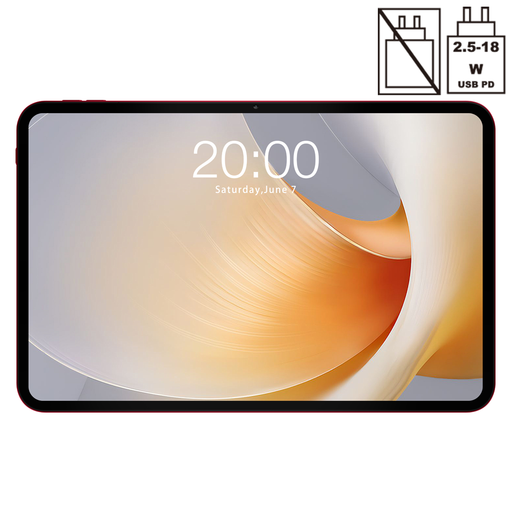 No image available
The 13.4-inch version is worth comparing with your plan and references. Check the apps you need and your stylus requirements before buying.
The product name lists an MTK G99 processor, Dual SIM 4G LTE + 5G Wi-Fi and 256 GB storage.
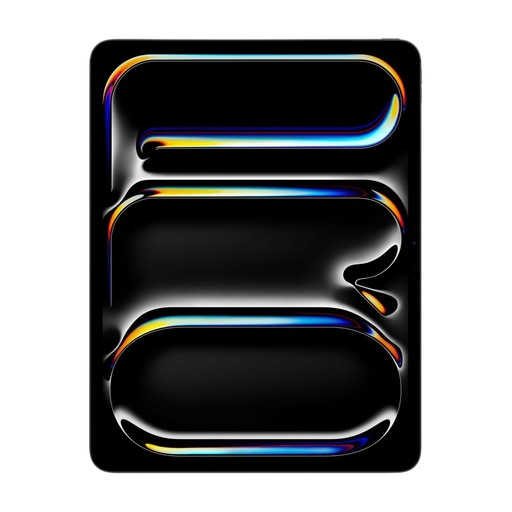 No image available
If you want to view and annotate plans, check that your chosen apps and files on iPadOS meet your study requirements.
The product description lists a 13-inch screen with a resolution of 2752 × 2064 and Apple Pencil support. Apple Pencil and Magic Keyboard are sold separately.
No. A larger screen doesn’t guarantee that small labels will be easy to read. Test one of your own plans, its legend and your references in the layout you want to use. The Consumentenbond also notes that extra-large tablets are less easy to carry around.
Open a representative plan and the reference apps you need at the same time, then check whether the content remains readable. Apple Support describes Apps in Windows for iPads running iPadOS 26 or later. Also check that your apps and files support the workflow you want.
Only if the features required by your course are available on that tablet. Autodesk describes DWG access through AutoCAD Web and mobile, but that doesn’t confirm that every desktop feature is available. Check the specific app, licence and any required drivers on the device you choose too.
Check that the stylus works with the exact tablet version, whether it’s included in your chosen bundle, and whether your document app saves and reopens annotations. Stylus support alone doesn’t tell you which accessories are included.